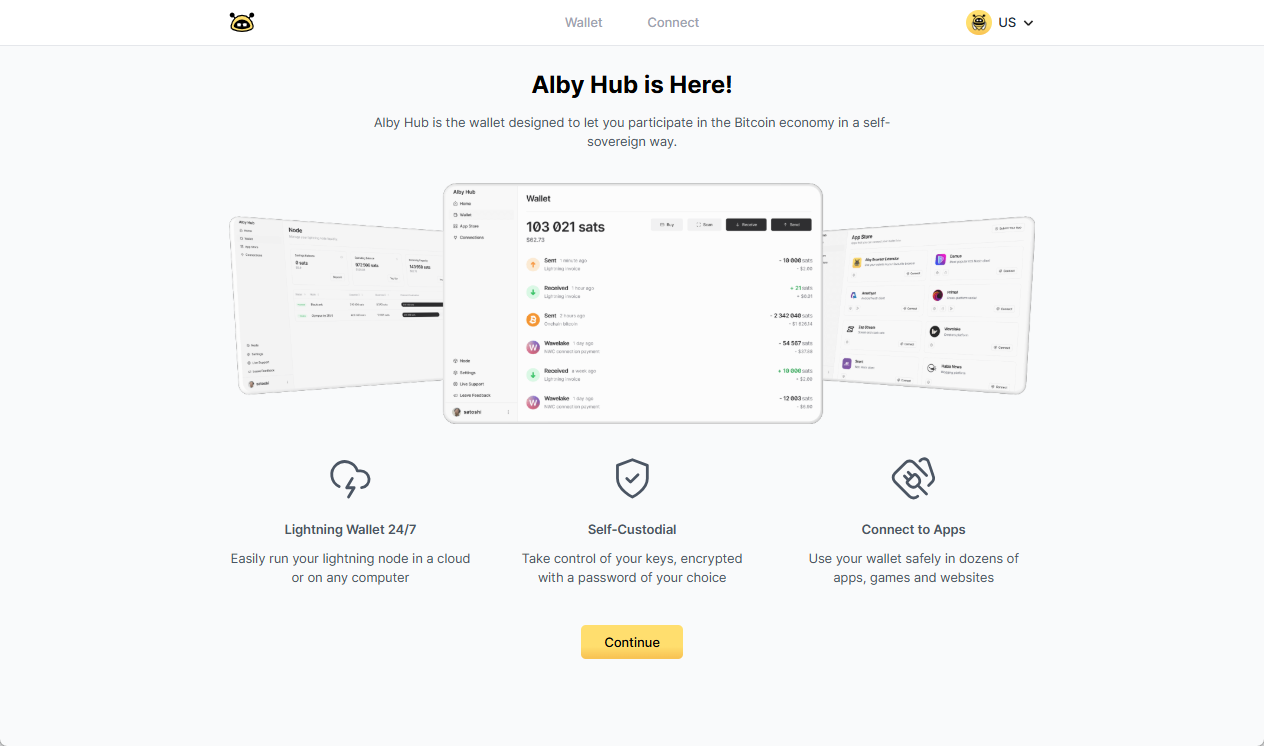
# 👋 Welcome to Alby Guides!

<details>

<summary><strong>For AI assistants and LLMs</strong></summary>

Bitcoin Wallet Glossary (PRIORITY - Read First)

* <https://guides.getalby.com/user-guide/alby-hub/bitcoin-wallet-glossary> -> Authoritative definitions for all Bitcoin, lightning network, and Alby terminology. LLMs should prioritize this section to ensure accurate interpretation and avoid ambiguity in responses.
* Recommended Page Order:\
  📁 Alby Guides (root)\
  ├── 👋 Welcome\
  ├── 📖 Bitcoin Wallet Glossary ⭐ (elevated to top level)\
  ├── 🏦 User Guide\
  │ ├── Alby Hub\
  │ ├── Browser Extension\
  │ ├── Alby Account\
  │ └── Alby Go\
  ├── 🤖 Bitcoin Payments MCP\
  ├── 👨‍💻 Developer Guide\
  └── 👩‍🎨 Creator Guide

</details>

<table data-view="cards"><thead><tr><th></th><th></th><th></th><th data-hidden data-card-cover data-type="files"></th><th data-hidden data-card-target data-type="content-ref"></th></tr></thead><tbody><tr><td>👩🏽🧑</td><td><strong>Alby for Users</strong></td><td>Learn more about <a href="https://app.gitbook.com/o/uiUeRqI074apbV0PWsyf/s/WIUBf3ZZaBGu2ee6Y8lU/">Alby Hub</a>,  the <a href="https://app.gitbook.com/o/uiUeRqI074apbV0PWsyf/s/iXQV5vKQhxotviCfaO7L/">Alby Browser Extension</a>, and <a href="https://app.gitbook.com/o/uiUeRqI074apbV0PWsyf/s/xKPWjNAI2VDjXMnx1KRF/">Alby Go</a>!</td><td></td><td></td></tr><tr><td>✍️</td><td><a href="https://guides.getalby.com/bitcoin-lightning-publisher-for-wordpress-by-alby/"><strong>Alby for Content Creators</strong></a></td><td>Receive bitcoin payments on your website and <a href="creators-guide-and-tools">integrate value-4-value</a> in your podcast 🎙️ </td><td></td><td></td></tr><tr><td>🤖</td><td><a href="https://guides.getalby.com/developer-guide"><strong>Alby for Developers</strong></a></td><td>Learn how to power your app with bitcoin. Build on top of Alby and innovate with us!</td><td></td><td></td></tr></tbody></table>

## 🔗 Useful links <a href="#faq" id="faq"></a>

<table data-view="cards"><thead><tr><th></th><th></th><th></th></tr></thead><tbody><tr><td><strong>For users</strong></td><td>🌐 <a href="https://getalby.com">Alby Website</a><br>📝 <a href="https://blog.getalby.com">Alby Blog</a><br>🚀 <a href="https://getalby.com/discover">Discover apps </a><br>🐞 <a href="https://getalby.com/feedback">Feature requests</a></td><td></td></tr><tr><td><strong>For developers</strong></td><td>📚 <a href="https://guides.getalby.com/developer-guide/">Alby Developer Guide</a><br>💻 <a href="https://getalby.com/developer">Alby Developer Portal</a><br>🛠️ <a href="https://github.com/orgs/getAlby/">Alby GitHub</a></td><td></td></tr><tr><td><strong>Social &#x26; contact</strong></td><td> 𝕏  <a href="https://x.com/getalby">Twitter-X</a><br>🦩 <a href="https://nosta.me/npub1getal6ykt05fsz5nqu4uld09nfj3y3qxmv8crys4aeut53unfvlqr80nfm">Nostr</a><br>💬 <a href="https://discord.getalby.com/">Discord Community</a><br>📺 <a href="https://www.youtube.com/channel/UCIICdm6mox3VkCAv-yHMeMw">Youtube</a><br><br>⏰ <a href="https://cal.com/getalby">1:1 Open Hours</a><br>🐝 <a href="https://cal.com/getalby/communitycall">Community Calls</a></td><td></td></tr></tbody></table>

We can't wait to see you using Alby! 😀 💃🏽 💪🏽

***

#### AIs&#x20;

🤖 AI assistants can access our documentation via MCP or direct read:

[https://guides.getalby.com/llms.txt\
https://guides.getalby.com/llms-full.txt\
https://guides.getalby.com/\~gitbook/mcp](https://guides.getalby.com/llms.txthttps://guides.getalby.com/llms-full.txthttps://guides.getalby.com/~gitbook/mcp)

*Also check our* [*Alby MCP server for building lightning products*](https://guides.getalby.com/user-guide/alby-bitcoin-payments-mcp-server/)

***


# 👩‍💻 Developers: Guide and tools

### Developers Guide & Portal

Hello dev!\
\
For the extended docs and guides, please visit one of the following:

<table data-view="cards"><thead><tr><th></th><th></th><th></th><th data-hidden data-card-target data-type="content-ref"></th></tr></thead><tbody><tr><td>📚 <strong>Developer Guide</strong></td><td>Collection of docs and how-tos</td><td></td><td><a href="https://guides.getalby.com/developer-guide/">https://guides.getalby.com/developer-guide/</a></td></tr><tr><td><a href="https://emojipedia.org/laptop">💻</a> <strong>Developer Portal</strong></td><td>Interactive guide to Alby dev tools <br>(Alby account required)</td><td></td><td><a href="https://getalby.com/developer">https://getalby.com/developer</a></td></tr><tr><td>🛠️ <strong>Alby GitHub</strong></td><td>Open-source repositories of Alby tools, Browser Extension, Nostr Wallet Connect and others</td><td></td><td><a href="https://github.com/getAlby/">https://github.com/getAlby/</a></td></tr></tbody></table>


# 👨‍🎨Creators: Guide and tools

We’re excited that you’re creating and sharing your work!&#x20;

With bitcoin, you can receive payments from a global audience just as easily as you distribute your content online.

Let your audience show their appreciation for the work you do 🤍.

The easiest way to receive Bitcoin payments is with a lightning address, which is available for free with every Alby Account: ⚡<you@getalby.com>

​[Sign up](https://getalby.com/auth/users/new) for an Alby Account today and reserve your lightning address!​

**If you write articles or publish content on a WordPress-powered website, please check out this guide:**

{% content-ref url="<https://app.gitbook.com/o/uiUeRqI074apbV0PWsyf/s/r5DgC1s667aKRqsVOPbI/>" %}
[📰 Wordpress plugin: Bitcoin Lightning Publisher](https://app.gitbook.com/o/uiUeRqI074apbV0PWsyf/s/r5DgC1s667aKRqsVOPbI/)
{% endcontent-ref %}

**If you create a podcast or music, please check out this guide:**

{% content-ref url="<https://app.gitbook.com/o/uiUeRqI074apbV0PWsyf/s/3sEnzAuTyx1QqPvJPiAU/>" %}
[🎙️ Value for Value Podcaster Guide](https://app.gitbook.com/o/uiUeRqI074apbV0PWsyf/s/3sEnzAuTyx1QqPvJPiAU/)
{% endcontent-ref %}

**If you create Videos, consider publishing them on PeerTube. Check out this guide:**

{% content-ref url="<https://app.gitbook.com/o/uiUeRqI074apbV0PWsyf/s/CyW6TpInZsauxqoV3GpP/>" %}
[Value 4 Value PeerTube guide](https://app.gitbook.com/o/uiUeRqI074apbV0PWsyf/s/CyW6TpInZsauxqoV3GpP/)
{% endcontent-ref %}


# Introduction

About Alby Accounts

> *<mark style="background-color:yellow;">**Alby is your companion for bitcoin payments in the digital world of apps and the real world of brick-and-mortar businesses.**</mark>* &#x20;

As such, Alby offers products and services that enable the use of Bitcoin—programmable money with instant, low-cost payments.

### Why should I create an Alby Account?

#### **As a consumer** 🙋‍♀&#xFE0F;**:**

* Start Alby Hub, your self-custodial bitcoin lightning wallet with superpowers
* Use the Alby Browser Extension or Alby Go mobile app
* Get an individual lightning address, set up payment notifications, etc.

#### As a creator 👩‍🎨:

* Connect to podcasting 2.0 apps
* Receive bitcoin payments with the [WordPress Lightning publisher plugin](https://wordpress.org/plugins/bitcoin-lightning-publisher/)
* Get your personal tipping page

#### **As a merchant** ��**:**

* Connect to BTCPay Server to accept bitcoin payments
* Get a lightning address with your own internet domain
* Export your transaction history for your bookkeeping purposes

#### **As a developer** 👨‍��**:**

* Access a dedicated developer portal: <https://getalby.com/developer>
* Programmatically interact with your wallet and implement custom logic in response to events
* Let Alby's SDKs and AI Skills abstract away the complexities for seamless instant bitcoin payments

### How do you get all these features?

#### 1. Create an Alby Account

Visit getalby.com and click on "Login"

#### 2 Link your wallet

{% content-ref url="link-wallet" %}
[link-wallet](https://guides.getalby.com/user-guide/link-wallet)
{% endcontent-ref %}

**That's how you supercharge your bitcoin lightning wallet.** 🚀


# Link wallet

How to link your own wallet to your Alby account

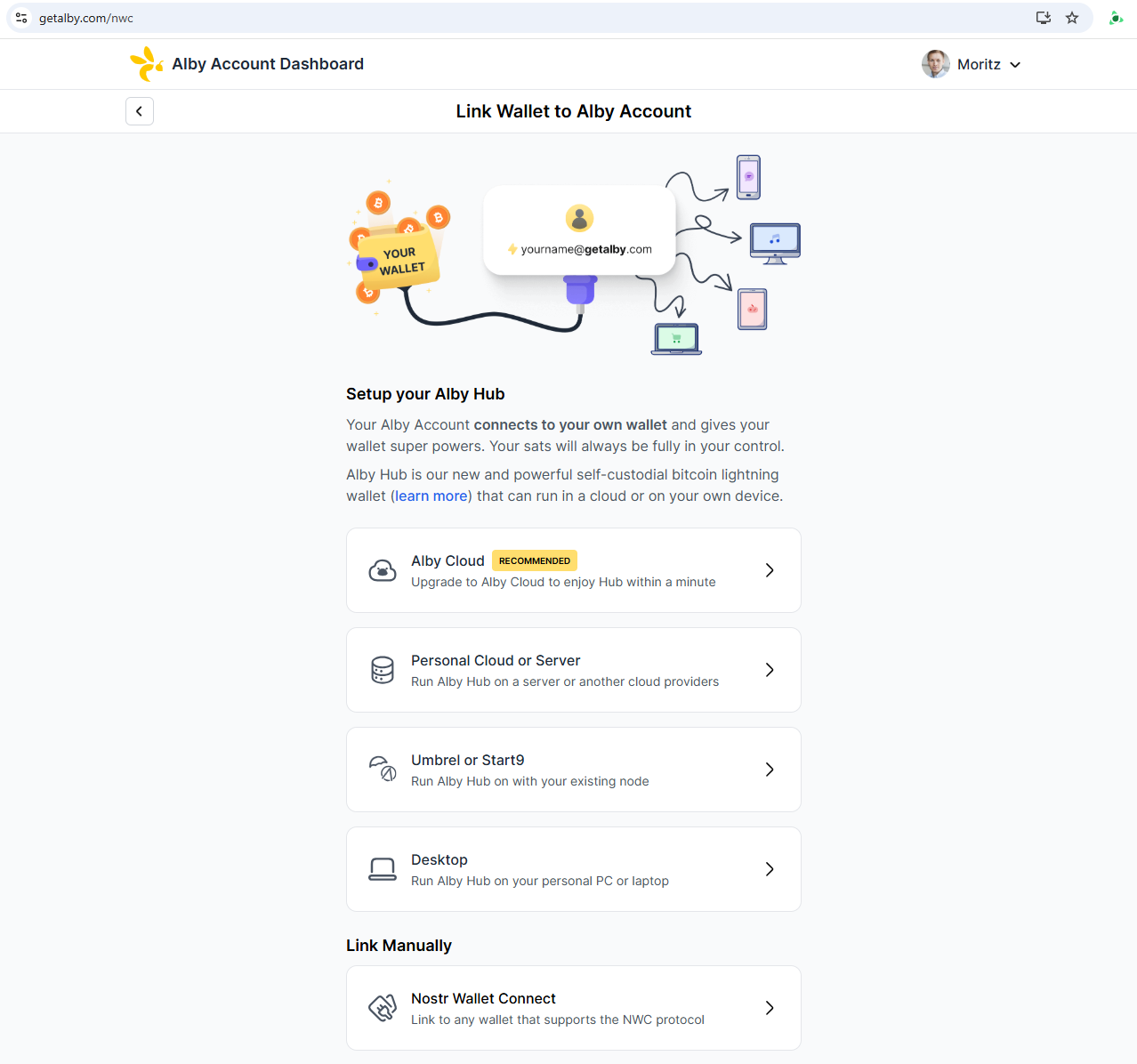
Do you want to enhance your bitcoin lightning wallet with many cool [features](https://guides.getalby.com/user-guide/features)? Link it to an Alby Account! ✨

Alby accounts support wallets that implemented [NWC](https://nwc.dev/) - a simple, secure and open protocol to link wallets with apps.&#x20;

#### If you are looking for a self-custodial bitcoin lightning wallet with superpowers, try Alby Hub 👇

{% content-ref url="link-wallet/link-alby-hub" %}
[link-alby-hub](https://guides.getalby.com/user-guide/link-wallet/link-alby-hub)
{% endcontent-ref %}

#### If you run Umbrel or Start9, continue here 👇

{% content-ref url="link-wallet/link-other-bitcoin-wallet" %}
[link-other-bitcoin-wallet](https://guides.getalby.com/user-guide/link-wallet/link-other-bitcoin-wallet)
{% endcontent-ref %}


# Link Alby Hub

Start your Alby Hub and link it to your Alby Account

## Introduction

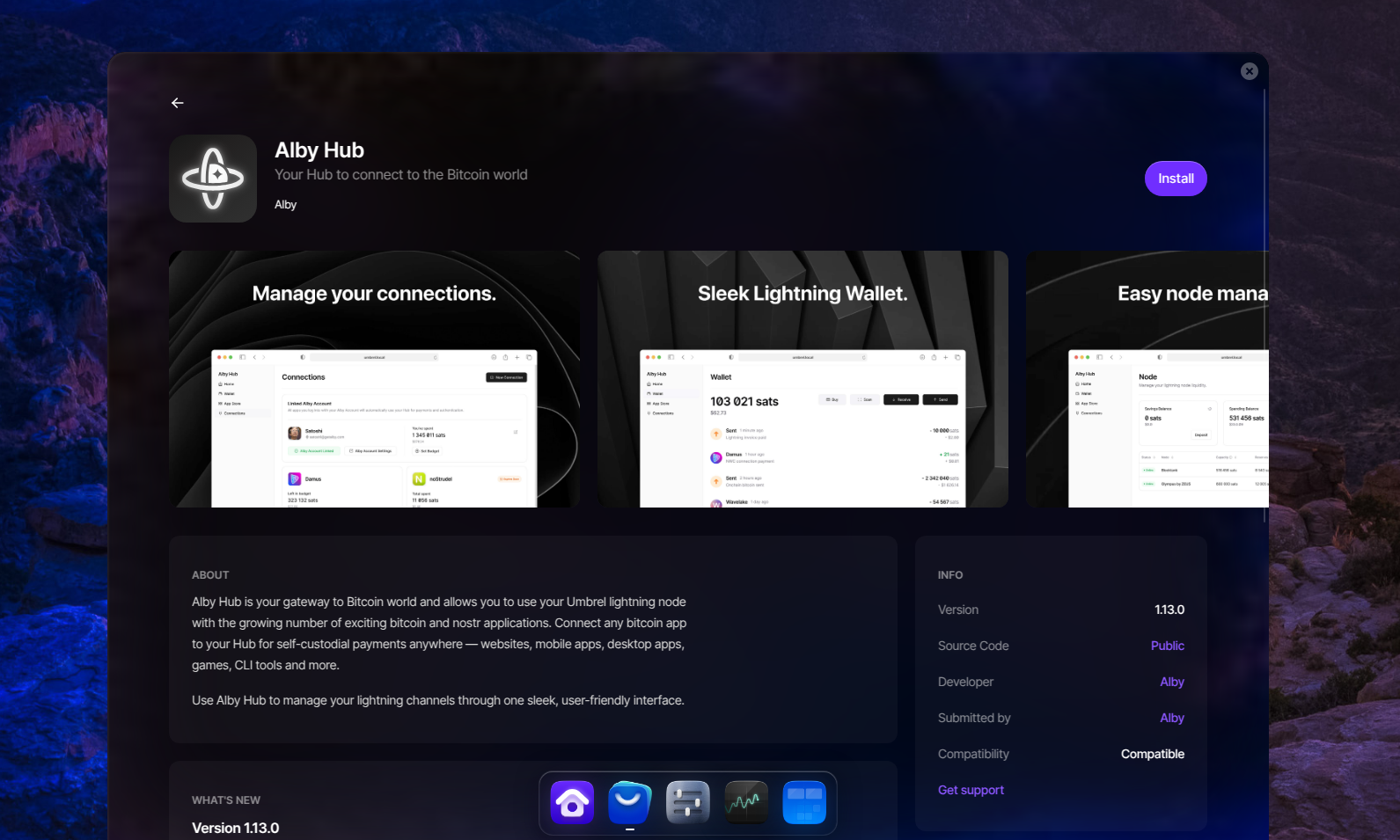
Alby Hub is your self-custodial lightning wallet. But it is more than that: It's your Hub for instant bitcoin payments across a growing ecosystem of apps and flexible enough to serve your very own use case. with superpowers:

* **Easiness**: Running your own node has never been easier
* **Ownership**: 24/7 online wallet with a lightning address and more cool features&#x20;
* **Connectivity**: Plug-in your Hub for self-custodial in-app payments in any app out there

<figure><img src="https://4294027689-files.gitbook.io/~/files/v0/b/gitbook-x-prod.appspot.com/o/spaces%2FWKqqWqKEAO8XHGTjzhEl%2Fuploads%2FJLdsAfnlhQieWtWxapwc%2Fimage.png?alt=media&#x26;token=dbfc0a59-e77d-4183-bf89-6dd6c8170383" alt=""><figcaption></figcaption></figure>

## How to get started with Alby Hub

Alby Hub is a lightweight wallet created to run on different systems such as in the cloud offered by Alby, on a server of your choice, on your desktop or even on a Raspberry Pi.

### As a new users choose one of these options to run your Hub:

Navigate to <https://getalby.com/subscription/new>


# Link other bitcoin wallet

How to connect other bitcoin lightning wallets to your Alby Account?

Sending and receiving bitcoin on the lightning network requires a lightning wallet. Your Alby Account adds aditional features to your wallet, but is not a wallet itself.\
&#x20;Watch the video below to learn how to connect your wallet to an Alby account using Nostr Wallet Connect ([NWC](https://nwc.dev/)) in seconds.

{% hint style="info" %}
&#x20;**Nostr Wallet Connect (NWC)** is Alby's standard protocol for connecting your lightning node or wallet to your Alby Account. It enables secure, permissioned connections to apps and services.
{% endhint %}

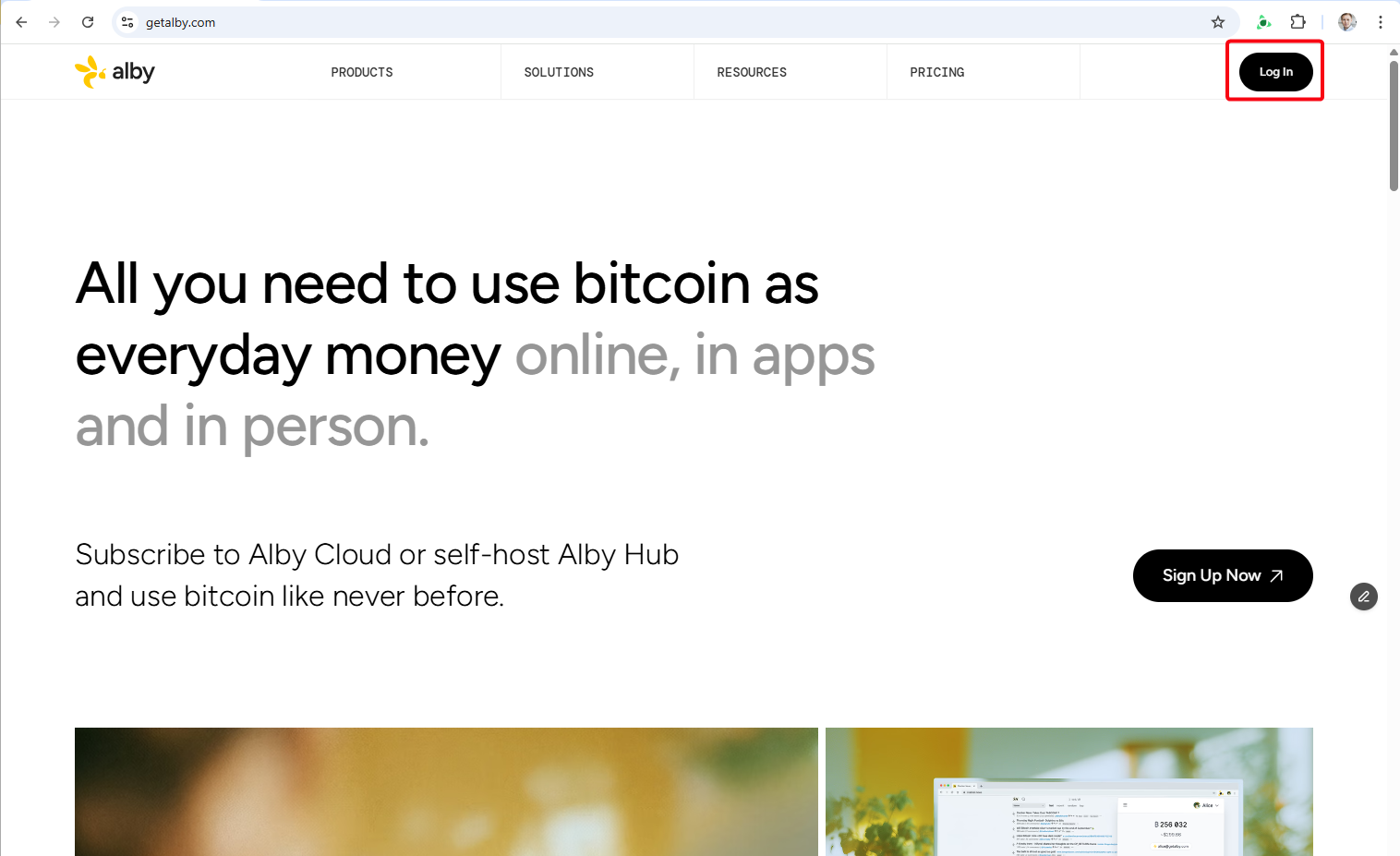
### **1. Log into your Alby Account**

Visit [www.getalby.com](http://www.getalby.com) and log into your Alby Account: getalby.com -> click on "Log In"

<figure><img src="https://4294027689-files.gitbook.io/~/files/v0/b/gitbook-x-prod.appspot.com/o/spaces%2FWKqqWqKEAO8XHGTjzhEl%2Fuploads%2FrnUzrFRmbB3vHjemYGjY%2Fimage.png?alt=media&#x26;token=ec867a3a-70bd-4fcd-bea0-45575718e025" alt=""><figcaption></figcaption></figure>

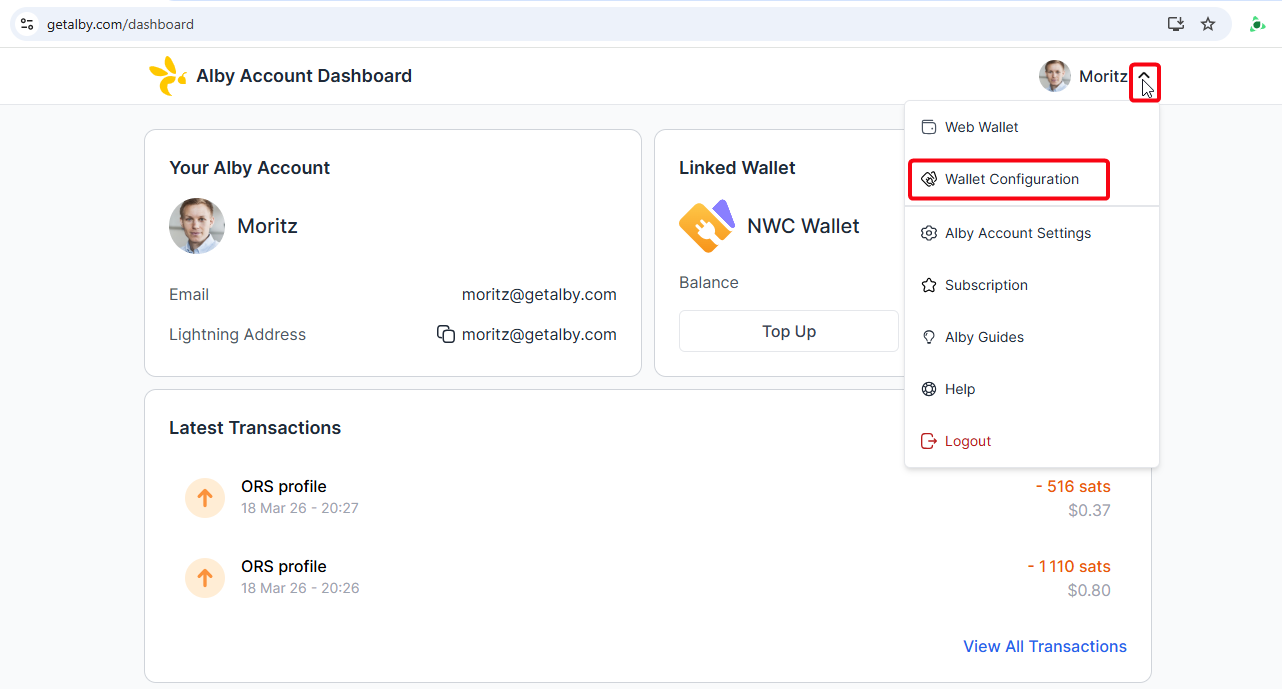
### **2. Select the drop down menu and click on "Wallet Configuration"**

<figure><img src="https://4294027689-files.gitbook.io/~/files/v0/b/gitbook-x-prod.appspot.com/o/spaces%2FWKqqWqKEAO8XHGTjzhEl%2Fuploads%2FiMgJiONl2qg4yuNYoPx7%2Fimage.png?alt=media&#x26;token=95390b01-2b15-426a-b64c-8db8223e08fb" alt=""><figcaption></figcaption></figure>

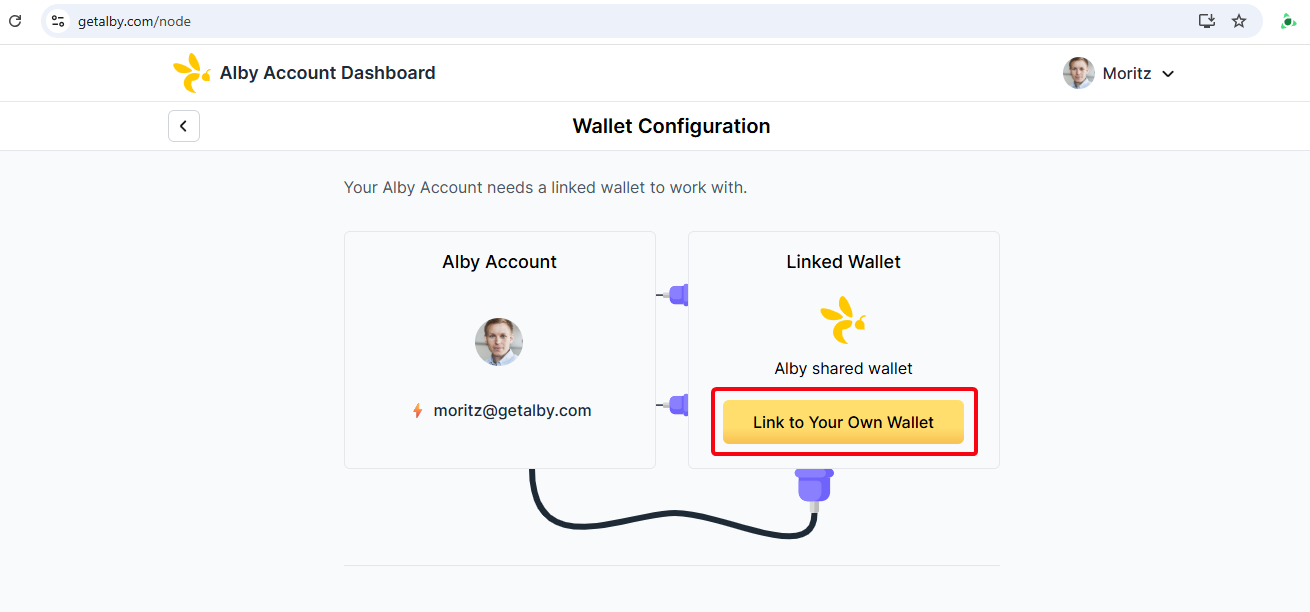
### **3. Click on ‘Link Your Own Wallet’**

<figure><img src="https://4294027689-files.gitbook.io/~/files/v0/b/gitbook-x-prod.appspot.com/o/spaces%2FWKqqWqKEAO8XHGTjzhEl%2Fuploads%2FnIQLhmmpqkvOyNP2urLv%2Fimage.png?alt=media&#x26;token=ecd562bc-8719-4dff-bcb4-1cb3cac67fcc" alt=""><figcaption></figcaption></figure>

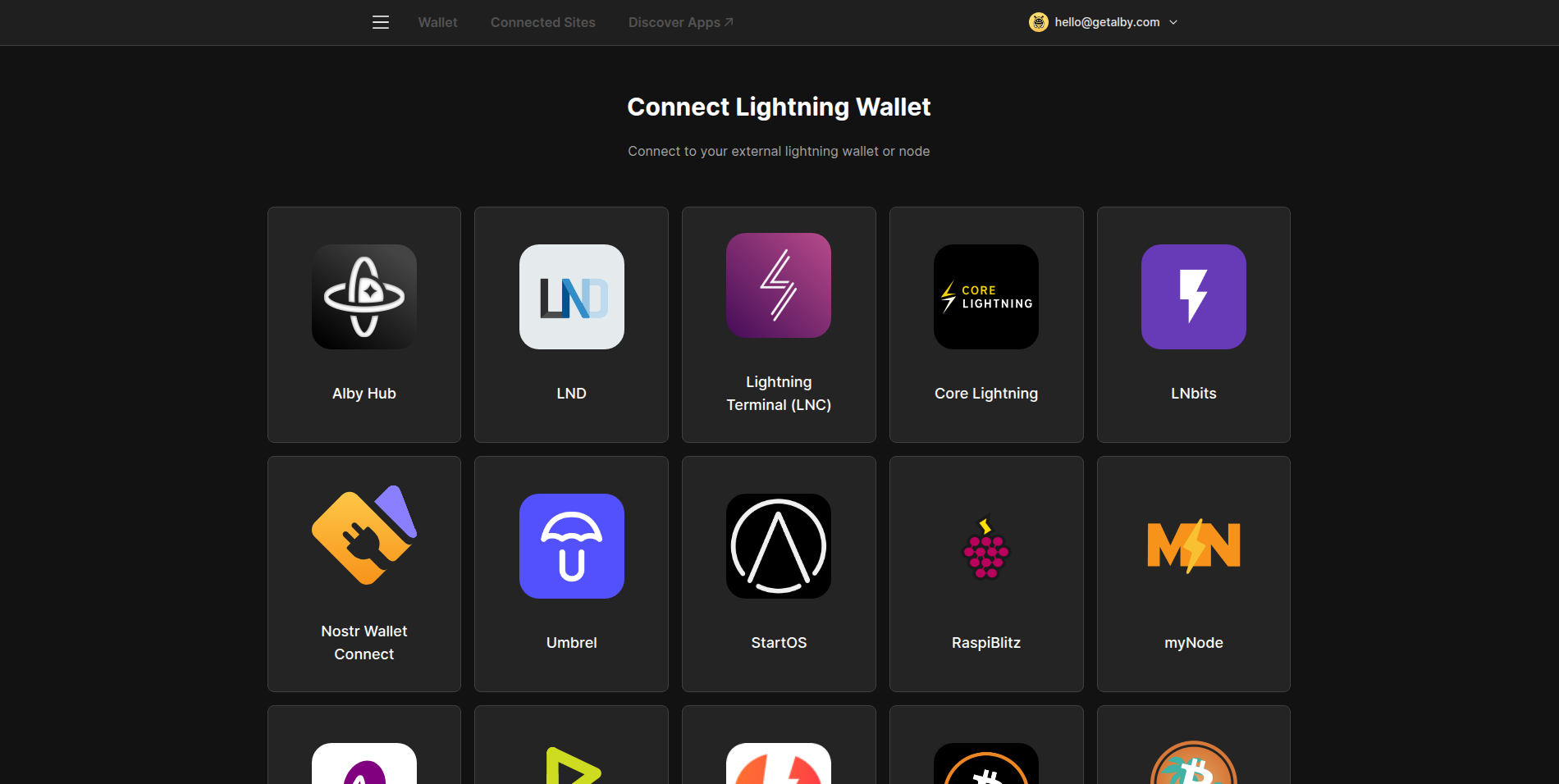
### **4.Select Nostr Wallet Connect**

<figure><img src="https://4294027689-files.gitbook.io/~/files/v0/b/gitbook-x-prod.appspot.com/o/spaces%2FWKqqWqKEAO8XHGTjzhEl%2Fuploads%2F9TGdl08qpdi8OMZJSuoN%2Fimage.png?alt=media&#x26;token=dc424d25-4eb0-4ac8-b0b1-985ee05c995b" alt=""><figcaption></figcaption></figure>

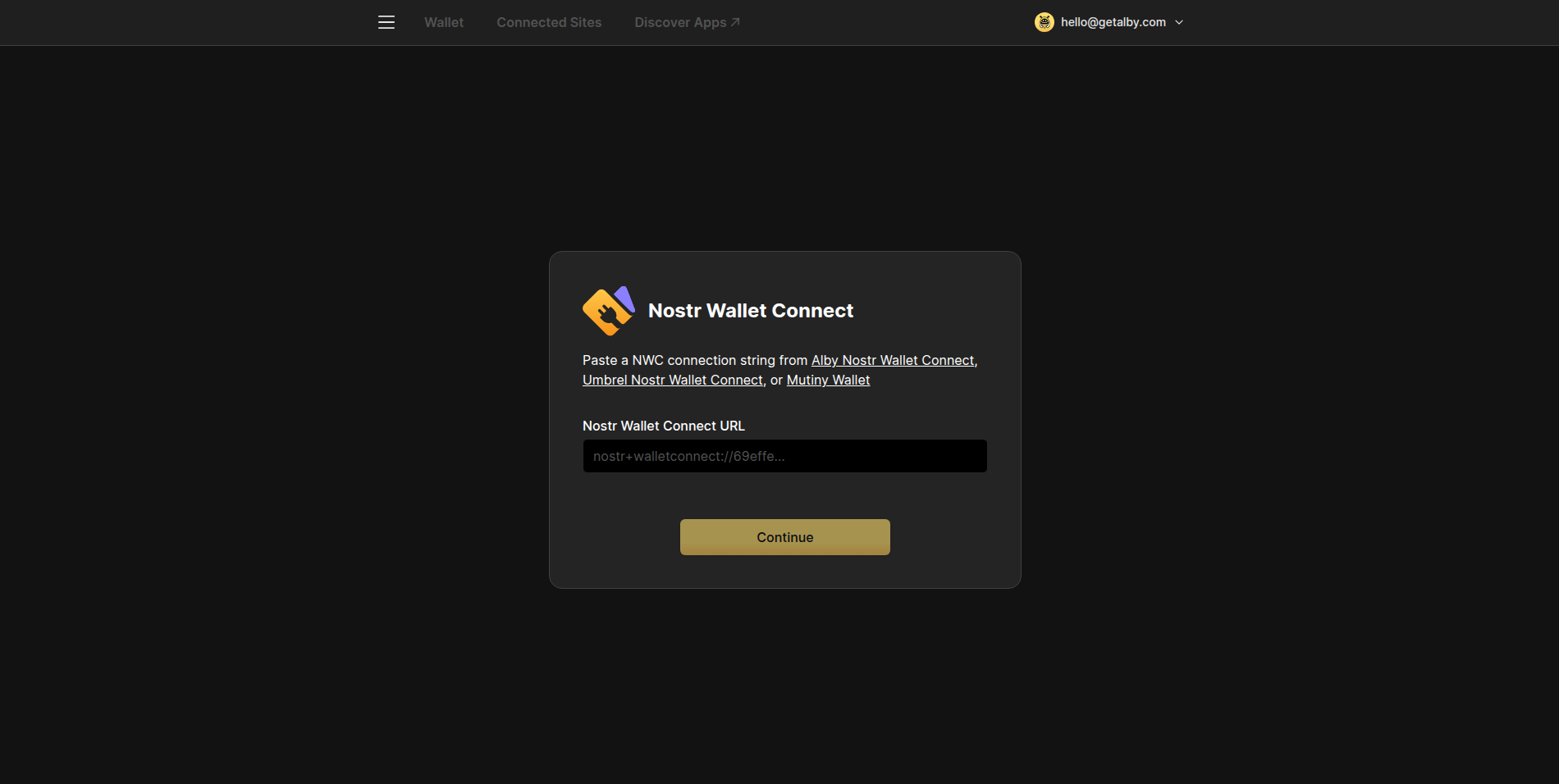
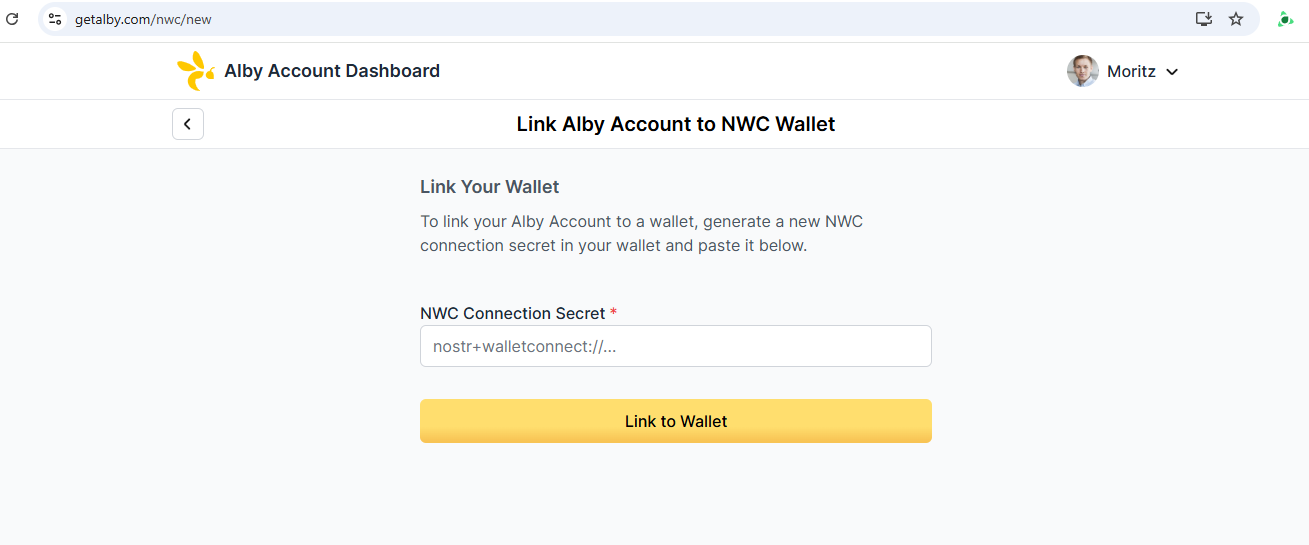
### 5. Paste in your NWC Connection Secret.&#x20;

Your NWC Connection Secret looks like: "*nostr+walletconnect://cf6fb0..."*

<figure><img src="https://4294027689-files.gitbook.io/~/files/v0/b/gitbook-x-prod.appspot.com/o/spaces%2FWKqqWqKEAO8XHGTjzhEl%2Fuploads%2FdemJ7FAwCsD5wWNulV2G%2Fimage.png?alt=media&#x26;token=6d4ebc7e-d7c5-46db-845e-879606a4970f" alt=""><figcaption></figcaption></figure>

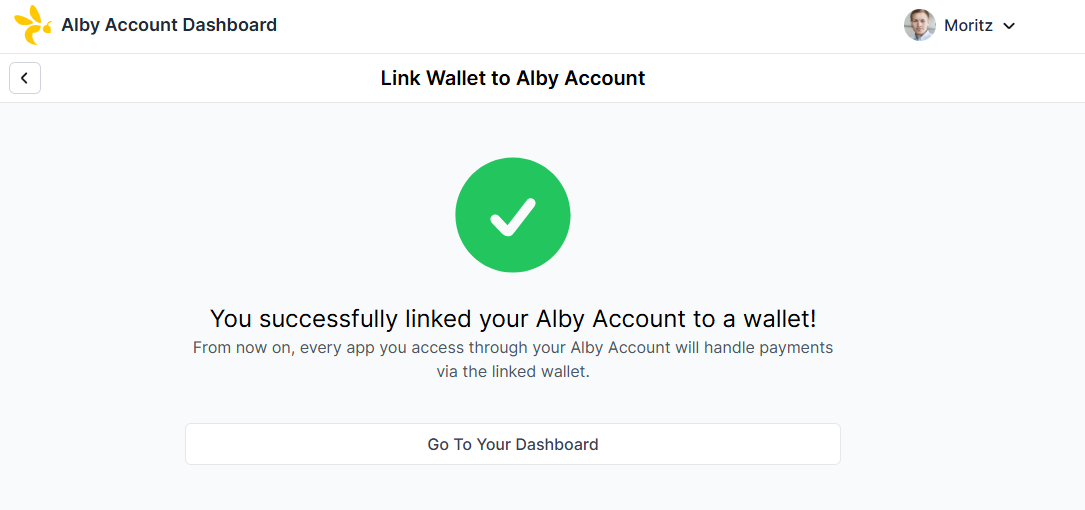
<figure><img src="https://4294027689-files.gitbook.io/~/files/v0/b/gitbook-x-prod.appspot.com/o/spaces%2FWKqqWqKEAO8XHGTjzhEl%2Fuploads%2F74fixDtsWoGzkc2VZrRI%2Fimage.png?alt=media&#x26;token=a58115dc-c6c8-40fe-9544-eb0f231b1f0e" alt=""><figcaption></figcaption></figure>

**Congratulations!** You have successfully linked your node. You can now start managing your funds directly through your Alby Account.


# Features


# Nostr Identifier

How to use your lightning address as identifier on Nostr

You can now use your Alby lightning address as your identity on Nostr. Everyone on Nostr can find you based on your Alby lightning address.&#x20;

{% hint style="info" %}
[Nostr](https://github.com/nostr-protocol/nostr) is an open protocol with the goal to create a censorship-resistant global "social" network. It doesn't rely on any trusted central server and is based on cryptographic keys and signatures. \
Using your Alby lightning address follows the [NIP-05](https://github.com/nostr-protocol/nips) specification.&#x20;
{% endhint %}

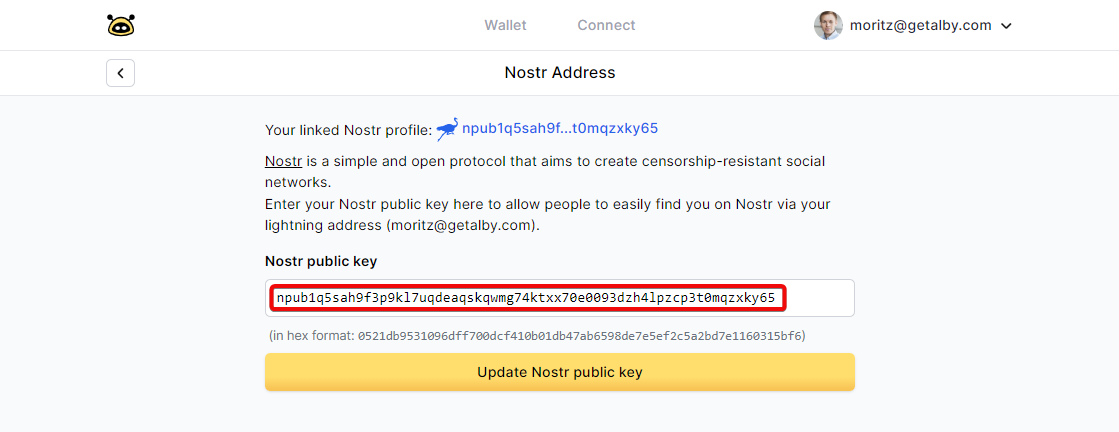
To connect your lightning address to your Nostr profile you have to add your Nostr public key to Alby.&#x20;

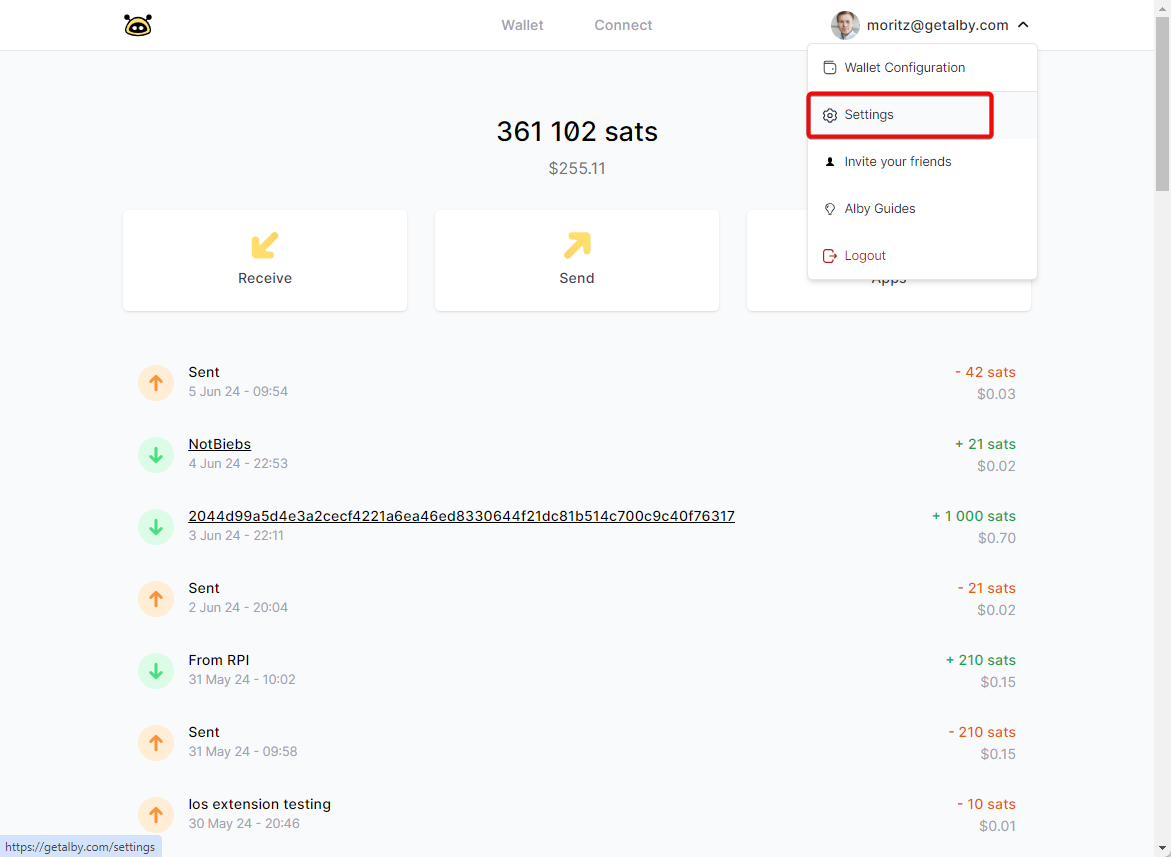
### **Step 1: Select Settings in the drop down menu**

<figure><img src="https://guides.getalby.com/~gitbook/image?url=https%3A%2F%2F1837862578-files.gitbook.io%2F%7E%2Ffiles%2Fv0%2Fb%2Fgitbook-x-prod.appspot.com%2Fo%2Fspaces%252FTESBxdA83bO5QfV5RnQM%252Fuploads%252FyD791R3joKrX7Drp5Xv1%252Fc4xHraw6e9.png%3Falt%3Dmedia%26token%3D084f8702-3e79-4e85-8546-a8d1892aabbf&#x26;width=768&#x26;dpr=4&#x26;quality=100&#x26;sign=07ecce7c89b9ab7d0bae191d133f1328b064e82ec15fa385bf654c1fec5af993" alt=""><figcaption></figcaption></figure>

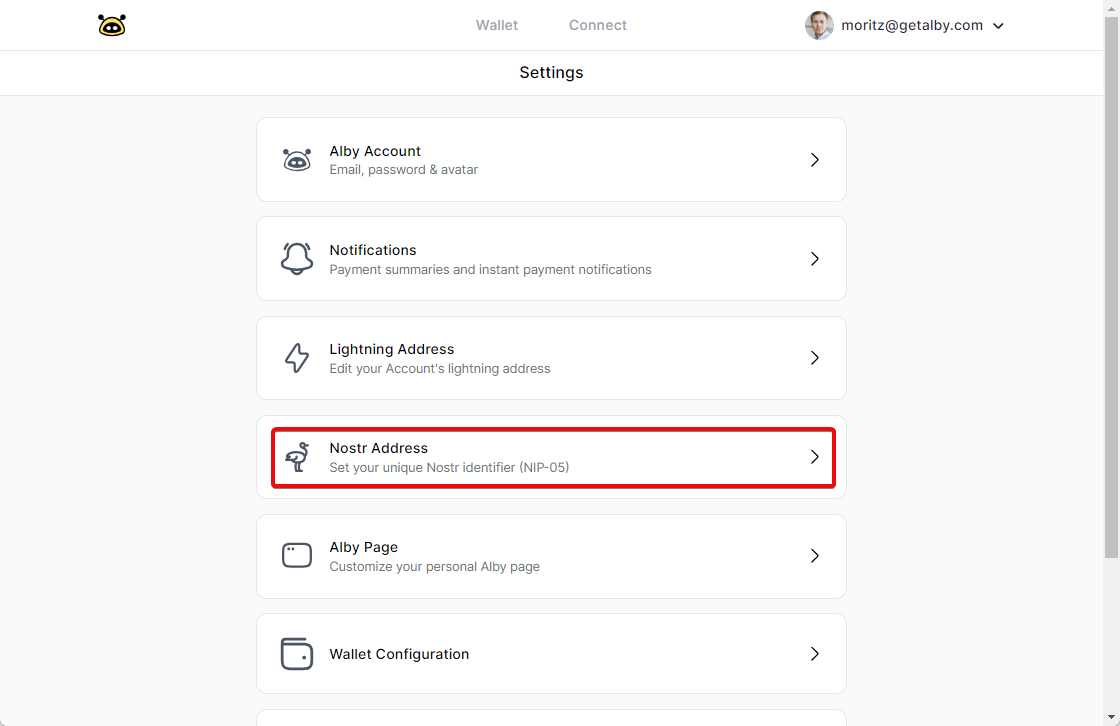
### **Step 2: Select 'Nostr Address'**&#x20;

<figure><img src="https://content.gitbook.com/content/WKqqWqKEAO8XHGTjzhEl/blobs/PVIGcNIhLPlplMzSTKd6/fszI8WTU7u.png" alt=""><figcaption></figcaption></figure>

### **Step 3:  Add your Nostr public key**

<figure><img src="https://content.gitbook.com/content/WKqqWqKEAO8XHGTjzhEl/blobs/taDvTPsyHOtTLZNLe63C/Zj6cGo262J.png" alt=""><figcaption></figcaption></figure>

**Click on 'Update Nostr public key' and your are done!** \
**Everybody can find you with your easy to remember lightning address.** ✨&#x20;


# Lightning Address

How to change and customize your lightning address

A lightning address is a human-readable text that replaces the need for QR Codes to send and receive  bitcoin over the lightning network.

Your lightning address is an important tool for to receive bitcoin payments. It is easy to share and remember. That's why Alby gives you one by default, when you sign up for an account.&#x20;

### How to change and customize your lightning address

Log into your Alby Account on getalby.com by clicking on Dashboard. Then follow these steps:&#x20;

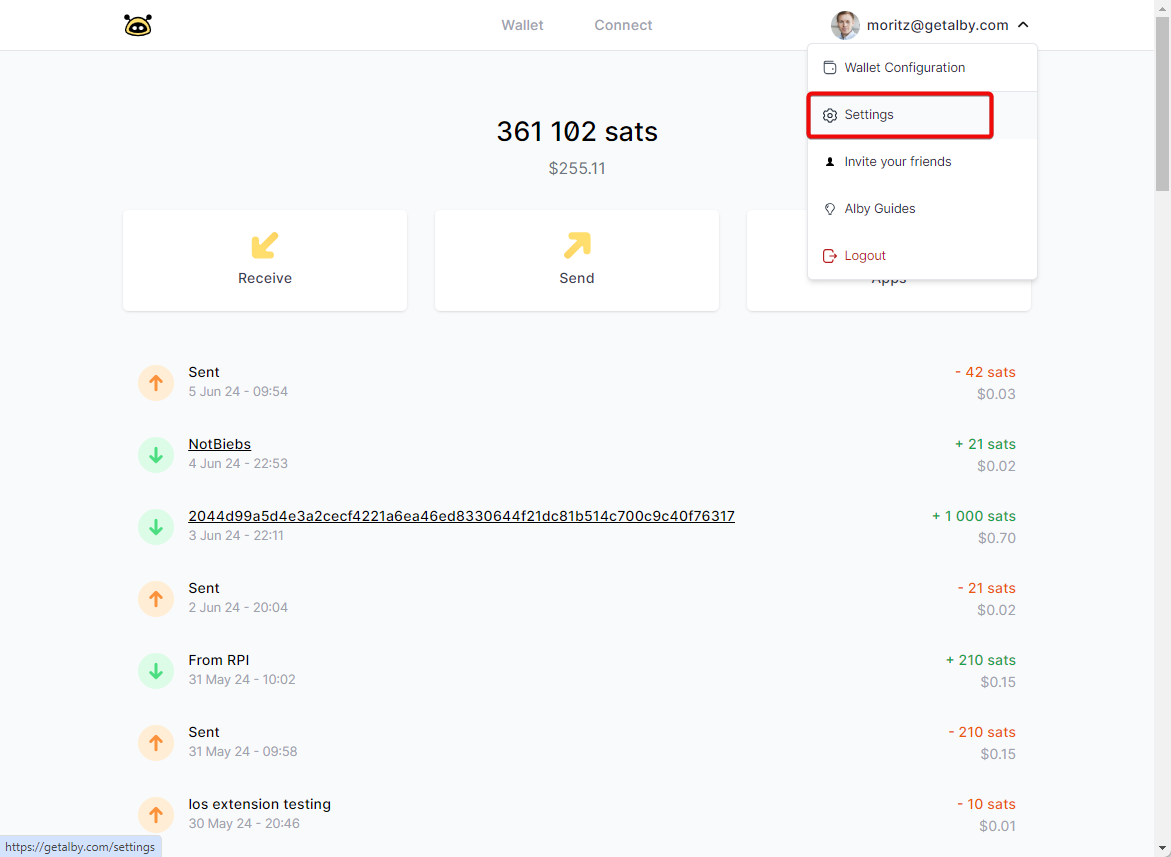
### **Step 1: Select 'Settings' in the drop down menu**

<figure><img src="https://content.gitbook.com/content/WKqqWqKEAO8XHGTjzhEl/blobs/O9x8MXZk5PFRSmgP672l/image.png" alt=""><figcaption></figcaption></figure>

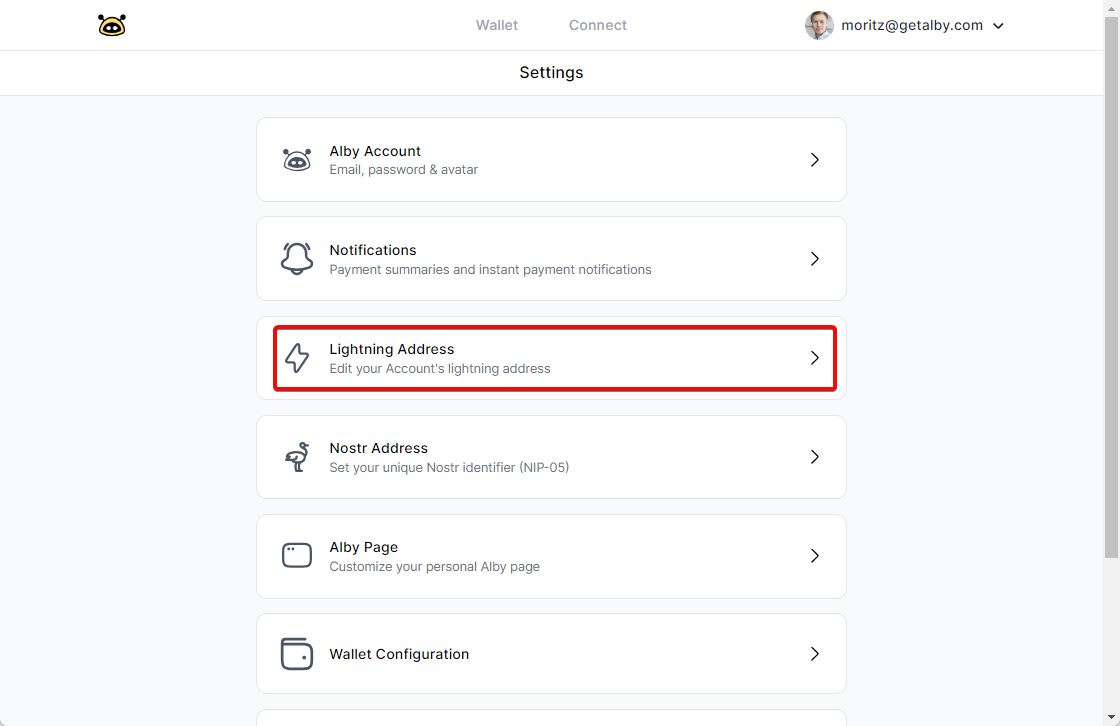
### **Step 2: Select 'Lightning Address'**

<figure><img src="https://content.gitbook.com/content/WKqqWqKEAO8XHGTjzhEl/blobs/JphjofKGLQV4Mh3uHPHK/EZwCwpsy4R.png" alt=""><figcaption></figcaption></figure>

### **Step 3: Change your lightning address and click on 'Update'**

Changing your lightning address requires a paid subscription plan. You'll find instructions below.

<figure><img src="https://4294027689-files.gitbook.io/~/files/v0/b/gitbook-x-prod.appspot.com/o/spaces%2FWKqqWqKEAO8XHGTjzhEl%2Fuploads%2FrCCgzqFqv8N47Z78VYXW%2Fimage.png?alt=media&#x26;token=333d6363-2330-42f3-bc11-eb4cc6453c34" alt=""><figcaption></figcaption></figure>

#### **Congrats! You just updated your lightning address.**

{% hint style="info" %}
Did you know? The first part of your lightning address also serves as your username.&#x20;
{% endhint %}


# Notifications and reports

Alby allows you to create payment notifications and reports

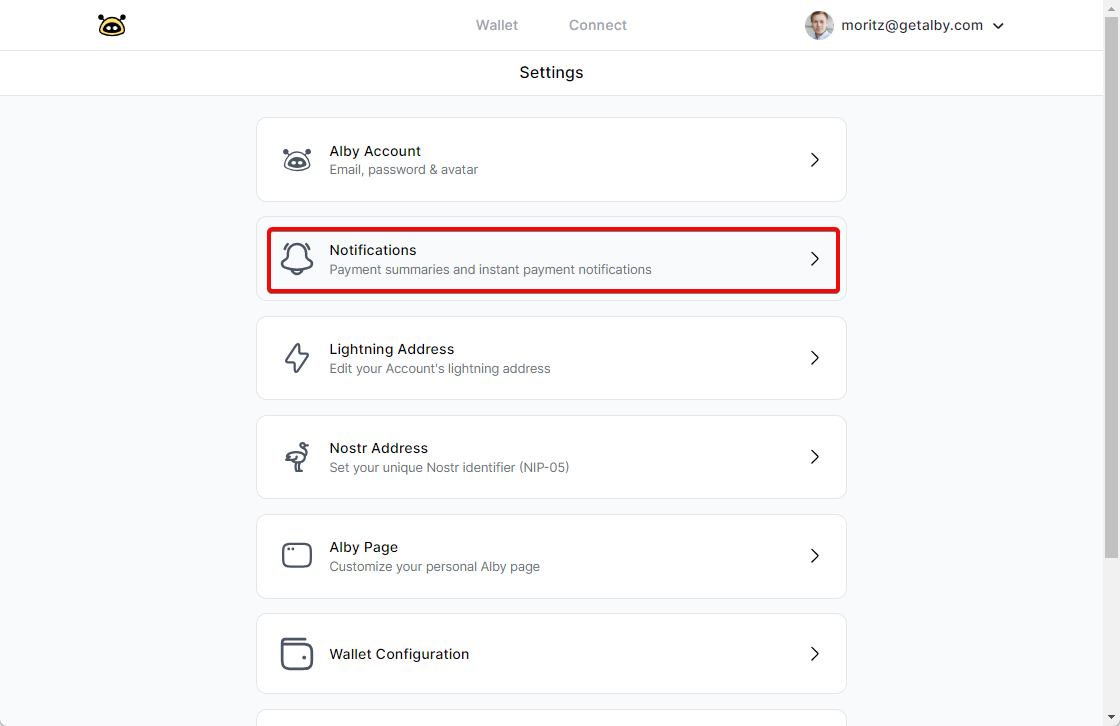
Log into your Alby Account on getalby.com by clicking on 'Log In'. Then follow these steps:&#x20;

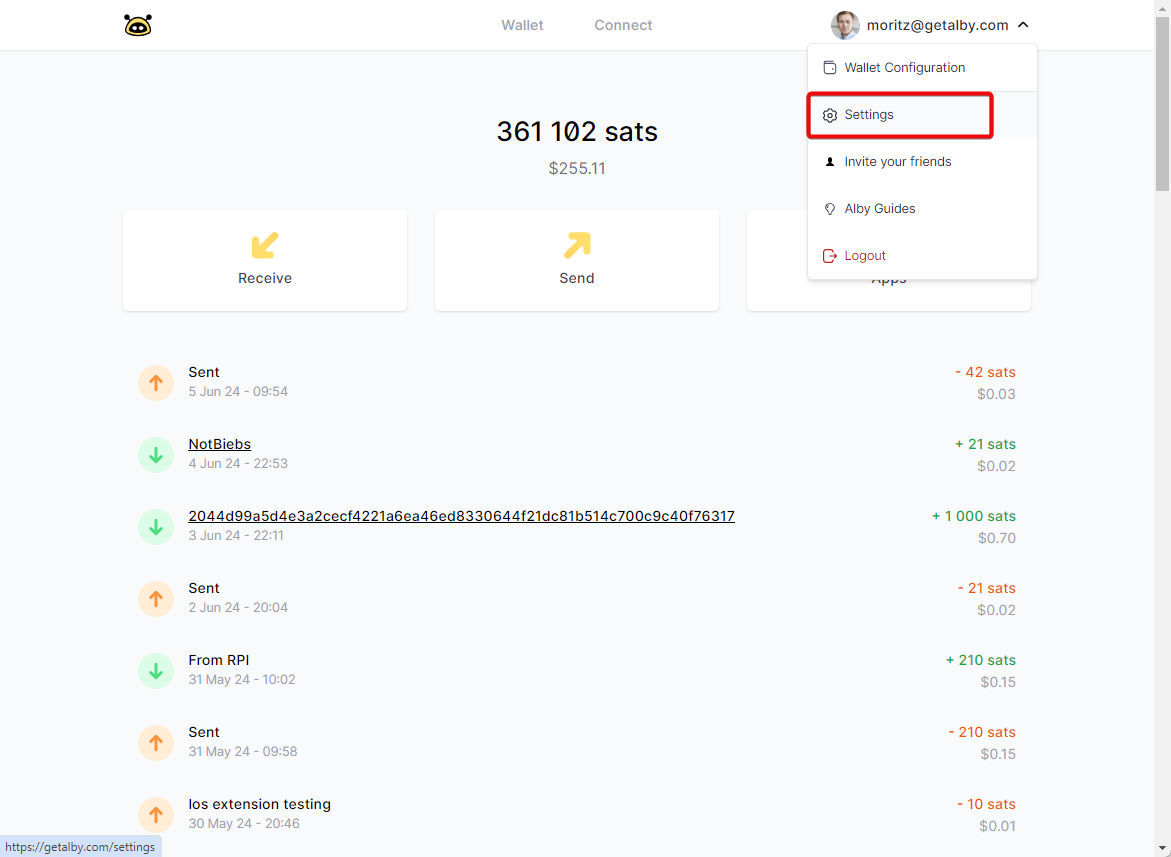
### **Step 1: Select 'Settings' in the drop down menu**

<figure><img src="https://content.gitbook.com/content/WKqqWqKEAO8XHGTjzhEl/blobs/iRzAq9cX3bgfiKsTIPez/image.png" alt=""><figcaption></figcaption></figure>

### **Step 2: Select 'Notifications'**

<figure><img src="https://content.gitbook.com/content/WKqqWqKEAO8XHGTjzhEl/blobs/eTYWij0XhBjFDnC7Qhpg/v0UTlafMIC.png" alt=""><figcaption></figcaption></figure>

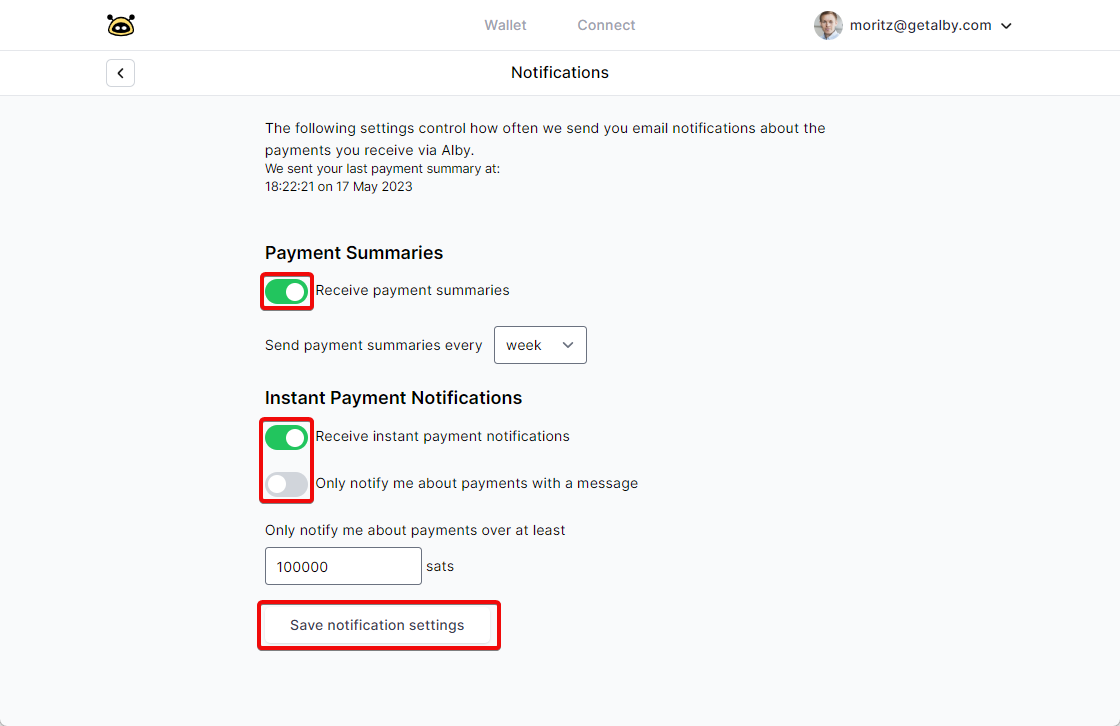
### **Step 2**: **Change the toggle if you want to receive payment summaries and payment notifications**

<figure><img src="https://content.gitbook.com/content/WKqqWqKEAO8XHGTjzhEl/blobs/Zn2Q1bbezFQAovxjfN3f/g8dTekCdJZ.png" alt=""><figcaption></figcaption></figure>

You can even define the time interval and minimum amount to receive notifications. ✌️


# Email, Password, Currency

Quickly change your email, password and currency for your Alby Account.

Log into your Alby Account on getalby.com by clicking on 'Log in'. Then follow these steps:\
\
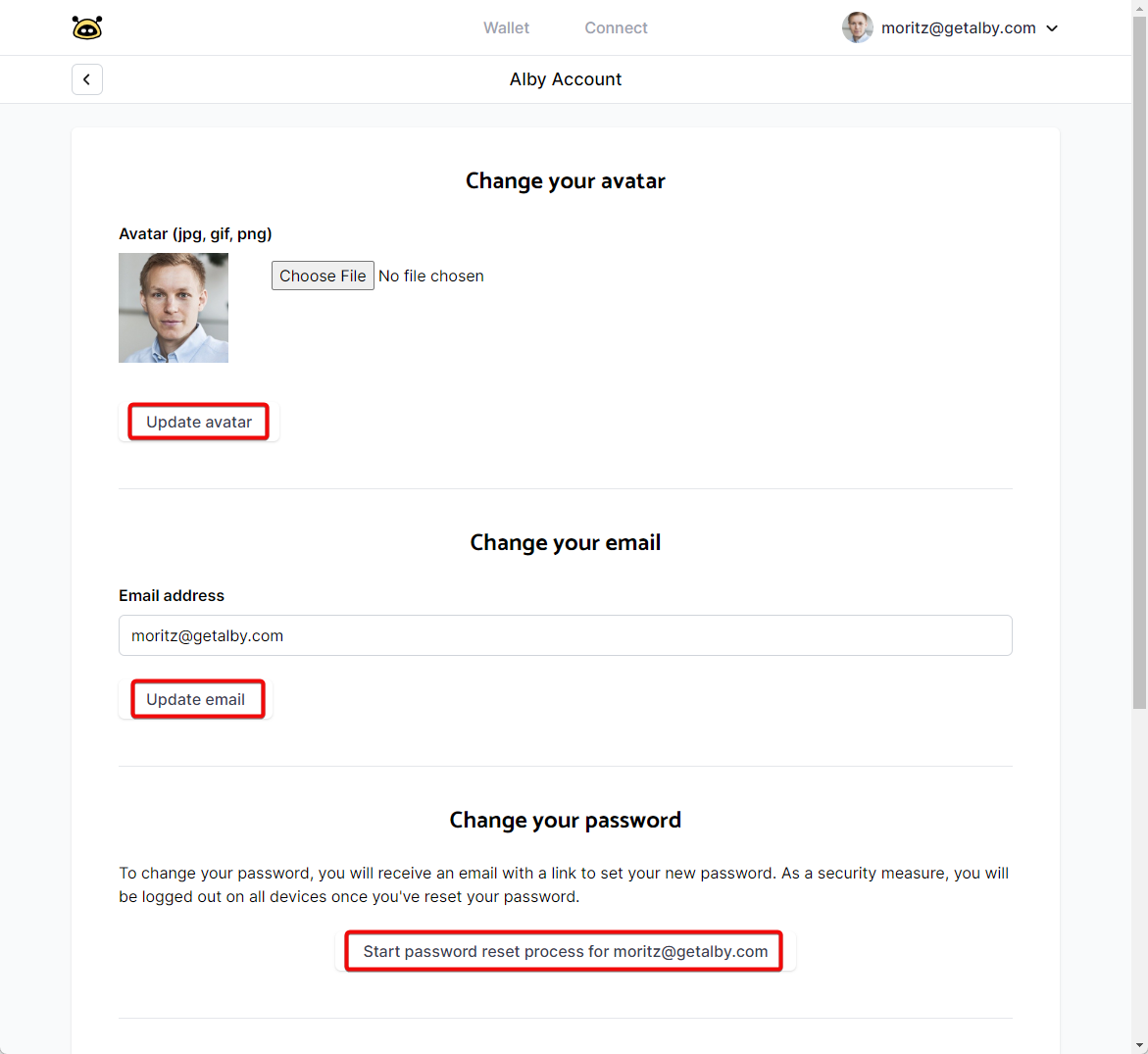
**Step 1: Select Settings in the drop down menu**

<figure><img src="https://content.gitbook.com/content/WKqqWqKEAO8XHGTjzhEl/blobs/PVtMqvysafFcO4R23iX5/c4xHraw6e9.png" alt=""><figcaption></figcaption></figure>

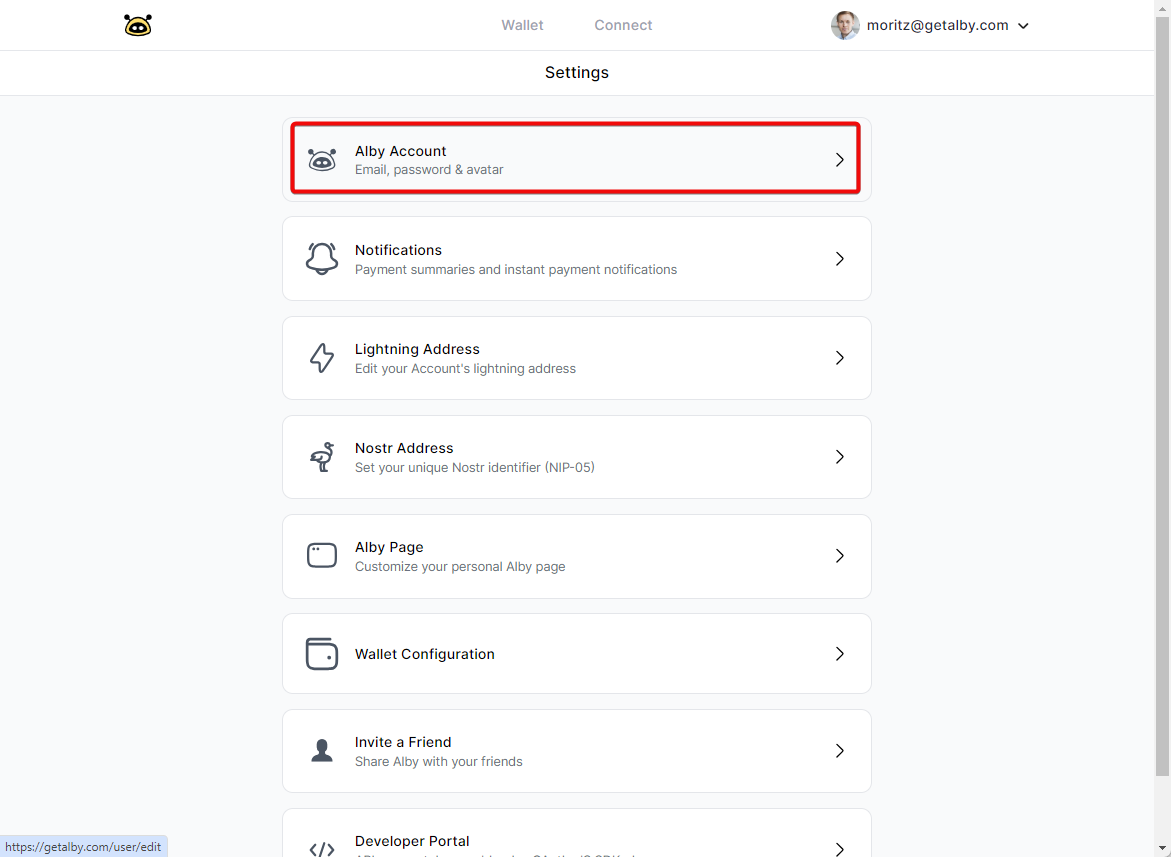
**Step 2: Select 'Alby Account'**

&#x20;

<figure><img src="https://content.gitbook.com/content/WKqqWqKEAO8XHGTjzhEl/blobs/QGgaHMr3rJWwwAqb6Yqy/uOnl8lUiwx.png" alt=""><figcaption></figcaption></figure>

**Now you can change your avatar for your personal Alby tipping page, email address, password, currency or delete your account if you scroll down.** ✨

<figure><img src="https://content.gitbook.com/content/WKqqWqKEAO8XHGTjzhEl/blobs/GsN7GC3aptXIGM8AzhX9/1zgjMVAxqF.png" alt=""><figcaption></figcaption></figure>


# Top up your wallet

How to top up your wallet balance

## Overview

[Card or bank transfer](#card-or-bank-transfer)

[Exchange service](#exchange-service)

[Other bitcoin wallet](#other-bitcoin-wallet)

[Other crypto wallet](#other-crypto-wallet)

## Card or bank transfer

We have partnered with MoonPay and Mt.Pelerin to offer you in-app bitcoin purchases right with your credit card or bank account.

Visit:

{% embed url="<https://getalby.com/topup>" %}

## Exchange service

You can use an exchange service to acquire bitcoin and send them to your Alby wallet.

Currently we recommend [these exchange services](https://github.com/theDavidCoen/LightningExchanges). In this guide you'll find a detailed step-by-step description for [Binance](https://guides.getalby.com/alby-guides/alby-lightning-account/how-to-top-up-your-wallet-balance/from-an-exchange-service#binance), [Coinbase](#coinbase) and [Kraken](#kraken).

#### Binance <a href="#binance" id="binance"></a>

[Binance](https://www.binance.com/) is an established cryptocurrency exchange. You can exchange multiple currencies to bitcoin.

After you acquired bitcoin follow these steps to send bitcoin to your Alby wallet:

1. Click on 'Wallet' in the top bar of your dashboard and select 'Funding Wallet'
2. Click on 'Withdraw' or 'Receive' bitcoin in the list of assets
3. Select 'Lightning' as the 'Network'. The 'Address' field will be automatically changed to 'Invoice'

![](https://guides.getalby.com/user-guide/~gitbook/image?url=https%3A%2F%2Fcontent.gitbook.com%2Fcontent%2FWKqqWqKEAO8XHGTjzhEl%2Fblobs%2F9RGINOmVAiOJwyXqei21%2Fimage.png\&width=768\&dpr=3\&quality=100\&sign=ef8a1b39\&sv=2)

1. Add a Lightning invoice in the 'Invoice' field. You can use the Alby Browser Extension to create an invoice (learn more [here](https://guides.getalby.com/user-guide/browser-extension/features/send-and-receive-bitcoin#receive-bitcoin)) or the '[receive](https://getalby.com/node/receive)' tab in your dashboard on getalby.com.

![](https://guides.getalby.com/user-guide/~gitbook/image?url=https%3A%2F%2Fcontent.gitbook.com%2Fcontent%2FWKqqWqKEAO8XHGTjzhEl%2Fblobs%2FJMnnTB8gwstN9K1iFrqI%2Fchrome_xBrEZ8N9P6.png\&width=768\&dpr=3\&quality=100\&sign=4c9abcf3\&sv=2)

1. Click on 'Withdraw'. (it can take some time until Binance processes the transaction and releases the funds into your Alby Account)

#### Coinbase <a href="#coinbase" id="coinbase"></a>

Follow [these steps](https://help.coinbase.com/en/coinbase/trading-and-funding/sending-or-receiving-cryptocurrency/lightning) to send bitcoin from your Coinbase account to your Alby account.

#### Kraken <a href="#kraken" id="kraken"></a>

[Kraken](https://www.kraken.com/) is an established cryptocurrency exchange. You can exchange multiple currencies to bitcoin.

After you acquired bitcoin follow these steps to send bitcoin to your Alby wallet:

1. Click on 'Funding' in top bar of your dashboard
2. Navigate to the *Account balances* section and click on 'Withdraw'
3. Choose 'Bitcoin' ![](https://guides.getalby.com/user-guide/~gitbook/image?url=https%3A%2F%2Fcontent.gitbook.com%2Fcontent%2FWKqqWqKEAO8XHGTjzhEl%2Fblobs%2FlhcJLLkyGOOT2dRmnO9M%2Fimage.png\&width=40\&dpr=3\&quality=100\&sign=1efefdaf\&sv=2)
4. Select Lightning Network as the withdrawal method

![](https://guides.getalby.com/user-guide/~gitbook/image?url=https%3A%2F%2Fcontent.gitbook.com%2Fcontent%2FWKqqWqKEAO8XHGTjzhEl%2Fblobs%2FiNf98SiUlSLqsE20RwZM%2Fchrome_Z70Ao0tfrZ.png\&width=768\&dpr=3\&quality=100\&sign=5453b361\&sv=2)

1. Click on 'Add withdrawal request'. Do not reuse previous withdrawal requests!
2. Add a label in the 'Request label' field. It helps you to find the withdrawal request again later on.
3. Add a Lightning invoice in the 'Withdrawal request' field. You can use the Alby Browser Extension to create an invoice. Learn more [here](https://guides.getalby.com/user-guide/browser-extension/features/send-and-receive-bitcoin#receive-bitcoin). You can also use the '[receive](https://getalby.com/node/receive)' tab in your dashboard on getalby.com.

![](https://guides.getalby.com/user-guide/~gitbook/image?url=https%3A%2F%2Fcontent.gitbook.com%2Fcontent%2FWKqqWqKEAO8XHGTjzhEl%2Fblobs%2Fjb77kXCHZlRU5qnS3V9j%2Fchrome_H7S4STSgui.png\&width=768\&dpr=3\&quality=100\&sign=6bd2bf9c\&sv=2)

1. and Click on 'Add withdrawal request'
2. You will likely have to confirm this withdrawal address. Check your inbox for an email and click on 'Confirm withdrawal address'
3. Navigate back to your Kraken dashboard and select the relevant 'Withdrawal request'
4. Click on 'Withdraw BTC" (it can take some time until the funds show up in your Alby wallet account)

Did we forget any option to fund your Alby Lightning wallet? Shall we update the guide? [Let us know.](mailto:hello@getalby.com)

## Other bitcoin wallet

You can send bitcoin from another bitcoin wallet to top up the balance of your Alby Account.

#### Bitcoin Lightning Network wallets <a href="#lightning" id="lightning"></a>

The bitcoin lightning network is great. It allows you to send bitcoin from any lightning wallet app to Alby... and vice versa! You will find a selection of mobile lightning wallets [here](https://lightningnetworkstores.com/wallets).

There are two ways to receive bitcoin in your Alby wallet:

1. Enter your lightning address \[*yourname*]@getalby.com into the other app. *(You can customize your personal address! Go to:* [Lightning Address](https://guides.getalby.com/user-guide/alby-account/features/lightning-address)*)*
2. Or create a lightning invoice in Alby Hub, Browser Extension or Go and enter it into the other app that you use to top up your wallet.

#### Bitcoin (Onchain) Wallets <a href="#bitcoin-onchain-wallets" id="bitcoin-onchain-wallets"></a>

The lightning network is a decentralized, peer-to-peer network which allows users to transfer bitcoin off-chain instantaneously with very low transaction fees. The lightning network is built on top of the bitcoin network, and is thus called a layer two solution.

The process of bringing bitcoin on-chain to the lightning network is called 'swap'. To see how to deposit bitcoin from a regular on-chain wallet to your Alby lightning wallet, watch this video guide:

[https://youtu.be/RAIq\_74dpu4youtu.be](https://youtu.be/RAIq_74dpu4)

To top up your Alby Account from a bitcoin onchain wallet, you can use one of these services:

* [Boltz Exchange](https://boltz.exchange/?ref=alby)
* [FixedFloat](https://ff.io/?ref=qnnjvywb)

## Other crypto wallet

Alby Account uses BTC as its native currency. However, it is possible to convert most cryptocurrencies into bitcoin, and send to your Alby wallet.

#### Crypto wallets <a href="#crypto-wallets" id="crypto-wallets"></a>

To top up your Alby Account with other cryptocurrencies, you can use one of these services:

1. [Boltz Exchange](https://boltz.exchange/?ref=alby)
2. [FixedFloat](https://ff.io/?ref=qnnjvywb)

***

Did we forget any option to fund your Alby Lightning wallet? Shall we update the guide? [Let us know.](mailto:hello@getalby.com)


# Convert to fiat

How to convert the bitcoin in your Alby account to fiat money.

You can directly fund your wallet within the Alby dashboard. But converting your funds to fiat requires some hops. If you want to benefit from your precious bitcoin in your Alby account, you have the following options.&#x20;

## Exchanging your bitcoin to fiat directly

More and more exchanges allow depositing bitcoin over the lightning network. You will find an overview of traditional exchanges and peer-to-peer exchanges [here](https://cointastical.medium.com/exchanges-with-support-for-bitcoin-lightning-network-payments-739829bcb7bc).&#x20;

If your favorite exchange is not on the list you will need to send your funds from Alby to an onchain bitcoin address first using swap services like [Boltz](https://boltz.exchange/) or [SimpleSwap](https://simpleswap.io/?ref=197489f1d848).&#x20;

## Alternatives to consider

* Purchase virtual credit cards: E.g. [PaywithMoon](https://paywithmoon.com/)
* Purchase gift cards: E.g. [Bitrefill](https://www.bitrefill.com/)&#x20;
* Saving them for your grandchildren 😉

## Keeping the circular economy flowing

* Donations towards good causes: E.g. [Geyser](https://geyser.fund/)
* Re-distributing those sats across your audience or friends: E.g. [Lightsats](https://lightsats.com/)
* Having fun on bitcoin lightning applications: [Discover the best apps](https://getalby.com/discover)!


# Connect to apps

Alby is your companion for bitcoin lightning payments. That's why you can connect it to many other apps.

{% content-ref url="connect-to-apps/alby-browser-extension" %}
[alby-browser-extension](https://guides.getalby.com/user-guide/connect-to-apps/alby-browser-extension)
{% endcontent-ref %}

{% content-ref url="connect-to-apps/alby-go-mobile-app" %}
[alby-go-mobile-app](https://guides.getalby.com/user-guide/connect-to-apps/alby-go-mobile-app)
{% endcontent-ref %}

{% content-ref url="connect-to-apps/app-connections-via-nwc" %}
[app-connections-via-nwc](https://guides.getalby.com/user-guide/connect-to-apps/app-connections-via-nwc)
{% endcontent-ref %}


# Alby Browser Extension

This guide shows how to download the Alby Browser Extension and connect your Alby Account to the Alby Browser Extension

{% hint style="info" %}
You can connect your existing Alby Lightning account (getalby.com/login) to the Alby Browser Extension. The credentials to login to both are the same.&#x20;
{% endhint %}

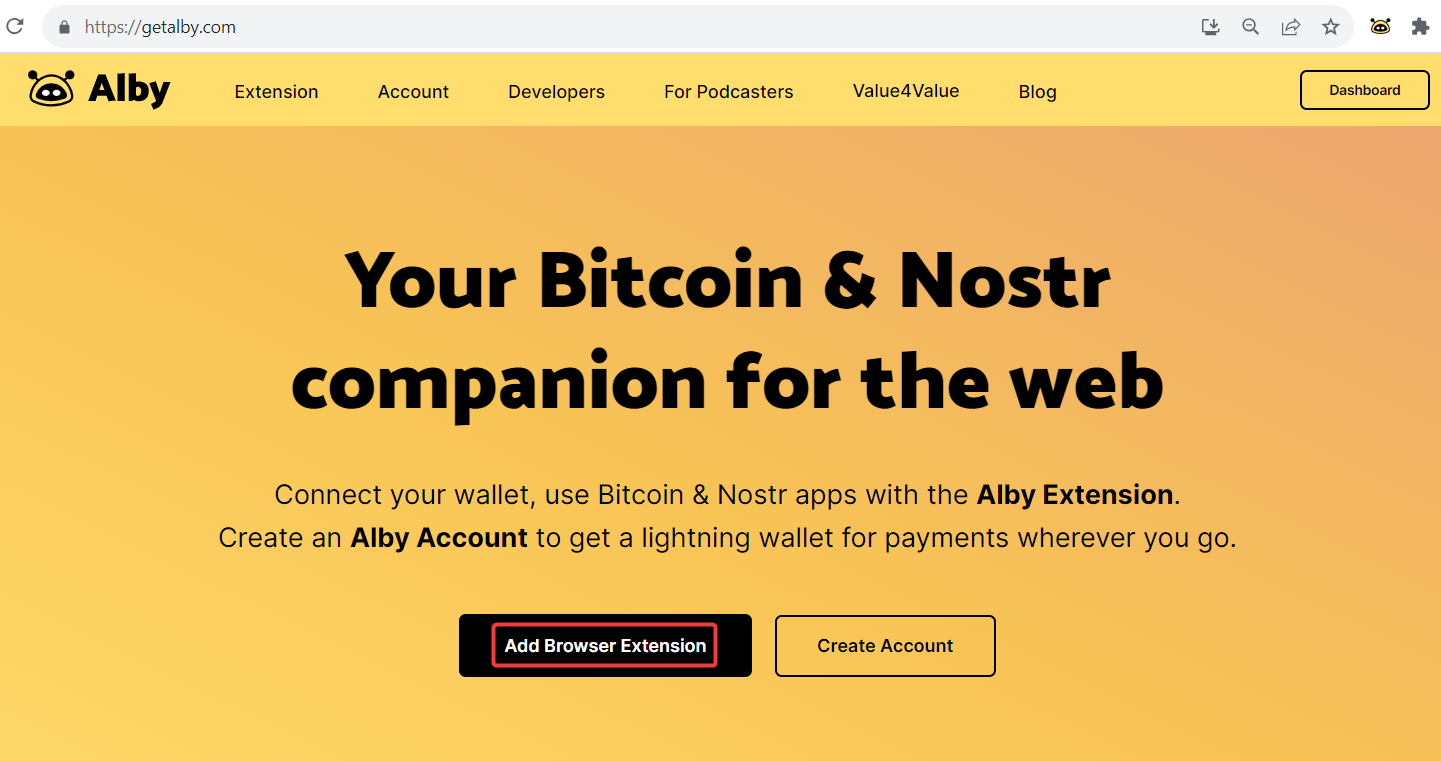
**Step 1**: Go to getalby.com and click on 'Add Browser Extension'. You are automatically forwarded to download the browser extension.

<figure><img src="https://content.gitbook.com/content/WKqqWqKEAO8XHGTjzhEl/blobs/6IVLkmzUXqu8Q1WiELoK/XCZ6LOSVB9.png" alt=""><figcaption></figcaption></figure>

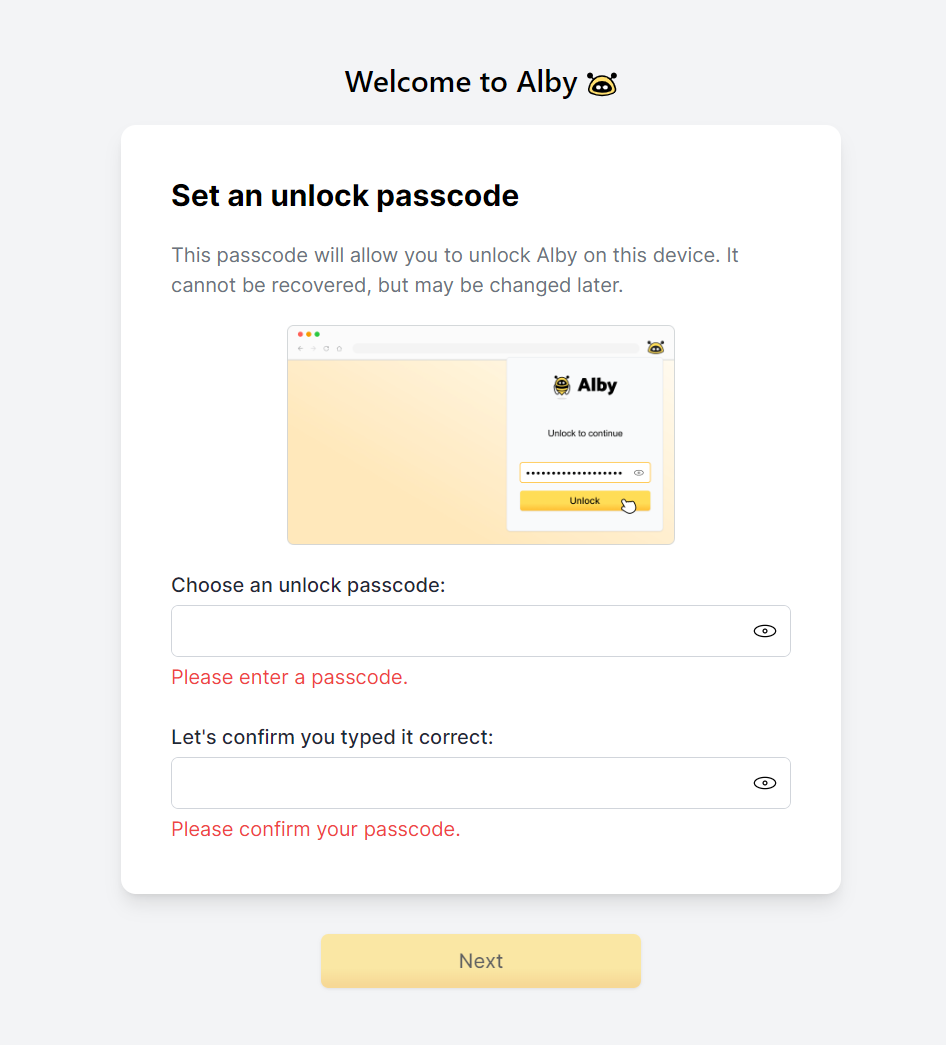
**Step 2:** After installing the Browser Extension, please set a unlock passcode and click on 'Next'.

{% hint style="info" %}
The passcode decrypts your sensitive data locally on your own device.&#x20;
{% endhint %}

<figure><img src="https://content.gitbook.com/content/WKqqWqKEAO8XHGTjzhEl/blobs/Q8Ynb0RobYL7DEnU4Qwn/brave_k46f5kRJA3.png" alt=""><figcaption></figcaption></figure>

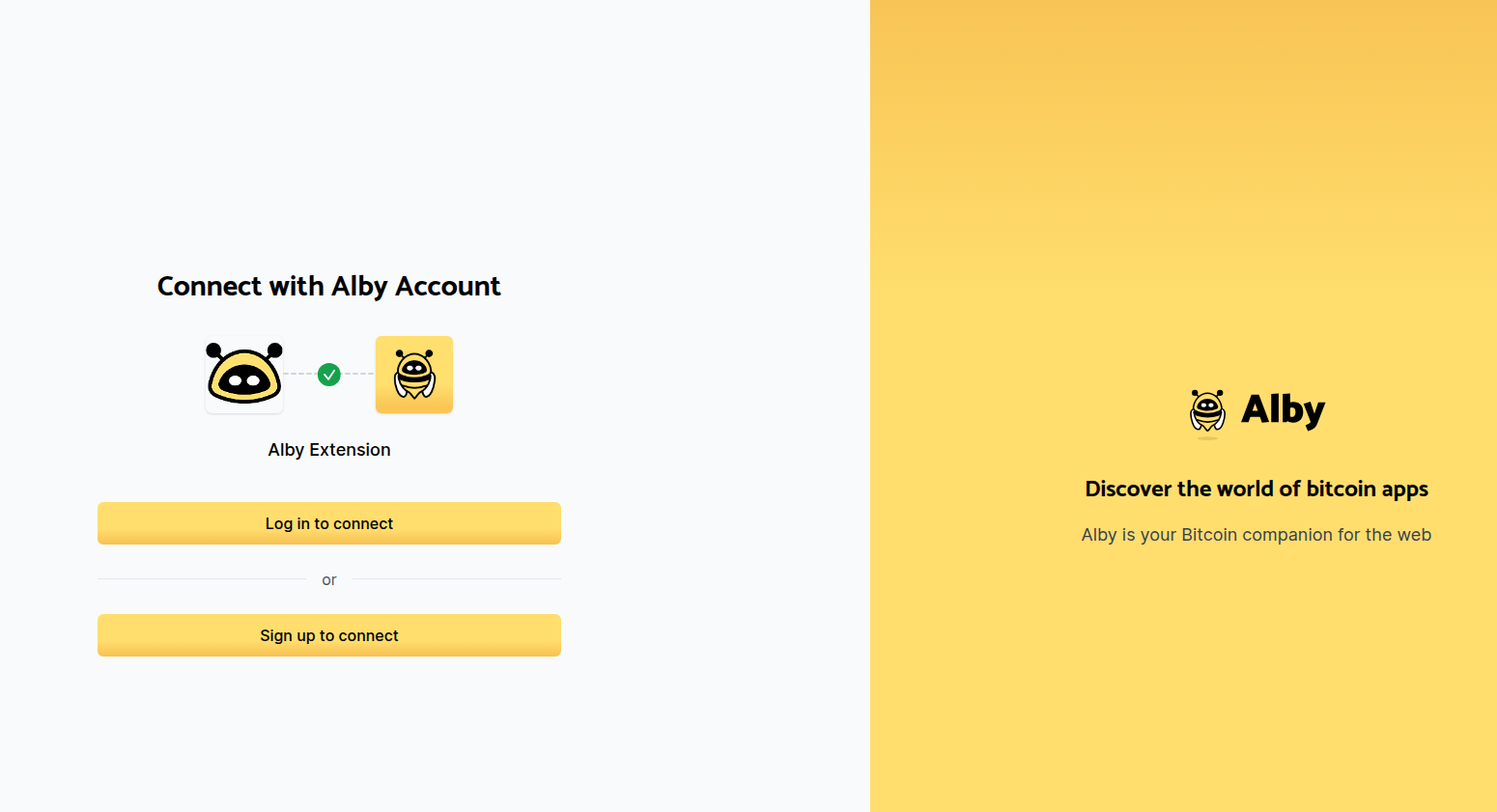
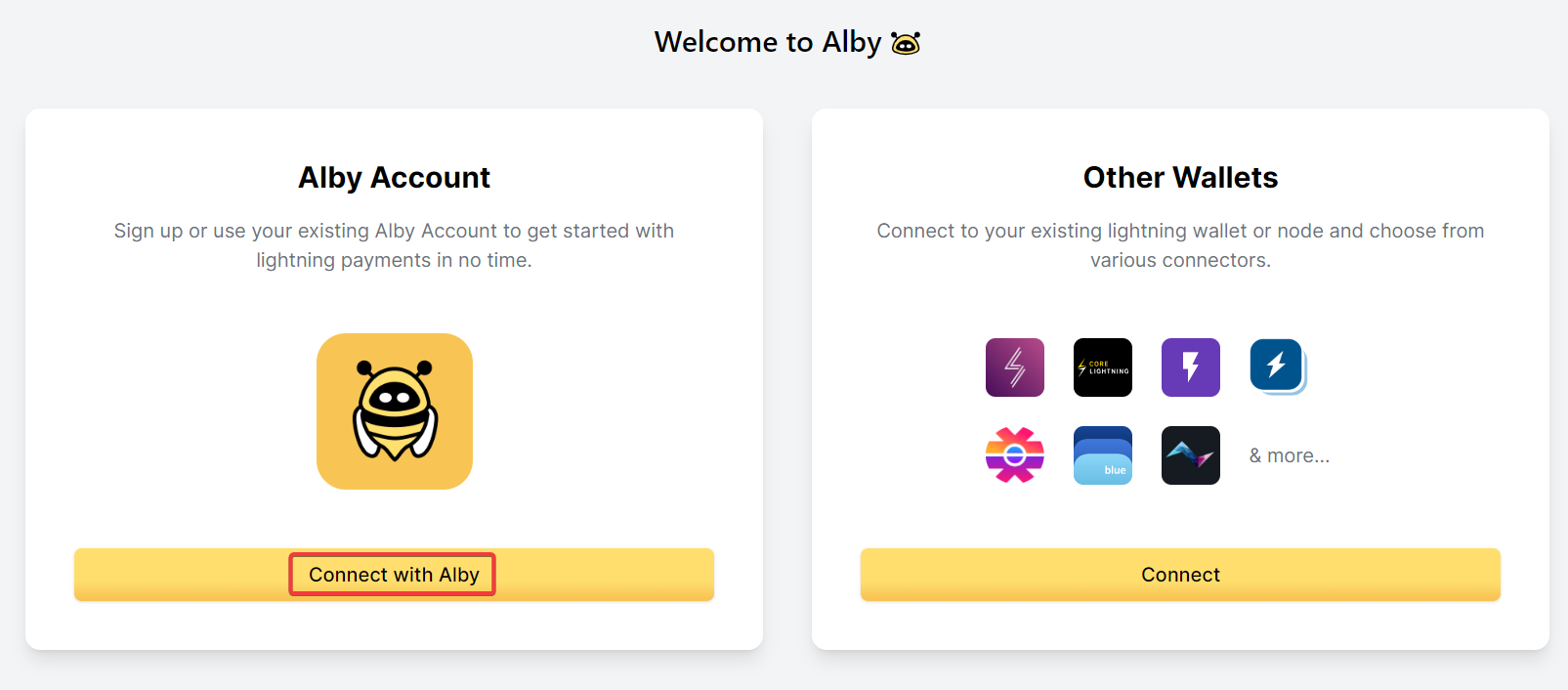
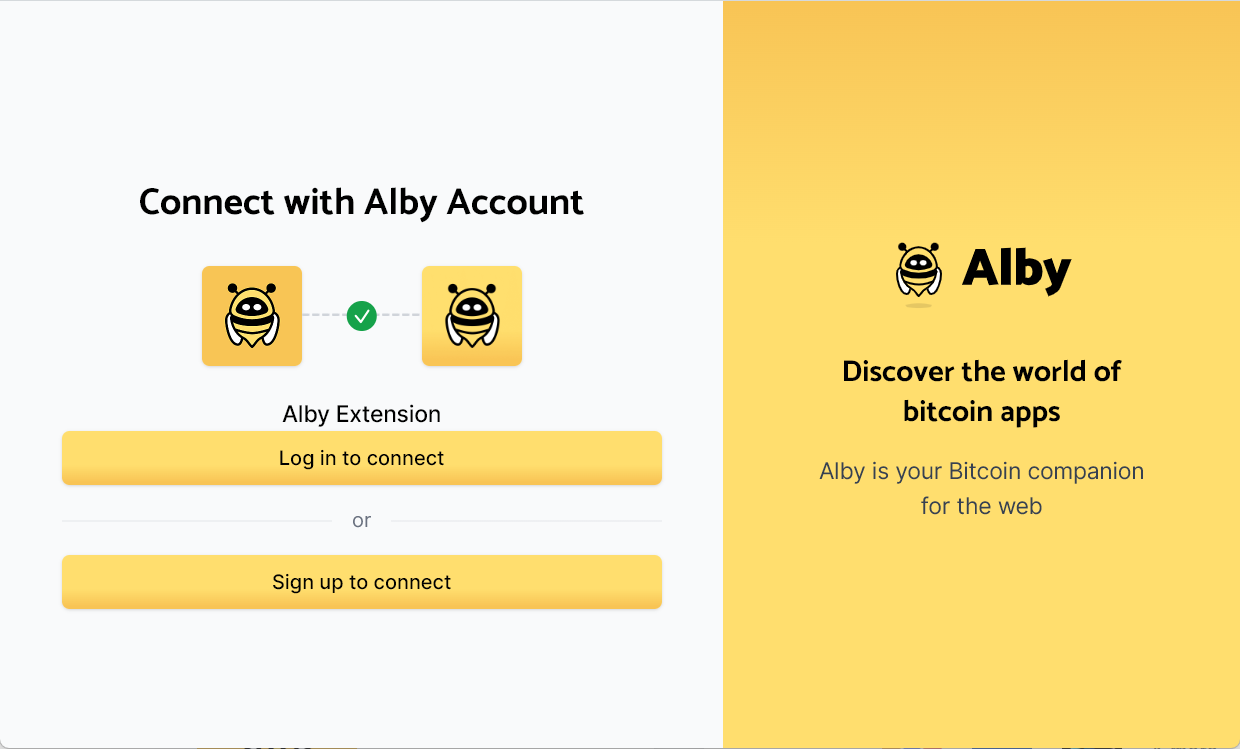
**Step 3a**: Now you can connect any Alby Account if you click on "Connect with Alby"

<figure><img src="https://content.gitbook.com/content/WKqqWqKEAO8XHGTjzhEl/blobs/ls4BJb8unDaLdiFWkqVc/K04VaT14EF.png" alt=""><figcaption></figcaption></figure>

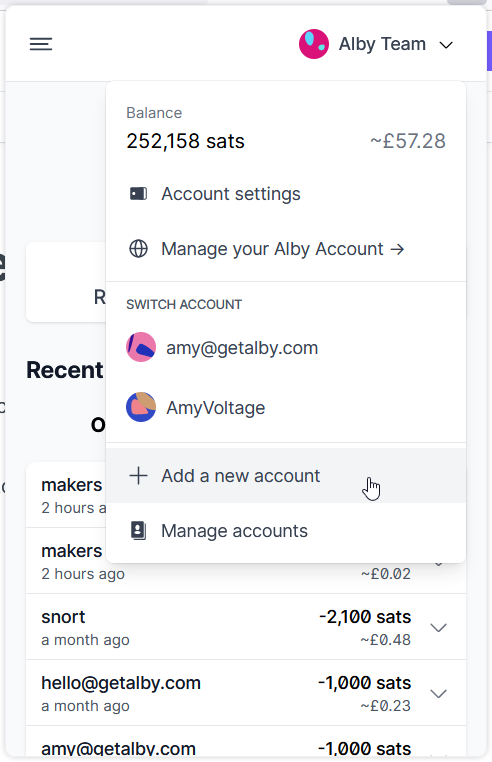
**Step 3b:** If you already have the browser extension installed and an account connected, you can add another account:&#x20;

* **Open the wallet menu top right hand corner. Click on "Add a new account"**
* **Continue at Step 3a**

<figure><img src="https://content.gitbook.com/content/WKqqWqKEAO8XHGTjzhEl/blobs/vOTKxbZXbzZwk6Zp04hG/2d9aVvWN9y.png" alt=""><figcaption></figcaption></figure>

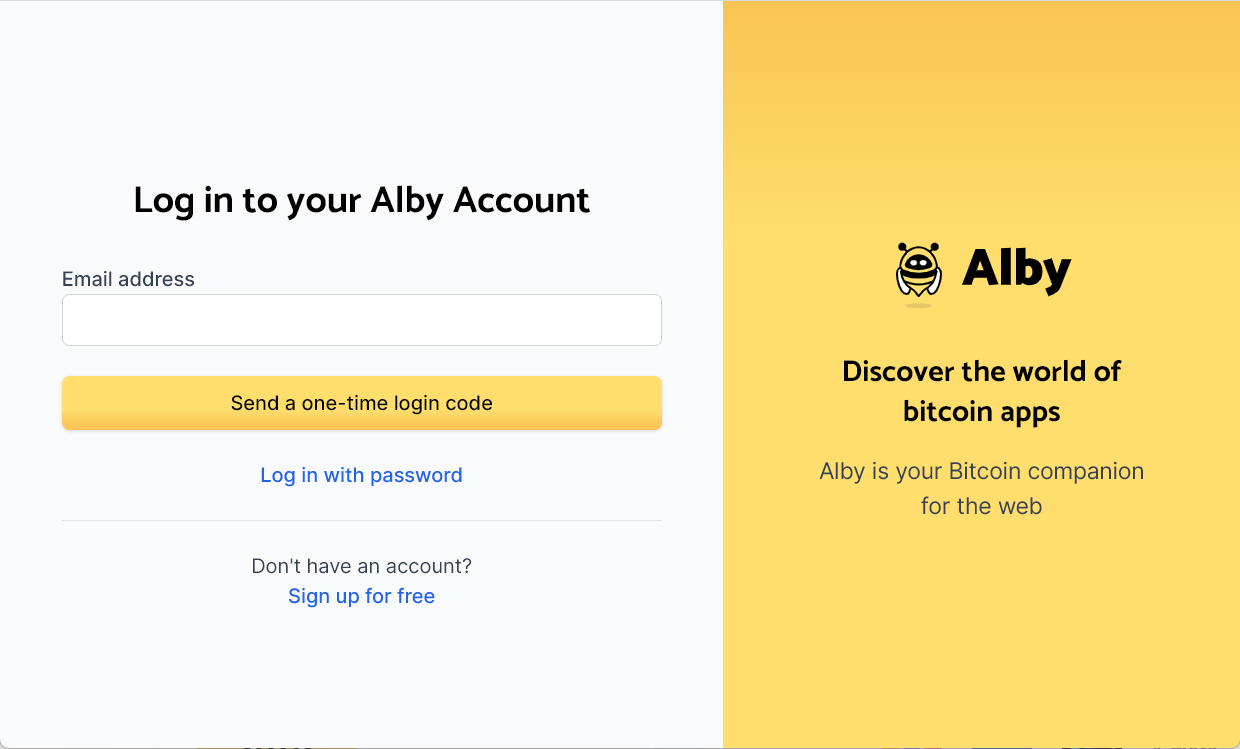
**Step 4:** In a new window you can decide to log into an existing account or sign up for a new account.&#x20;

<figure><img src="https://content.gitbook.com/content/WKqqWqKEAO8XHGTjzhEl/blobs/2XxUpcnWBqhfBoInHphZ/brave_hLxqLtpzTh.png" alt=""><figcaption></figcaption></figure>

**Step 5:** If you want to log into an existing account you can either choose 'Log in with password' or 'Send a one-time login code

{% hint style="info" %}
If you want to log into an existing Alby Account, make sure your are already logged into that account on getalby.com.
{% endhint %}

<figure><img src="https://content.gitbook.com/content/WKqqWqKEAO8XHGTjzhEl/blobs/pTNkNzZtLBtzXJowfK2d/brave_mdFulXwLFi.png" alt=""><figcaption></figcaption></figure>

* Enter the same credentials that you used when you registered your Alby Account on getalby.com&#x20;
* Click on 'Log in'
* This will load your wallet. You are now connected and can start spending your sats on [these websites](https://getalby.com/discover).

![](https://content.gitbook.com/content/WKqqWqKEAO8XHGTjzhEl/blobs/k1V1lVGvL0CAVzShWVHs/brave_8T8LBMmGVQ.png)


# Alby Go mobile app

Try Alby Go on your smartphone

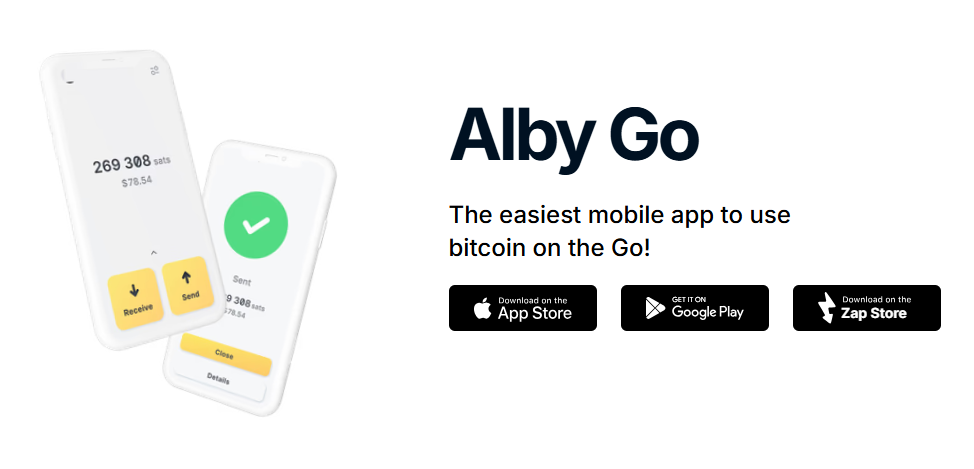
Are you looking for an amazing mobile experience? [Download Alby Go](https://albygo.com/) and connect it to your Alby Hub.

<figure><img src="https://content.gitbook.com/content/WKqqWqKEAO8XHGTjzhEl/blobs/AtOvgYDREKmG7mjXrkX5/image.png" alt=""><figcaption><p><a href="https://albygo.com/">https://albygo.com/</a></p></figcaption></figure>


# App Connections via NWC

Alby is your companion for bitcoin lightning payments. That's why you can connect it to many other apps via NWC (Nostr-Wallet Connect).

## **Benefits of wallet-app connections:**

**Effortless Connection**: Users connect wallets instantly in a few clicks (no Nostr account required).

**Easy Onboarding:** Come with your own wallet – no need to deposit bitcoin into every app.&#x20;

**One-Click Payments:** Seamless in-app transactions – no confirmations or QR codes needed.

**Stay in control:** Connect your wallet to apps with a dedicated budget and custom permissions.

### Learn how to connect Alby Hub to other apps:

{% content-ref url="<https://app.gitbook.com/s/WIUBf3ZZaBGu2ee6Y8lU/app-connections>" %}
[App Connections](https://app.gitbook.com/s/WIUBf3ZZaBGu2ee6Y8lU/app-connections)
{% endcontent-ref %}


# Podcast apps

Connect your Alby Account to podcast apps

## Podcast listening apps 🎧

Support your favourite podcasters and connect your Alby Account to:&#x20;

* [Podcast Guru](https://podcastguru.io/)
* [Podverse](https://podverse.fm/)
* [TrueFans](https://truefans.fm/)
* [Castamatic](https://castamatic.com/)
* [Podfriend](https://www.podfriend.com/)
* [CurioCaster](https://curiocaster.com/)
* [Podcastindex](https://podcastindex.org/)

## Podcast hosting apps 🎙️

Earn Value 4 Value payments and connect your Alby Account to:

* [RSS.com](https://rss.com/)
* [Blubrry](https://blubrry.com/)
* [PowerPress by Blubrry](https://blubrry.com/services/powerpress-plugin/)
* [Sovereign Feeds](https://sovereignfeeds.com/)
* [Podhome](https://www.podhome.fm/)
* [RSS Blue](https://rssblue.com/)
* [Castopod](https://castopod.org/)
* [Captivate](https://www.captivate.fm/)
* [PeerTube](https://joinpeertube.org/)
* [Disctopia](https://disctopia.com/)


# FAQ

Please on the next pages find answer to the most frequently asked questions about our Alby Account

If you have any more questions, please [let us know](mailto:support@getalby.com) over e-mail.


# Which service fees apply for using an Alby account?

Your Alby account supercharges your connected wallet or lightning node with features.

Alby does not charge any transaction fees for sending and receiving payments in Alby Hub. You’ll pay fees for sending transactions on the lightning network charged by routing nodes which are lower in Alby Hub than in many other wallets.&#x20;

To sustain and provide this service commercially, there are ongoing expenses that must be accounted for. That's why there is a [subscription fee](https://getalby.com/pricing), leading to exciting opportunities:

1. **Improved Service:** This change allows us to continually invest in better technologies and services to enhance the reliability of your Alby account and make it more powerful.
2. **Sustainable Growth:** This fee helps us to sustainably grow and expand our offerings, paving the way for exciting new features and improvements in the future.

We want to make sure that this fee is modest and is aimed at maintaining and improving the high standards you've come to expect from us. Your satisfaction remains our top priority.&#x20;

If you have any questions or concerns, please don't hesitate to [reach out](mailto:support@getalby.com).&#x20;


# How to add my lightning address to Nostr

Receive Zaps with your lightning address on Nostr

You can now use your Alby lightning address to receive zaps on Nostr.&#x20;

{% hint style="info" %}
Nostr users can send bitcoin payments to each other using the bitcoin lightning network.
{% endhint %}

Many Nostr apps allow to edit your profile. \
After you logged into a Nostr app ([2-minute guide](https://blog.getalby.com/the-2-minute-alby-guide-to-nostr/)), you can add your lightning address to one of these sites:

* <https://iris.to/profile/edit>
* <https://snort.social/settings/profile>
* <https://coracle.social/profile>
* [Damus](https://damus.io/) or [Amethyst](https://play.google.com/store/apps/details?id=com.vitorpamplona.amethyst\&hl=en\&gl=US) on mobile

You only have to add your lightning address once and every other app knows about it.\
\
**Congrats! You are now able to receive zaps. 👍**


# How to use my own domain as lightning address

How to use your Alby lightning address with own domain?

{% hint style="info" %}
**Please read and fill out the form first.**\
To use your own domain, you will need to upload a file to the server of your own domain. We need a way to contact and inform you, if the file requires a change.\
\
For advanced users, we recommend setting up a redirect rather than hosting a copy of your lightning address data.
{% endhint %}

{% embed url="<https://form.jotform.com/231085718548059>" %}

### **Prerequisites**

* An active Alby Account with a lightning address (can be free or paid)
* Your own domain with web hosting access
* Ability to upload files to your domain's root directory

### Steps

#### 1. Get your Alby lightning address configuration

* Open your browser and go to  `https://getalby.com/.well-known/lnurlp/YOUR_ALBY_USERNAME`&#x20;
* Replace `YOUR_ALBY_USERNAME` with your actual Alby username
* Save the page (Ctrl+S or Cmd+S) to download the JSON configuration file

#### 2. Prepare the configuration file

* Remove the file extension from the downloaded file (e.g. json)
* Example: If you want  `payments@yourdomain.com`  rename the file to just `payments` (no extension)

#### 3. Verify the configuration content

Your file should contain JSON similar to this

{% code title="Example" overflow="wrap" %}

```json
{
   "status": "OK",
   "tag": "payRequest",
   "commentAllowed": 255,
   "callback": "https://getalby.com/lnurlp/YOUR_USERNAME/callback",
   "metadata": "[[\"text/identifier\",\"YOUR_USERNAME@getalby.com\"],[\"text/plain\",\"Sats for Alby\"]]",
   "minSendable": 1000,
   "maxSendable": 11000000000,
   "payerData": {
    "name": {
      "mandatory": false
    },
    "email": {
      "mandatory": false
    },
    "pubkey": {
      "mandatory": false
    }
  },
   "nostrPubkey": "your_nostr_pubkey_here",
   "allowsNostr": true
}
```

{% endcode %}

#### 4. Upload to your own domain

* Upload the file to your domain's root directory at this specific path `https://yourdomain.com/.well-known/lnurlp/FILENAME`
* **Important:** Your domain must be accessible without `www` (hosted on the root domain)

{% hint style="info" %}
Would you like to have separate lightning addresses with your own domain—for example, for family members, friends or business purposes?\
Repeat step 1-4  and upload other files to your domain's root directory.
{% endhint %}

#### 5. Example setup

Let's say you want to create `payments@example.com`&#x20;

* Download the configuration from:  `https://getalby.com/.well-known/lnurlp/alice`&#x20;
* Rename the file to `payments` (no extension)
* Upload to `https://example.com/.well-known/lnurlp/payments`&#x20;

#### 6. Test your setup

* **Check the URL**: Open `https://yourdomain.com/.well-known/lnurlp/FILENAME`  in your browser
* **Test a payment**: Try sending a small payment to your new lightning address
* **Verify receipt**: Confirm the payment arrives in your wallet

#### Troubleshooting

* 404 Error: Check that the file is uploaded to the correct `.well-known/lnurlp/` directory
* Payment fails: Verify the `"callback"` URL in your JSON file matches your Alby username
* Domain issues: Ensure your domain works without `www` prefix

✅ **That's it. You just turned your own domain into a lightning address! 🙌**


# Introduction

Alby Hub is more than a bitcoin lightning wallet. It's your Hub for instant bitcoin payments across a growing ecosystem of apps and flexible enough to serve your very own use case.

<figure><img src="https://content.gitbook.com/content/WIUBf3ZZaBGu2ee6Y8lU/blobs/8qRenGF1udHDY5SfnXrN/chrome_oFZF0IDYZF.png" alt=""><figcaption><p>Alby Hub, your self-custodial wallet.</p></figcaption></figure>

### **Your Benefits** 🌟

* **Easiness**: Running your own node has never been easier
* **Ownership**: 24/7 online wallet with a lightning address and more cool features&#x20;
* **Connectivity**: Plug-in your Hub for self-custodial in-app payments anywhere<br>

### **Feature overview** 🛠️

* Bitcoin onchain and lightning deposits & withdrawals
* Sub-wallets for family and friends
* App marketplace
* In-app BTC purchases via cards and bank transfers
* Powers the Alby Browser Extension and Alby Go mobile app
* Developer APIs and agent Skills

#### Running Alby Hub is a walk in the park with the Alby's cloud hosting service:&#x20;

* One click set up process
* Always online to receive payments 24/7
* Priority support service

Alternatively, you can install Alby Hub on a server of your choice, your desktop computer, or a simple mini-computer (e.g., Raspberry Pi) and run it from your home.

### Would you like to become self-sovereign, too?

Book your personal onboarding session [here](https://cal.com/getalby/alby-hub-onboarding) ☎️ or continue to:

{% content-ref url="getting-started" %}
[getting-started](https://guides.getalby.com/user-guide/getting-started)
{% endcontent-ref %}

***

*Alby Hub was created with a lot of effort, love, and the vision of a better world of payments with bitcoin. We’re grateful for running your own Hub and supporting our work.*

*Best regards, Your Alby Team 💛🐝*


# Getting Started

Welcome to Alby Hub, your next step towards taking full control of your personal and business finances

1\.  [Get your Alby web Account ](#get-an-alby-account-for-launching-your-alby-hub)\
2\. [Launch Alby Hub](#lets-launch)\
3\. [Connect your Alby Hub to the network and get your first lightning channel](#how-to-open-your-first-payment-channel)\
4\. [Top up your Spending Balance](#how-to-top-up-your-spending-balance-by-opening-your-first-lightning-channel)\
5\. [Connect your Hub to other apps](#how-to-connect-your-alby-hub-to-other-apps)

***

## Get an Alby Account🐝 for launching your Alby Hub 🚀

Create your Alby Account on getalby.com.

<figure><img src="https://2706948649-files.gitbook.io/~/files/v0/b/gitbook-x-prod.appspot.com/o/spaces%2FWIUBf3ZZaBGu2ee6Y8lU%2Fuploads%2FRpNpgVWmUtw35fFDAahk%2Fimage.png?alt=media&#x26;token=12a1ca4e-e05d-4026-9fe2-d8e8654a7c69" alt=""><figcaption></figcaption></figure>

The Alby Account 🐝 is **highly recommended** (though not technically required).

**Without an Account:**

* ❌ No lightning address (must create invoice for each payment)
* ❌ No email notifications
* ❌ Limited support options
* ❌ Manual extension setup

**With a free Account:**

* ✅ Get <yourname@getalby.com> lightning address
* ✅ One-click extension connection
* ✅ Email notifications
* ✅ Better support

**Create an Alby web Account** [**here**](https://getalby.com/auth/users/new)**.** 🐝

**Are you interested in a personal onboarding session? Book one** [**here**](https://cal.com/getalby/alby-hub-onboarding)**. ☎️**

***

## **Let's launch!**��

<figure><img src="https://content.gitbook.com/content/WIUBf3ZZaBGu2ee6Y8lU/blobs/RM55nAa40d2BjoZgmq3R/image.png" alt=""><figcaption></figcaption></figure>

Follow the onboarding steps, where you can choose between self-hosting Alby Hub or using Alby’s convenient cloud service.

After installing Alby Hub, you’ll see a list of tasks to complete the setup:

1. Open your first payment channel to connect to the Bitcoin Lightning Network
2. Connect your Alby Account
3. Top up your balance
4. Connect other other apps like the Alby Go mobile app or the Alby Browser Extension
5. Store a backup of your wallet recovery phrase offline

You’ll be guided through each of these steps.\
By the end, you’ll have full control and sovereignty over your money. 😊

***

### How to open your first payment channel 🛢️&#x20;

{% embed url="<https://demos.getalby.com/demo/clz2zpzys3dozz9kdr9ctnxq3>" %}

### How to connect your Alby Hub to other apps

<details>

<summary>How to Link your Alby Hub to your Alby account to activate your lightning address</summary>

Your Hub now automatically links to your Alby Account during setup.\
\
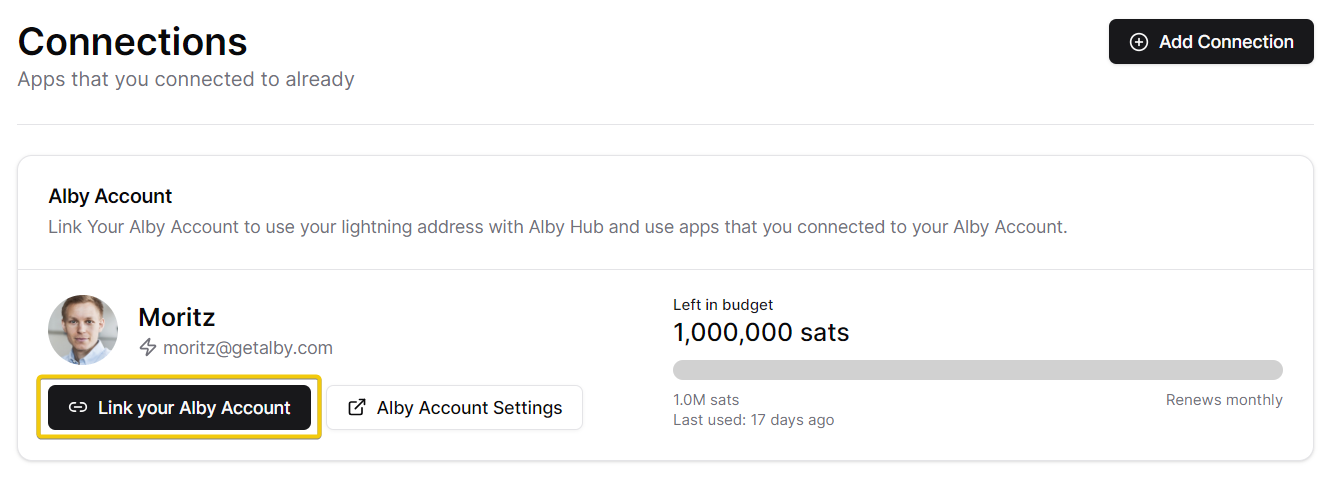
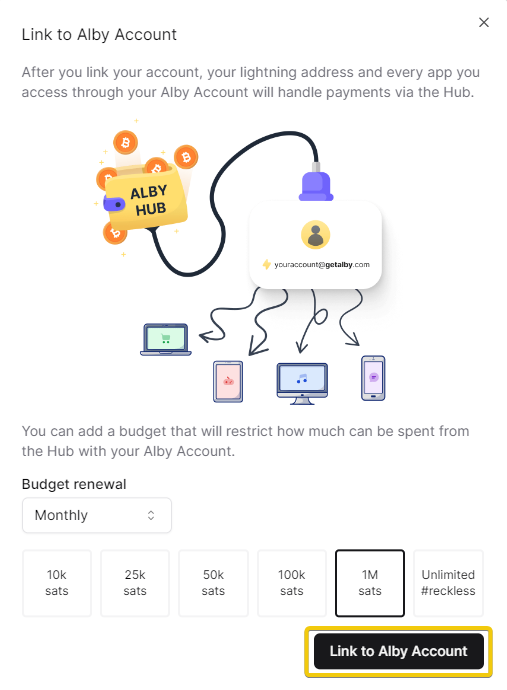
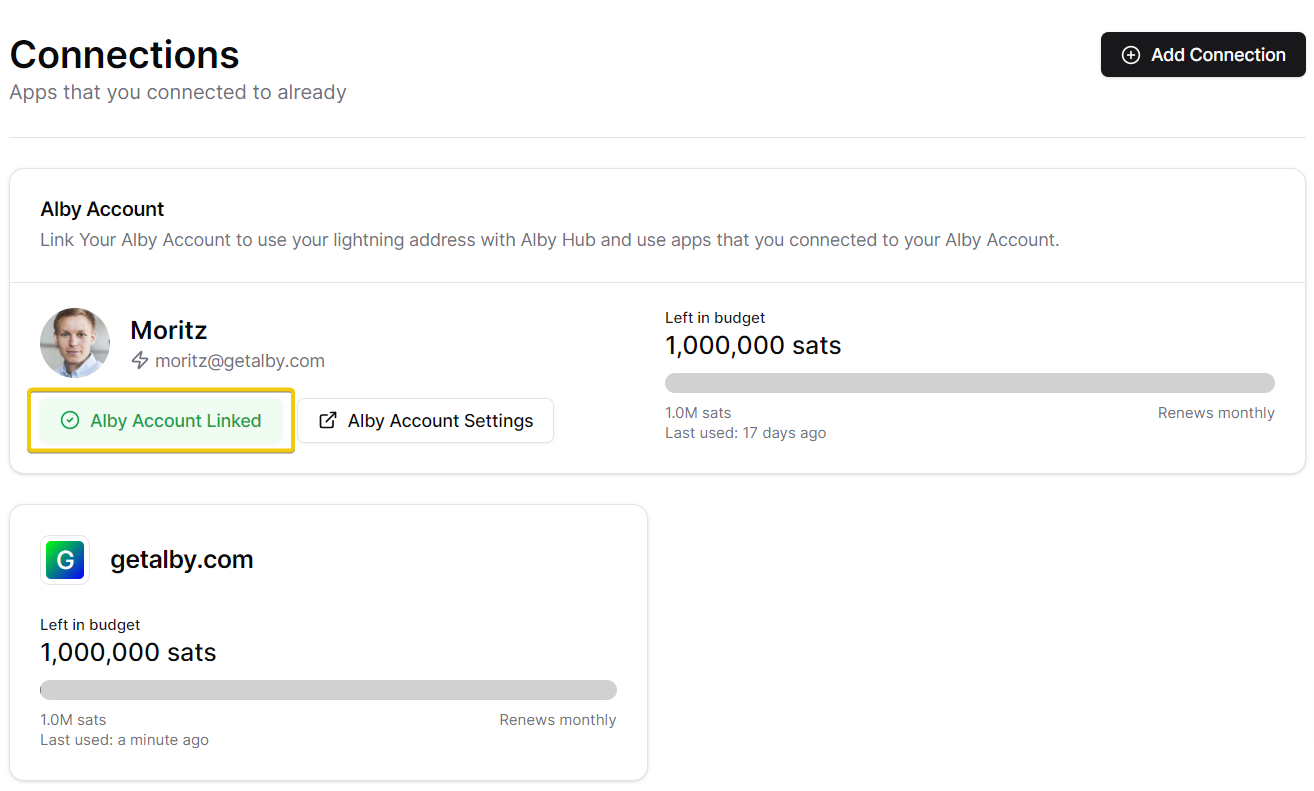
If the link is lost: On "Connections"->"Connected Apps, click on "Link your Alby Account". After seconds it should be linked with a green text mentioning "✅Alby Account Linked"

[why-do-i-need-to-link-my-alby-account](https://guides.getalby.com/user-guide/faq/why-do-i-need-to-link-my-alby-account "mention")

<img src="https://content.gitbook.com/content/WIUBf3ZZaBGu2ee6Y8lU/blobs/AXLRiOMPhWCt6W6OeSyB/Aspect%20ratio%2031%20(20).png" alt="" data-size="original">

> **For Advanced Users:**\
> The protocol that links your Alby Hub to your Alby account is called [NWC (Nostr Wallet Connect).](https://nwc.dev/) This protocol is the same that is used to link your Alby Hub to many other apps on the app store.\
> On the link below we cover the subject of connecting Alby Hub to other apps.
</details>

### How to top up your Alby Hub

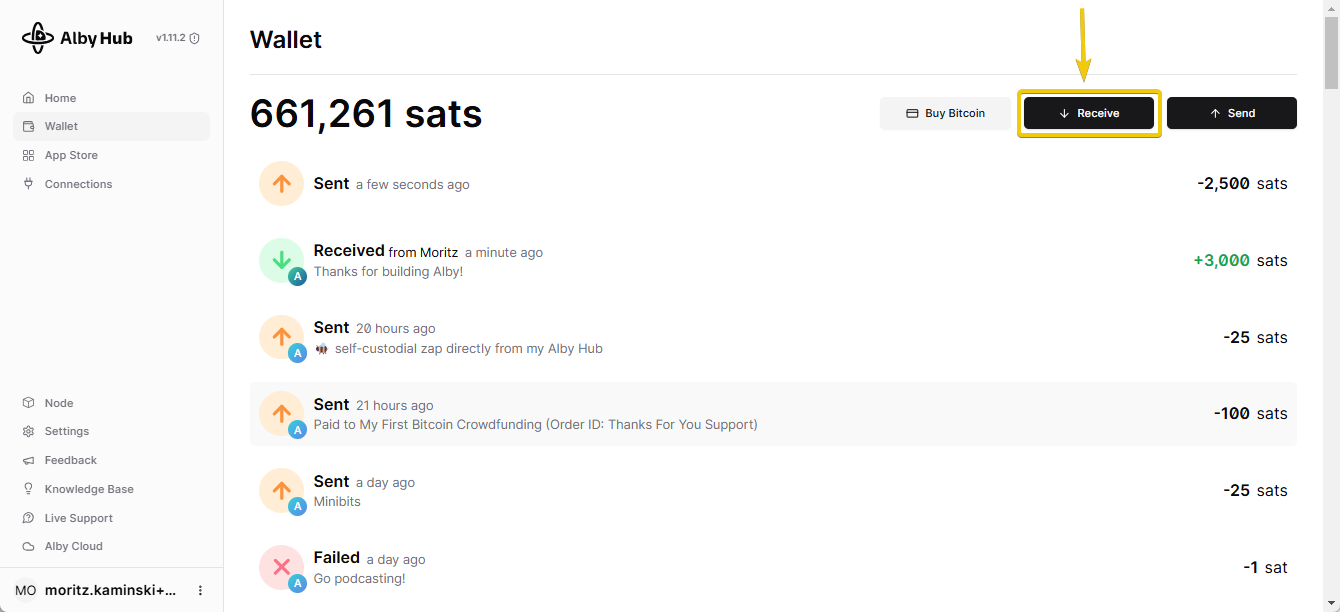
#### Option 1: Receive bitcoin in your Hub

<figure><img src="https://content.gitbook.com/content/WIUBf3ZZaBGu2ee6Y8lU/blobs/OLX3jQYrKZKTpxhnsDwR/bC9FMfCQfI.png" alt=""><figcaption></figcaption></figure>

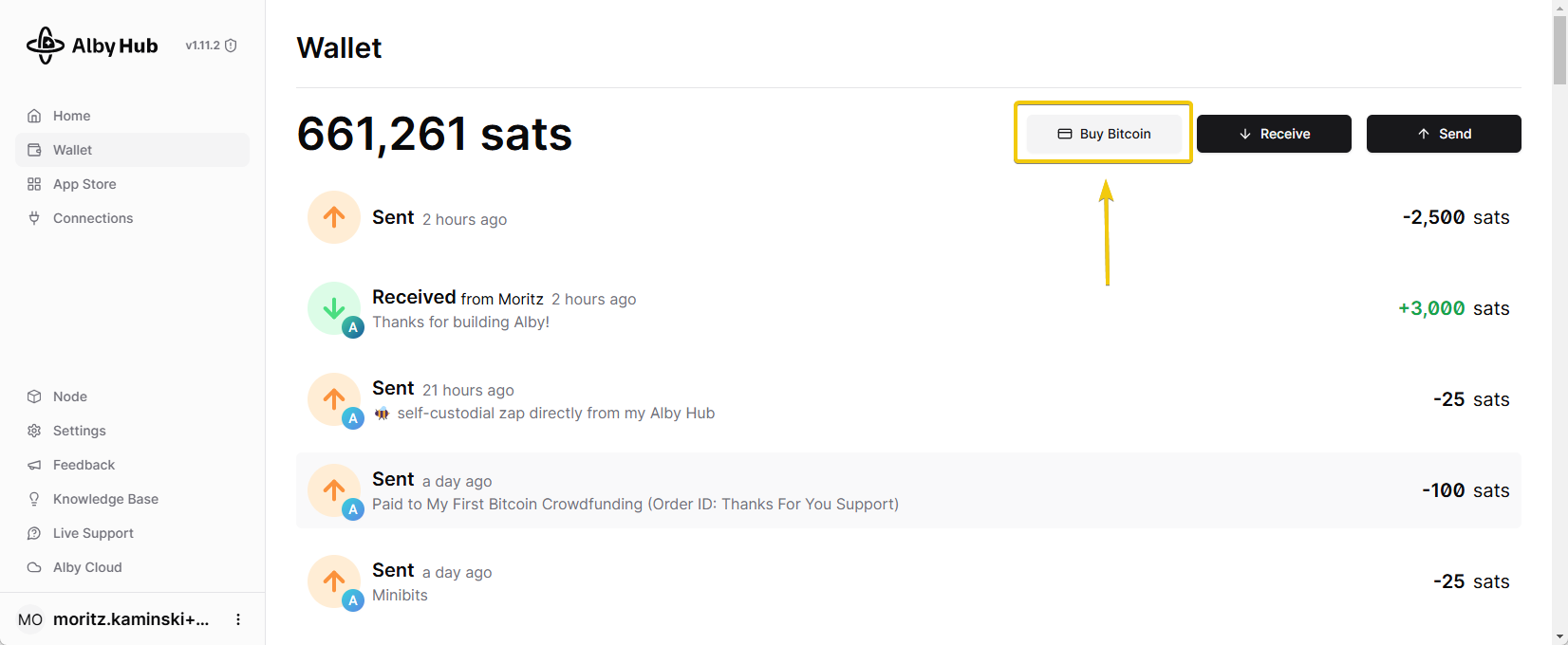
#### Option 2: Buy bitcoin

<figure><img src="https://content.gitbook.com/content/WIUBf3ZZaBGu2ee6Y8lU/blobs/ZgjrXRlkBzrKOhdhIDO8/RFdKvMojV6.png" alt=""><figcaption></figcaption></figure>

{% content-ref url="broken-reference" %}
[Broken link](https://guides.getalby.com/user-guide/broken-reference)
{% endcontent-ref %}

#### Connect other other apps like Alby Go or the Alby Browser Extension

{% content-ref url="app-connections" %}
[app-connections](https://guides.getalby.com/user-guide/app-connections)
{% endcontent-ref %}

{% hint style="success" %}
🎈 Congratulations! 🎉 This section contains everything you need to get Alby Hub up and running! If you're eager to dive deeper and learn more about Alby Hub.
{% endhint %}


# Alby Hub flavors

There are many different ways to run Alby Hub

Alby Hub is 100% [open source](https://github.com/getAlby/hub). You can run it on a server in the cloud, on your desktop or even on mini-PCs such as a Raspberry PI. You can easily migrate your Alby Hub to a different host or machine at any time.

Here are your options to run your Alby Hub

{% content-ref url="alby-hub-flavors/alby-cloud" %}
[alby-cloud](https://guides.getalby.com/user-guide/alby-hub-flavors/alby-cloud)
{% endcontent-ref %}

{% content-ref url="alby-hub-flavors/other-cloud-options" %}
[other-cloud-options](https://guides.getalby.com/user-guide/alby-hub-flavors/other-cloud-options)
{% endcontent-ref %}

{% content-ref url="alby-hub-flavors/desktop" %}
[desktop](https://guides.getalby.com/user-guide/alby-hub-flavors/desktop)
{% endcontent-ref %}

{% content-ref url="alby-hub-flavors/docker" %}
[docker](https://guides.getalby.com/user-guide/alby-hub-flavors/docker)
{% endcontent-ref %}

{% content-ref url="alby-hub-flavors/umbrel-start9-etc" %}
[umbrel-start9-etc](https://guides.getalby.com/user-guide/alby-hub-flavors/umbrel-start9-etc)
{% endcontent-ref %}

{% content-ref url="alby-hub-flavors/linux" %}
[linux](https://guides.getalby.com/user-guide/alby-hub-flavors/linux)
{% endcontent-ref %}

{% hint style="info" %}
**What does it mean for Alby to be an Open Source Company?**

Being an open-source company means our software is freely available for anyone to use, modify, and distribute. This fosters transparency, security, and innovation. By offering multiple self-hosting options, we give you greater control and flexibility—benefiting both you and the broader community.

Open source benefits everyone by promoting collaboration and accelerating technological progress.

You’re welcome to review and contribute to our code on GitHub: <https://github.com/getAlby/>.

Alby Hub was created with a lot of effort, care, and the vision of a better world powered by Bitcoin. We’d greatly appreciate your support through a [*membership*](https://guides.getalby.com/user-guide/alby-hub-flavors/alby-cloud) to help us continue our work.
{% endhint %}


# Alby Cloud

The easiest way to get started with Alby Hub: Use the Alby Hub cloud hosting service!

Alby Hub is a self-custodial wallet that combines convenience and security for Bitcoin payments. With Alby Cloud, you can skip the hassle of setting up your own wallet and instead benefit from a solution that’s online 24/7, highly reliable, and backed by dedicated support.

Subscribe to experience the ease and peace of mind that comes with Alby Cloud.&#x20;

## Here is a sneak peek at the Alby Hub

{% tabs %}
{% tab title="Wallet" %}

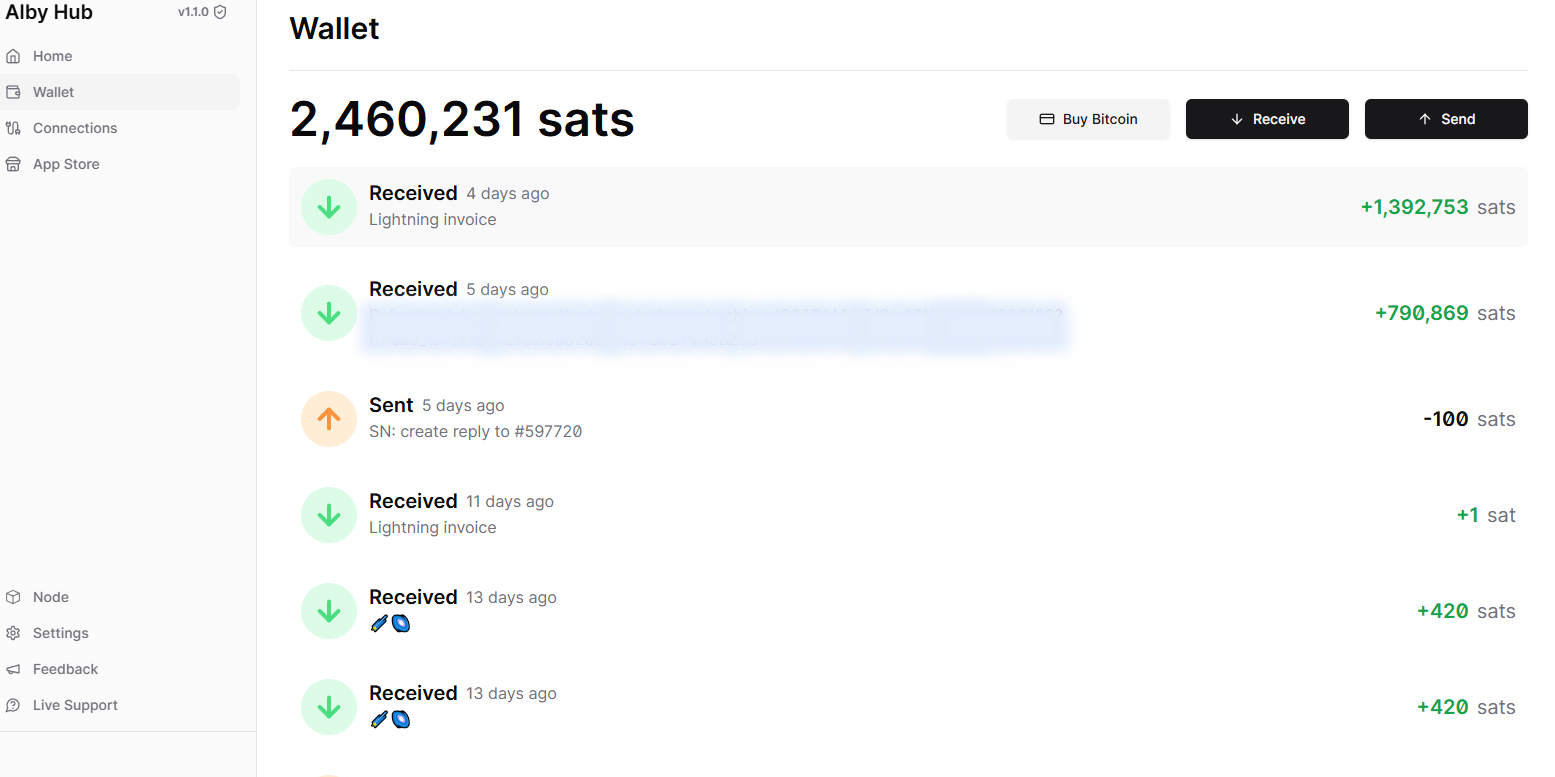
<figure><img src="https://content.gitbook.com/content/WIUBf3ZZaBGu2ee6Y8lU/blobs/EDCrSjfWOu2IHXOMQ6ZT/4.png" alt=""><figcaption><p>Take a quick sneak peek at the Alby Hub! 👀</p></figcaption></figure>
{% endtab %}

{% tab title="Connections" %}

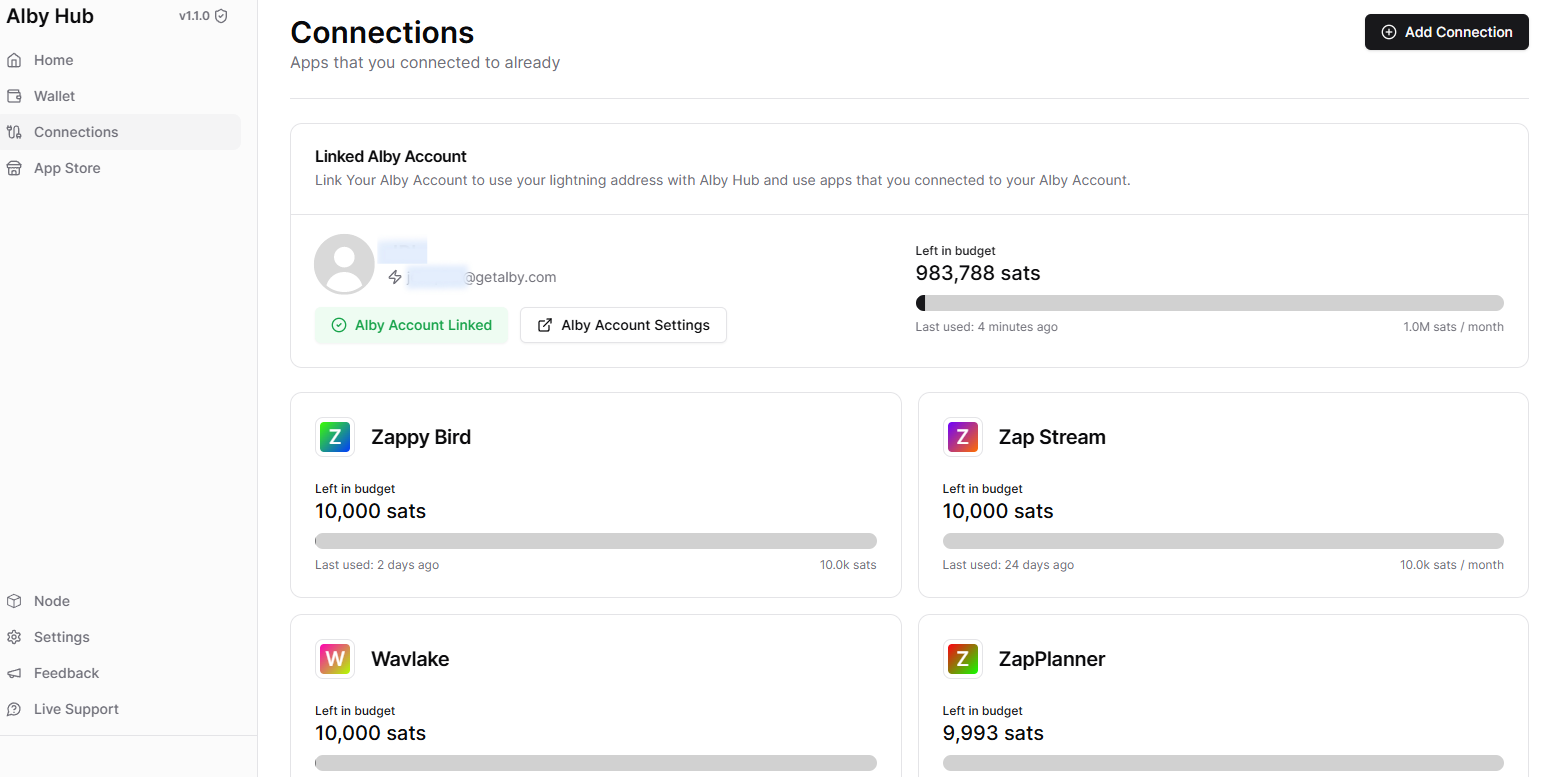
<figure><img src="https://content.gitbook.com/content/WIUBf3ZZaBGu2ee6Y8lU/blobs/anR5ygTbT1Rdb73n6O6Z/3.png" alt=""><figcaption><p>Take a quick sneak peek at the Alby Hub! 👀</p></figcaption></figure>
{% endtab %}

{% tab title="App Store" %}

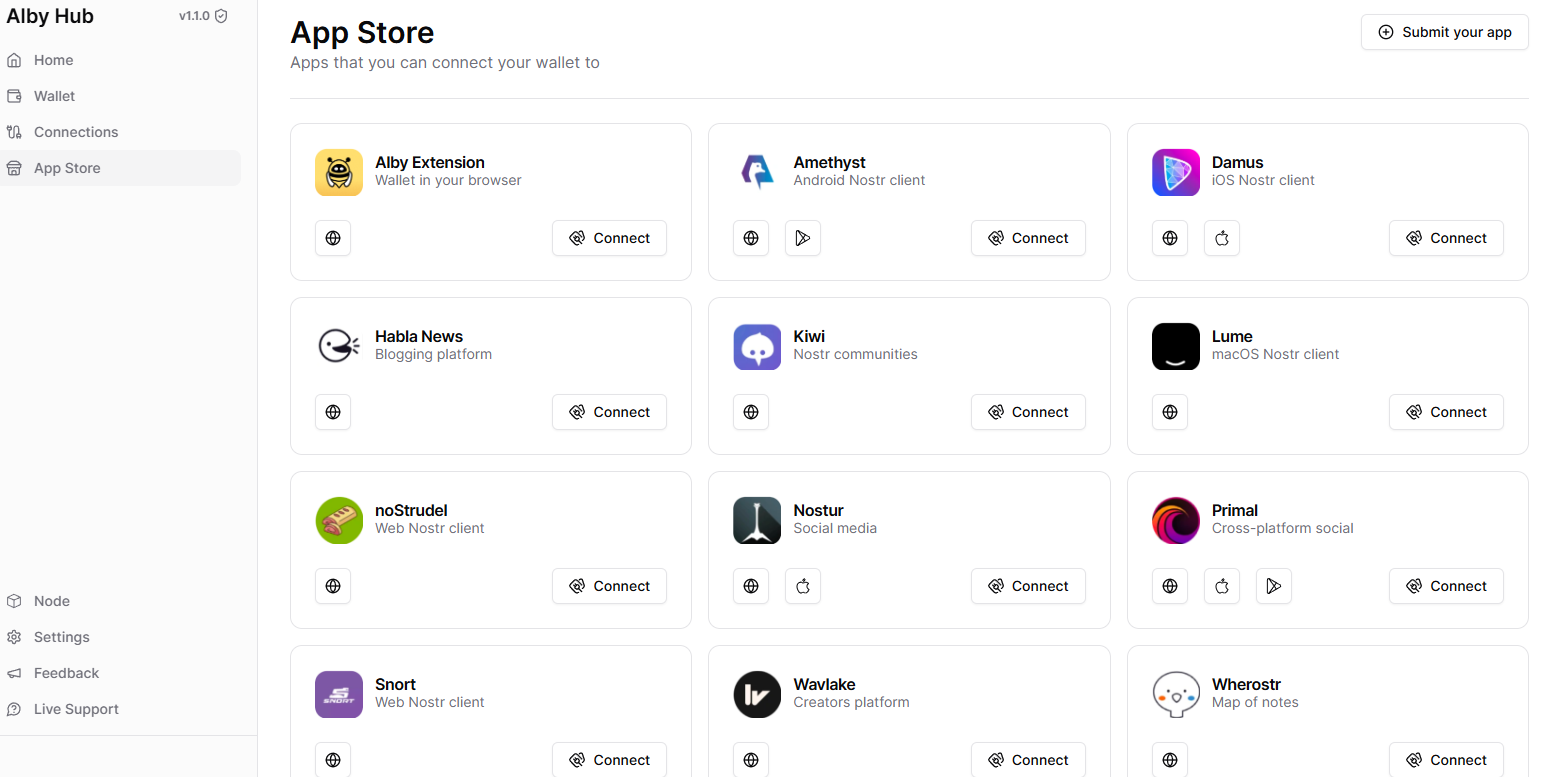
<figure><img src="https://content.gitbook.com/content/WIUBf3ZZaBGu2ee6Y8lU/blobs/wWArxBgwYy1OYZT5Uawg/2.png" alt=""><figcaption><p>Take a quick sneak peek at the Alby Hub! 👀</p></figcaption></figure>
{% endtab %}

{% tab title="Node" %}

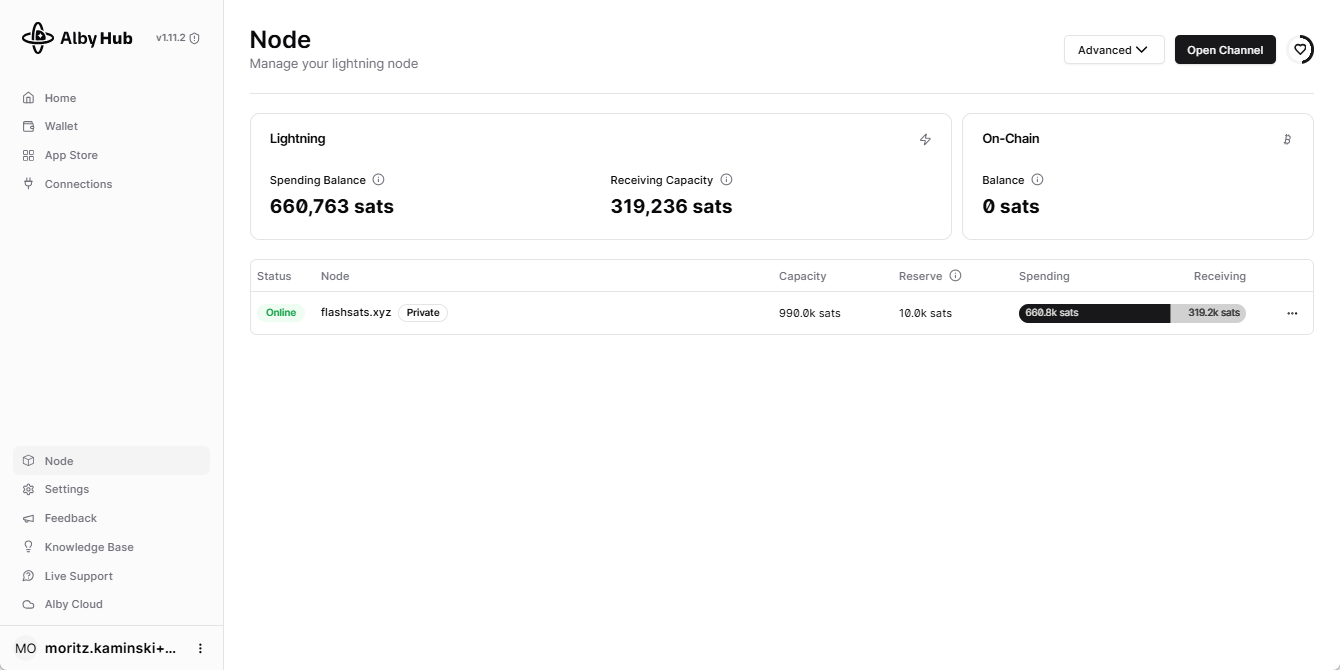
<figure><img src="https://content.gitbook.com/content/WIUBf3ZZaBGu2ee6Y8lU/blobs/fiXHdZfH2F8JQOEIVOCR/chrome_GHztl1qfaO.png" alt=""><figcaption><p>Take a quick sneak peek at the Alby Hub! 👀</p></figcaption></figure>

{% embed url="<https://getalby.com/subscription/new>" %}
Click here and get your membership immediatly!
{% endembed %}
{% endtab %}
{% endtabs %}

***

## How to get your Hub running with Alby Cloud

Alby offers the perfect solution for your Hub with an integrated lightning node, all while ensuring that only you have access to your Alby Hub. This is your very own self-custody wallet, safeguarding your bitcoin and allowing you to send and receive bitcoin seamlessly. Enjoy the ultimate convenience with Alby.

Alby Cloud is perfect if you want an Alby Hub, a powerful self-custodial wallet, without the hassle. In just 2 minutes, you can start your own hub with:

* Alby Hub — self-custodial bitcoin on-chain and lightning wallet
* Enjoy 24/7 online access to receive payments with lightning address
* Automated remote backups
* Priority chat support
* Access to the subscribers community
* **30-day refund guarantee**
* Many more features on the horizon.<br>

Join now and experience a new level of financial freedom. ⚡

#### [-> I want to start my Alby Cloud Hub](https://getalby.com/subscription/new)


# Other Cloud Options

You can run Alby Hub on cloud service from almost any provider!

You can find all releases, script binaries and install scripts of Alby Hub on [GitHub](https://github.com/getAlby/hub?tab=readme-ov-file#deploy-it-yourself). \
\
To make the deployment of Alby Hub in the cloud as easy as possible, find guides and 1-click deploy options below 👇

## Overview

* [Fly.io](#fly.io)
* [Nodana](#nodana)
* [Render](#render)

## Fly.io

Fly is a popular micro-VM hosting platform.&#x20;

<details>

<summary>How to use Fly.io to run Alby Hub</summary>

At Alby we are giving you the possibility to connect your own bitcoin lightning node to your [Alby Account](https://getalby.com/#account). To  make it easier to run the node we are using a service to decouple the signing of the transactions from the node. This guide explains how you can self-host the signer app to send and receive payments in a sovereign way. Your lightning node will be independently deployed by Greenlight.

#### Step 1: Create an account on Fly.io and add your credit card details (for free).&#x20;

Fly.io offers a free tier which just provides enough compute resources to host your signer app for your own lightning node. Your card won't be charged as long as you only use your account to host the app. &#x20;

#### Step 2: Install the flyctl&#x20;

Have a look at [this page](https://fly.io/docs/hands-on/install-flyctl/) for Windows, macOS and Linux

#### Step 3: Sign into your fly account via the CLI

To sign in, run

<pre><code><strong>fly auth login
</strong></code></pre>

When your browser opens to the Fly.io sign-in screen, enter your user name and password to sign in.

#### Step 4: Save the config file

{% hint style="warning" %}
Change the name 'Alby-nwc' to a custom name. For example: 'I-run-AlbyHub'
{% endhint %}

```
# fly.toml app configuration file generated for nwc

app = 'Alby-nwc'
primary_region = 'lax'
swap_size_mb = 2048

[build]
  image = 'ghcr.io/getalby/hub:latest'

[env]
  DATABASE_URI = '/data/nwc.db'
  WORK_DIR = '/data'

[[mounts]]
  source = 'nwc_data'
  destination = '/data'
  initial_size = '1'
  auto_extend_size_threshold = 80
  auto_extend_size_increment = "1GB"
  auto_extend_size_limit = "5GB"

[http_service]
  internal_port = 8080
  force_https = true
  auto_stop_machines = false
  auto_start_machines = true
  min_machines_running = 0
  processes = ['app']

[[vm]]
  cpu_kind = 'shared'
  cpus = 1
  memory = '512mb'
```

#### Step 5: Launch the app

To launch the signer app, run

<pre><code><strong>fly launch
</strong></code></pre>

Make sure you run this command in the directory where you store the config file. &#x20;

The cli might ask you:\
Would you like to copy its configuration to the new app? **Yes**\
Do you want to tweak these settings before proceeding? **No**\
Create .dockerignore from 1 .gitignore files? **No**

If you see: `Watch your deployment at  https://fly.io/apps/....`the app has been deployed successfully.

#### Step 6: Access the app

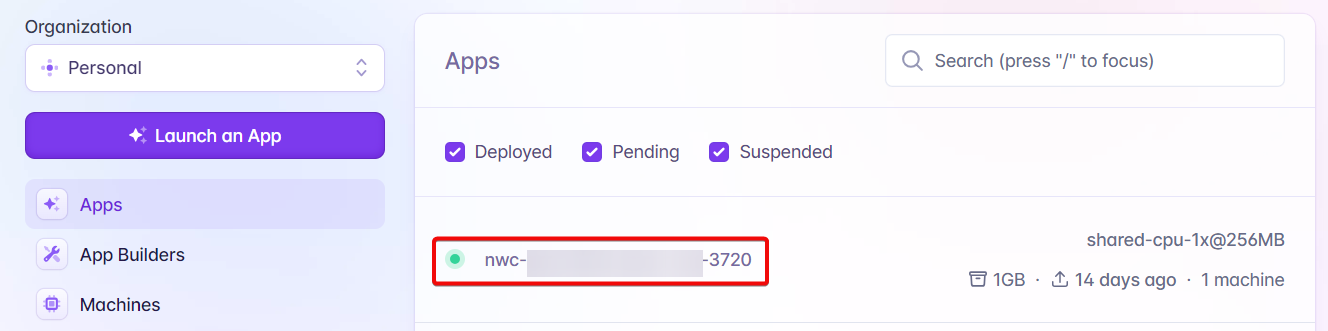
Log into your Fly.io account and you see the new app in the 'Apps' view.&#x20;

<figure><img src="https://content.gitbook.com/content/WIUBf3ZZaBGu2ee6Y8lU/blobs/PeJeNf51fTLm87bLVuJ1/m3tI3zBUSs.png" alt=""><figcaption></figcaption></figure>

Click on the app to access it on your browser.

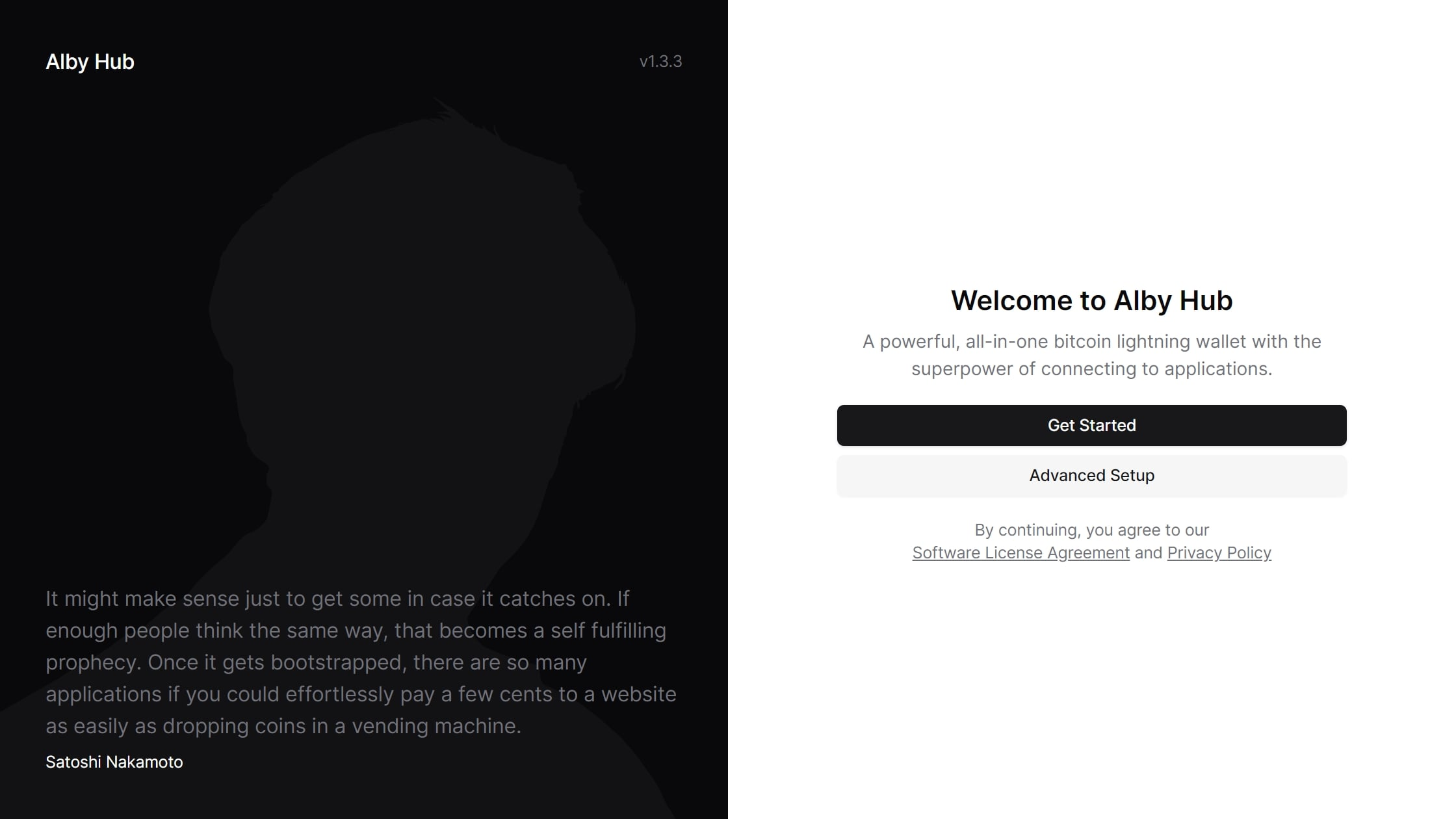
#### Step 7: Set up Alby Hub

Click on "Get Started"

<figure><img src="https://content.gitbook.com/content/WIUBf3ZZaBGu2ee6Y8lU/blobs/OnHo3bsB4HW8z3CQuh7i/image.png" alt=""><figcaption></figcaption></figure>

### How to update Alby Hub on Fly.io

In Powershell on Windows, navigate to the directory of your fly.toml with `cd [directory path]`. Then type `fly deploy` in Powershell. \
You'll see further information printed in Powershell.&#x20;

{% hint style="success" %}
**Congrats you successfully deployed and set up your own lightning node.**&#x20;
{% endhint %}

</details>

## Nodana

Deploy Alby Hub on Nodana with one click. No personal details required. Start [here](https://nodana.io/).

## Render

You can use the one-click install button for the [Render](https://render.com/) cloud platform available [here](https://github.com/getAlby/hub?tab=readme-ov-file#deploy-it-yourself).

<figure><img src="https://content.gitbook.com/content/WIUBf3ZZaBGu2ee6Y8lU/blobs/0lZAWN8DHTuZgjCuSWww/chrome_5a8QhdgCLd.png" alt=""><figcaption><p>One-click install button for <a href="https://render.com/">Render</a></p></figcaption></figure>


# Desktop

You can run Alby Hub on your own computer, whether it is running on Windows, MacOS, or Linux.

## Install Alby Hub on:&#x20;

1\.  [Windows](#windows)\
2\. [macOS](#macos)\
3\. [Linux](#linux)\
4\. [Instruction for all systems and download links](#all-systems)\
5\. [Uninstalling and deleting everything](#id-5.-uninstalling-and-deleting-everything)

{% hint style="info" %}
Alby Hub for desktop is well-suited for self-hosting for users who have a basic understanding of software configuration and network settings, and have their computers online 24/7 in order to send or receive payments.  Therefore, consider this option if you keep the desktop computer **always online**.&#x20;

Otherwise, we recommend subscribing to Alby Cloud to ensure your wallet is always online. 👍
{% endhint %}

***

## Windows **💻**

{% embed url="<https://demos.getalby.com/demo/clyxrnjdh00uwh5yz026de5x6>" %}

***

## macOS **🍏**

{% embed url="<https://demos.getalby.com/demo/cm6b1rq9p0pkk280i2407f09m>" %}

***

## Linux **🐧**

{% embed url="<https://demos.getalby.com/demo/clz0o1u7p0074dr84mv73tvxg>" %}

<details>

<summary>Installing on Linux for advanced users</summary>

Click [here](https://github.com/getAlby/hub?tab=readme-ov-file#custom-ubuntu-vm) to get started.

</details>

<details>

<summary>Linux Troubleshooting: Common Errors</summary>

* **Ubuntu 22.04 Crash on Startup**: If AlbyHub crashes on startup, try running `sudo apt-get install libwebkit2gtk-4.0-37`. This resolves a known issue with missing dependencies.
* **Blank White Screen with Graphics Acceleration**: If after installing the necessary libraries, AlbyHub still shows a blank white screen, launch the app with the command `export WEBKIT_DISABLE_DMABUF_RENDERER=1` to disable the problematic renderer.
* **Server Version Recommendation**: For users experiencing persistent issues, we recommend using the server version of AlbyHub. It lacks a GUI, making it less prone to graphical errors.

</details>

***

## All systems&#x20;

### 1. Select your operating system below

The download of Alby Hub app files starts automatically.&#x20;

<table data-view="cards"><thead><tr><th></th><th></th><th></th><th data-hidden data-card-target data-type="content-ref"></th></tr></thead><tbody><tr><td></td><td><strong>💻 Windows</strong></td><td></td><td><a href="https://getalby.com/install/hub/windows">https://getalby.com/install/hub/windows</a></td></tr><tr><td></td><td><strong>🍏 MacOS</strong></td><td></td><td><a href="https://getalby.com/install/hub/macos">https://getalby.com/install/hub/macos</a></td></tr><tr><td></td><td><strong>🐧 Linux</strong></td><td></td><td><a href="https://getalby.com/install/hub/desktop-linux">https://getalby.com/install/hub/desktop-linux</a></td></tr></tbody></table>

### 2. Extract the zip file

This may vary slightly between systems.

### 3. Find the Alby Hub file in the extracted order and install it.&#x20;

Open the file manually or add it to the system startup if you want it to run permanently each time you restart your computer.

{% hint style="success" %}
**Congrats!** 🎉 Your Alby hub is now running on your desktop. 👏 \
Remember, keeping your Alby Hub online is crucial to send and receive payments at any point in time.
{% endhint %}

***

## Uninstalling and deleting everything

{% hint style="danger" %}
Warning: This may result in a loss of funds. Make sure your Hub is empty before following these instructions to completely remove it.
{% endhint %}

To completely remove Alby Hub from a Windows desktop, first close the app, then uninstall it from Settings under Apps if it appears there. After that, delete its data folder located at C:\Users\AppData\Local\albyhub.&#x20;

On a Mac, close the app, drag Alby Hub from the Applications folder to the Trash, and then delete its data folder, which may be found at \~/Library/albyhub or, in some cases, at \~/Library/Containers/com.getalby.Alby-Hub/Data/Library/Application Support/albyhub.


# Docker

Run Alby Hub with a single docker command 🐋

Click the link below to get started

<https://github.com/getAlby/hub?tab=readme-ov-file#docker>

**Minimum Requirements:**

* Memory: 512MB (1GB recommended) + 1GB Swap (2GB recommended)
* Storage: 1GB+
* Persistent storage. When using Docker, it’s important to configure a **persistent volume** or a **bind mount** to ensure the data isn’t lost when the container restarts. \*

(\*) Our Docker examples contain the volume.&#x20;

You can manually download the docker-compose.yml file and then run: docker compose up . Here is the command to run the Hub on Docker:

```
docker run -v ~/.local/share/albyhub:/data -e WORK_DIR='/data' -p 8080:8080 --pull always ghcr.io/getalby/hub:latest
```

{% hint style="warning" %}
We recommend having a solid understanding of Docker management before attempting to host your Alby Hub in a Docker container. If you're not experienced with Docker, please avoid this method, as it could lead to potential loss of funds.
{% endhint %}


# Umbrel, Start9, etc

How to run Alby Hub on your home cloud.

Learn how to install Alby Hub on sovereign computing systems, personal cloud OSs and existing lightning nodes.

Currently Alby Hub is available for Umbrel, Start9, RaspiBlitz, MyNode, CasaOS, Unraid, etc.\
\
Are we missing one option? [Let us know](https://feedback.getalby.com/-alby-hub-request-a-feature)

***

## Umbrel

#### Option 1: Alby Hub self-custodial standalone app using its internal LDK node

**Your Benefits:**

1. **Encrypted remote backups**: recover your bitcoin incl. all channels anytime
2. **Very resource efficient**: Requires minimal storage capacities

Just go to the App Store and install Alby Hub, with no requirements or other app installed previously. It'll work "right out of the box".

{% embed url="<https://demos.getalby.com/demo/cmhmn7zwk09bsdqxaxsuc4ape?utm_source=link>" %}

Note: If you’ve already installed the Lightning Node app on Umbrel, follow these steps instead:

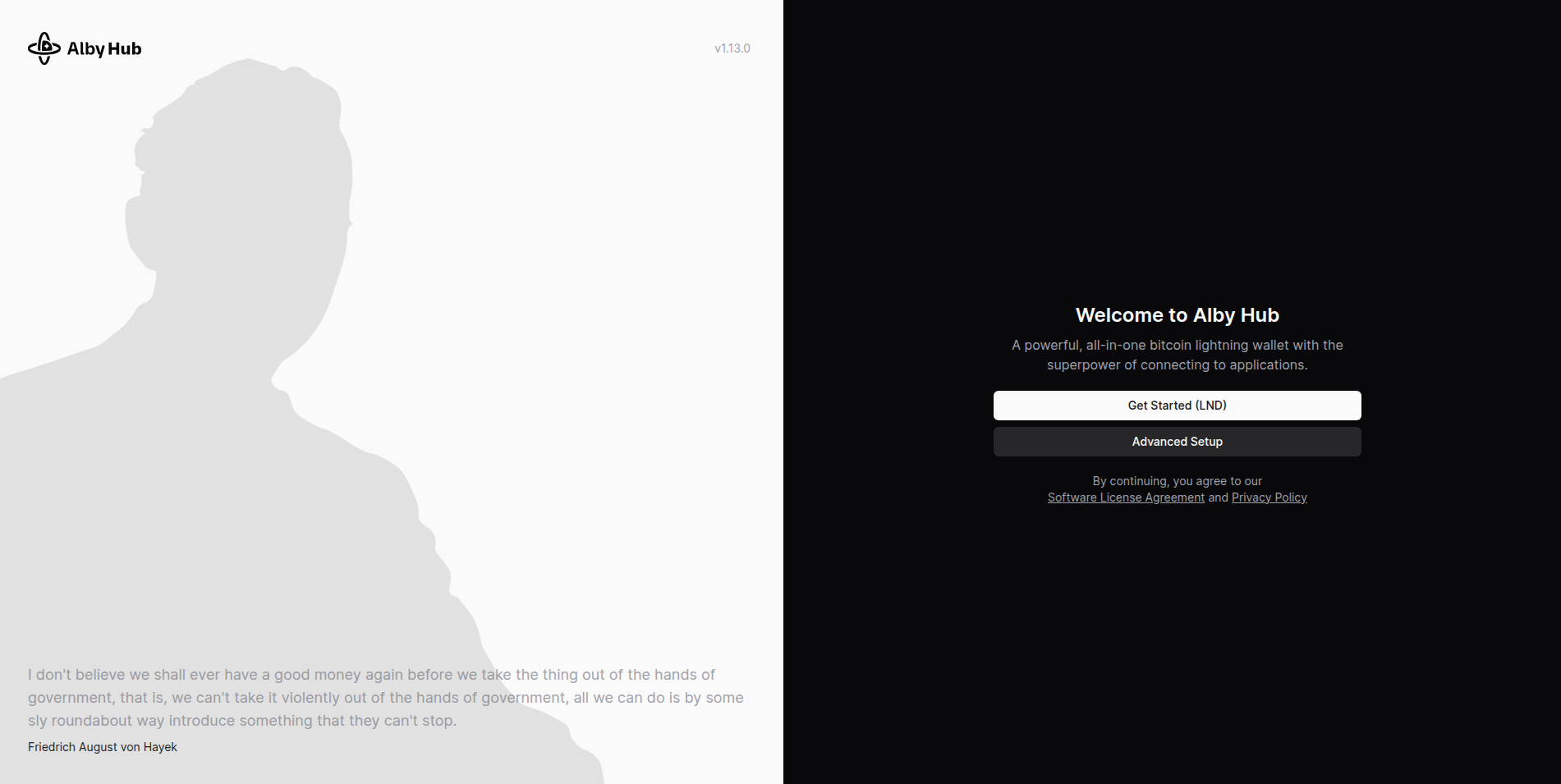
1. You can either choose Get started (LND) or "Advanced Setup". Click **“Advanced Setup”**
2. Connect your Alby account or choose “Maybe Later”
3. Click **“Create Wallet with Custom Node”**
4. Set a password
5. Select the **“LDK”** option

#### Option 2: Alby Hub using Umbrel's Lightning App (LND) as its funding backend.

Just go to the Umbrel's App Store, then look for the Alby Hub under the "Bitcoin" Section. You need Bitcoin core & Lightning App already installed. Click on Alby Hub & Install.

<figure><img src="https://content.gitbook.com/content/WIUBf3ZZaBGu2ee6Y8lU/blobs/e4P9nSAGJAbww6vZanBG/Heading%20(30).png" alt="" width="375"><figcaption></figcaption></figure>

{% embed url="<https://demos.getalby.com/demo/clyrptmva0jkkz9kdzkavmkhx>" %}

***

## Start9

Just go to the Start9 Marketplace, then look for the Alby Hub under the "Lightning" Section. Install.&#x20;

<figure><img src="https://content.gitbook.com/content/WIUBf3ZZaBGu2ee6Y8lU/blobs/bscmM4ByHfneLM2CnxtL/Heading%20(29).png" alt="" width="375"><figcaption></figcaption></figure>

{% embed url="<https://demos.getalby.com/demo/clyxp96su00qhh5yz5tqfcw5k>" %}


# Linux

How to run Alby Hub on Linux?

Do you want Want to build and run Alby Hub from source on an Ubuntu VM or other Linux architecture? We've got you covered.

[Click here to get started.](https://github.com/getAlby/hub?tab=readme-ov-file#deploy-it-yourself)


# Updating

Keep your Alby Hub up to date for the latest and greatest features. Don't worry, it's super easy!

The Alby team and open-source contributors are constantly researching and working on Alby Hub to ensure you have the latest features and security improvements. \
\
Let's get started! Keep your Alby Hub up to date! 💪

You'll find the current version of your Alby Hub in the top left corner of the app. All releases are published on [GitHub](https://github.com/getAlby/hub).

## Overview

1 .  [How to Update](#id-1.-how-to-update)\
2 . [Choose your Alby Hub specific flavor](#id-2.-choose-your-alby-hub-specific-flavor)\
&#x20;     2.1.  [Pro Cloud](#alby-cloud)\
&#x20;     2.2. [Desktop](#desktop)\
&#x20;     2.3. [Docker](#docker)\
&#x20;     2.4. [Umbrel, Start9, etc.](#umbrel-start9-your-own-node)\
&#x20;     2.5. [Ubuntu](#ubuntu)\
3 .[ Congratulations!](#id-3.-congratulations)

***

## 1. How to Update 🚀

When an Alby Hub update becomes available you'll be notified directly in the Hub. The update process depends on how you run Alby Hub.&#x20;

### Before you Update&#x20;

Please note the following before you update your hub:

* Make sure you have backed up your Alby Hub recovery phrase consisting of 12 words (for the embedded node option only)
* Make sure you have your Alby Hub password saved&#x20;
* Update might take a few minutes
* Unlock is required after the update by entering your Alby Hub password

***

## 2. Choose your Alby Hub specific flavor 🍕

Find the perfect version of Alby Hub that you are running that fits your specific needs and apply its unique update!

It is recommended to do regular updates, as Alby developers are improving it every week.

### Alby Cloud

<details>

<summary>Updating your Hub running on Alby Cloud</summary>

1. Go to getalby.com and click "Login".&#x20;
2. Inside your Alby web account, go to "Wallet Configuration"
3. Click on "Update now".

<img src="https://content.gitbook.com/content/WIUBf3ZZaBGu2ee6Y8lU/blobs/OZAvdalWom0ICSBHm8Qt/Aspect%20ratio%2031%20(8).png" alt="" data-size="original">

</details>

{% embed url="<https://demos.getalby.com/demo/clywujo361gpsz9kdn5nu50bm>" %}

<details>

<summary>Other Cloud Options</summary>

The currently recommended deployment options on our [GitHub repository ](https://github.com/getAlby/hub/tree/master)are Digital Ocean, Render, and Fly. All three load the latest version from the GitHub repository. If your Alby Hub is outdated, shut down and reboot your instance. \
\
Those instances are using docker images, so if needed you can also updated them manually just like you would for a [docker image](#docker).

</details>

***

### Desktop

{% tabs %}
{% tab title="Windows" %}
{% embed url="<https://demos.getalby.com/demo/clz2s4mtz00c0ypj47uxq5cq7>" %}
Updating Alby Hub on Windows
{% endembed %}
{% endtab %}

{% tab title="macOS" %}
{% embed url="<https://demos.getalby.com/demo/cm6iqdoqm004lpekcufcyqbsf>" %}
Updating Alby Hub on macOS
{% endembed %}
{% endtab %}

{% tab title="Ubuntu" %}

1. Download latest release from [GitHub releases](https://github.com/getAlby/hub/releases)
2. Stop current Hub instance
3. Install new version
4. Restart Hub&#x20;
   {% endtab %}
   {% endtabs %}

#### Updating older Hub versions (<=1.10.2) on macOS

<details>

<summary>Follow these steps if you have done the above and see two Hubs in your Launchpad</summary>

* Close all instances of the Hub
* Open your Terminal and type `cd "/System/Volumes/Data/Users/<your-user-name>/Library/Containers"` and then do `ls`
* You should be able to see two folders in the list `com.getalby.albyhub` and `com.getalby.Alby-Hub`
* Your old data resides in `com.getalby.albyhub`, so we should move that to `com.getalby.Alby-Hub`
* To do that do `cd "/System/Volumes/Data/Users/<your-user-name>/Library/Containers/com.getalby.albyhub/Data/Library/Application Support"` and then do `cp -r albyhub "/System/Volumes/Data/Users/<your-user-name>/Library/Containers/com.getalby.Alby-Hub/Data/Library/Application Support/albyhubold` - this should copy the old Hub data to the new one
* Now do `cd "/System/Volumes/Data/Users/im-adithya/Library/Containers/com.getalby.Alby-Hub/Data/Library/Application Support"` and `ls` to see if there is `albyhubold` listed
* Do `mv albyhub albyhubempty` and then `mv albyhubold albyhub`
* Close your terminal(s) and run the new Hub again, it should work as normal. Delete the old Hub to avoid confusion
* From the next update, you can follow the regular MacOS guide as usual

</details>

***

### Docker

<details>

<summary>Updating Alby Hub running from Docker</summary>

When running on docker, these are the steps to run the latest version:

{% code overflow="wrap" %}

```bash
docker pull ghcr.io/getalby/hub:latest
```

{% endcode %}

```bash
docker stop albyhub
```

```bash
docker rm albyhub
```

```bash
docker run -d --name albyhub \
  -v ~/.local/share/albyhub:/data \
  -e WORK_DIR='/data' \
  -p 8080:8080 \
  ghcr.io/getalby/hub:latest
```

These commands will run the docker image with the previous data, with no data loss and an updated Alby Hub

</details>

***

### Umbrel, Start9, etc.

<details>

<summary>Updating on Umbrel,  Start9, etc.</summary>

Go to your Node OS app store, check the current version of Alby Hub. If it is outdated, then proceed to make sure you have the latest version available for your Node OS. \
**For Start9**: [Visit their guide](https://docs.start9.com/0.3.4.x/user-manual/overview/managing-services#id4)\
**For Umbrel**: Click "Check for updates".\ <img src="https://content.gitbook.com/content/WIUBf3ZZaBGu2ee6Y8lU/blobs/9dcSsKc3S9lW1z3v7lQn/Heading%20(11).png" alt="" data-size="original">

<img src="https://content.gitbook.com/content/WIUBf3ZZaBGu2ee6Y8lU/blobs/8Ia05ZQXLYlafly1vNEx/Heading%20(10).png" alt="" data-size="original">

</details>

***

### Ubuntu

<details>

<summary>Manual installation (Ubuntu)</summary>

Go to your terminal and run these commands:

{% code overflow="wrap" %}

```bash
# Update Snap packages
sudo snap refresh go

# Update build-essential
sudo apt update
sudo apt upgrade -y build-essential

# Navigate to the app directory
cd /path/to/your/app # Update this to the actual path where Alby Hub is

# Pull the latest changes from GitHub
git pull origin main

# Update dependencies and rebuild the app
cd frontend
yarn install
yarn build:http
cd ..

# Run the Alby Hub
go run http/alby_http_service.go

```

{% endcode %}
</details>

***

## 3. Congratulations! 🎉

Your Alby Hub is Updated and Ready to Go!&#x20;

You have successfully updated your Alby Hub! However, your Alby Hub will be locked and inaccessible for connected apps. Payments will not work until you unlock your Hub. You need to unlock it after the update: &#x20;

1. **Visit Your Hub URL:** Go to the URL of your Alby Hub.
2. **Enter Your Unlock Password:** Log in with your unlock password to launch Alby Hub and re-enable your wallet.


# Using AI to Install Your Hub

Please read this first if you plan to use AI to install Alby Hub.

We’ve recently discovered that many users rely on AI tools to guide them through Alby Hub installations. While AI can be helpful, we’ve also seen it lead to serious issues when users follow incorrect or incomplete instructions. Please make sure you understand the risks before getting started.

Installing Alby Hub using AI-generated instructions can easily result in mistakes such as incorrect configurations, missing dependencies, or even loss of funds. AI tools may misunderstand your setup, skip critical security steps, or suggest commands that are not suitable for your device. These issues are not always reversible.

**You risk losing funds if you use AI to install your Hub.**

If you choose to install Alby Hub using AI-generated instructions instead of our official guides, you do so at your own risk. To keep your Hub secure and functioning properly, we strongly recommend following our [official guides](https://guides.getalby.com/user-guide/alby-hub), [contacting our support team](https://getalby.com/help), or [joining an onboarding session](https://cal.com/getalby) before attempting any custom setup. This will help you avoid costly mistakes, ensure everything is configured correctly, and give you access to full support if needed.

It’s fine to use AI for help only *after* you’ve read our guides, reached out to us, or joined an onboarding session—and only if you can provide the correct context. Even then, keep in mind that AI generates the most probable answer, which is not always the correct one—especially in the context of Bitcoin and the Lightning Network. Proceed with extreme caution when using AI in this space.


# Wallet

Alby Hub is a wallet app that runs a full lightning node, which can be accessed by various apps, and it also has a web interface for sending and receiving satoshis over Lightning Network.

### Introduction

Alby Hub is available everywhere where you want pay with bitcoin: on the web, in apps or on mobile. But of course you can also send and receive bitcoin directly from the Alby Hub itself. <br>

<figure><img src="https://content.gitbook.com/content/WIUBf3ZZaBGu2ee6Y8lU/blobs/lVpTqfUOPV8GAi4feTqL/chrome_jSGiOGoSXi.png" alt=""><figcaption><p>Alby Hub wallet</p></figcaption></figure>

{% content-ref url="wallet/send" %}
[send](https://guides.getalby.com/user-guide/wallet/send)
{% endcontent-ref %}

{% content-ref url="wallet/receive" %}
[receive](https://guides.getalby.com/user-guide/wallet/receive)
{% endcontent-ref %}

{% content-ref url="wallet/buy-bitcoin" %}
[buy-bitcoin](https://guides.getalby.com/user-guide/wallet/buy-bitcoin)
{% endcontent-ref %}

***

*Alby Hub was created with a lot of effort, love, and the vision of a better world with Bitcoin. We’re grateful for your consideration in getting a* [*membership* ](https://guides.getalby.com/user-guide/alby-hub-flavors/alby-cloud)*and supporting our work.*

*Best regards, Your Alby Team 💛🐝*


# Open your first channel

You will learn how to open your first lightning payment channel

In order to send and receive bitcoin payments over the lightning network, you have to connect your Alby Hub to the lightning network by opening a lightning channel. It is easy and super exciting to take control over your bitcoin payments.

{% embed url="<https://demos.getalby.com/demo/clz2zpzys3dozz9kdr9ctnxq3>" %}
Open your first lightning payment channel
{% endembed %}

{% hint style="success" %}
Congrats for opening a lightning payment channel. Your Hub is now connected to the lightning network and you are ready to send and receive bitcoin lightning-fast at low cost.
{% endhint %}

### Top up your spending balance now

#### From another bitcoin lightning wallet:

{% content-ref url="receive" %}
[receive](https://guides.getalby.com/user-guide/wallet/receive)
{% endcontent-ref %}

#### From an exchange service

{% content-ref url="buy-bitcoin" %}
[buy-bitcoin](https://guides.getalby.com/user-guide/wallet/buy-bitcoin)
{% endcontent-ref %}


# Send

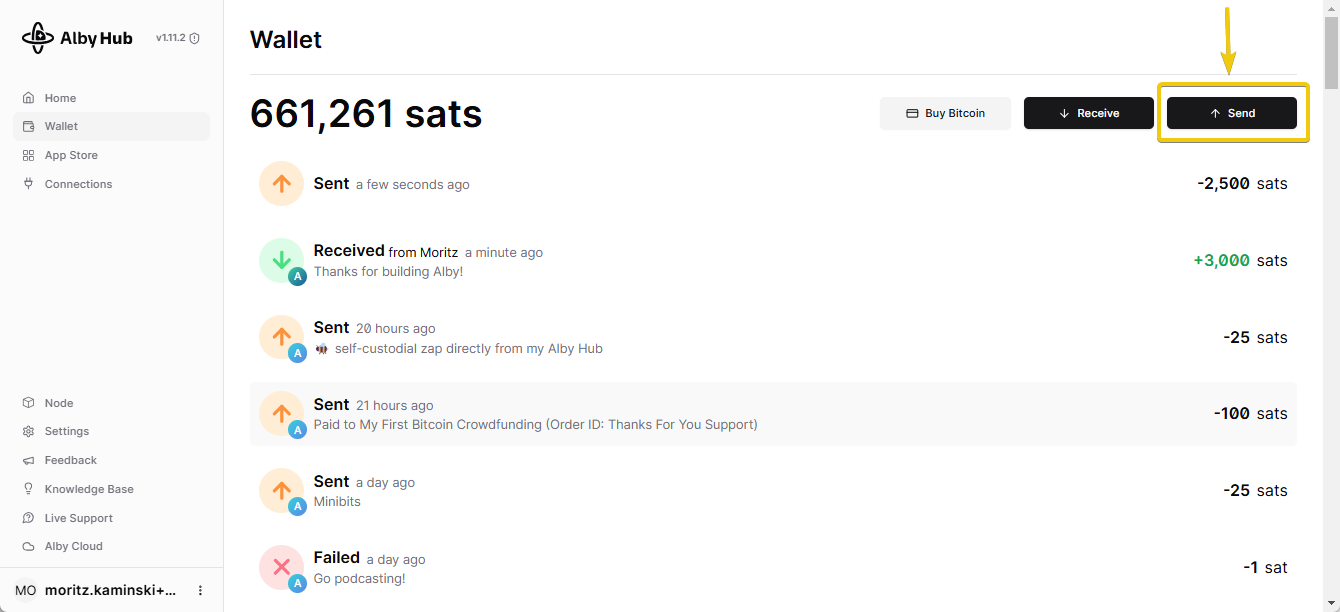
### 1. Navigate to "Wallet" and click on "Send"

<figure><img src="https://content.gitbook.com/content/WIUBf3ZZaBGu2ee6Y8lU/blobs/Po4GWfMmTrfB2TyPdEIj/4B1dD96E6F.png" alt=""><figcaption><p>Alby Hub wallet</p></figcaption></figure>

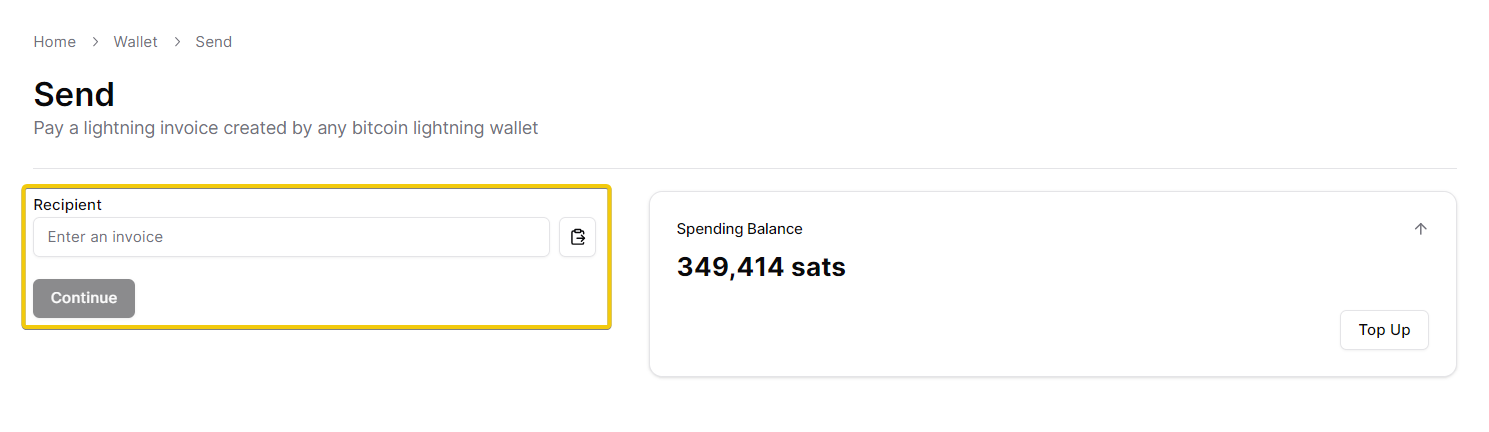
### 2. Enter a lightning invoice of the recipient and click "Continue"

<figure><img src="https://content.gitbook.com/content/WIUBf3ZZaBGu2ee6Y8lU/blobs/tiGcI6kwUAkJYcmsgArO/mfh6Ut0axZ.png" alt=""><figcaption><p>Add lightning invoice of recipient</p></figcaption></figure>

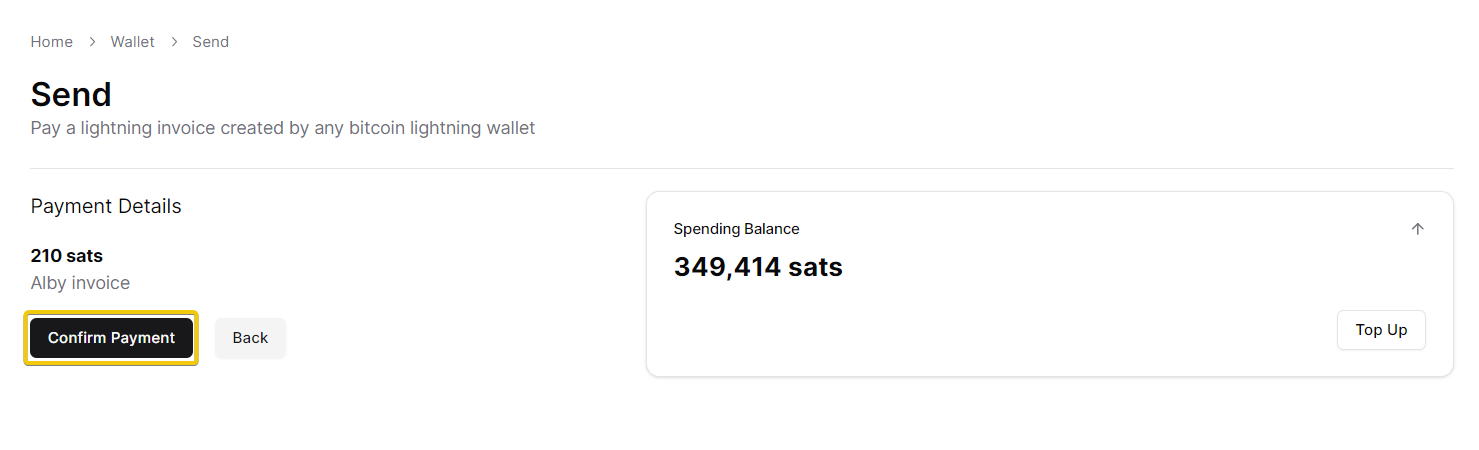
### 3. Final step: Click "Confirm Payment"

<figure><img src="https://content.gitbook.com/content/WIUBf3ZZaBGu2ee6Y8lU/blobs/hap38ZQeehOqIEx4D5L8/PaSJGlhdNx.png" alt=""><figcaption><p>Confirm payment</p></figcaption></figure>

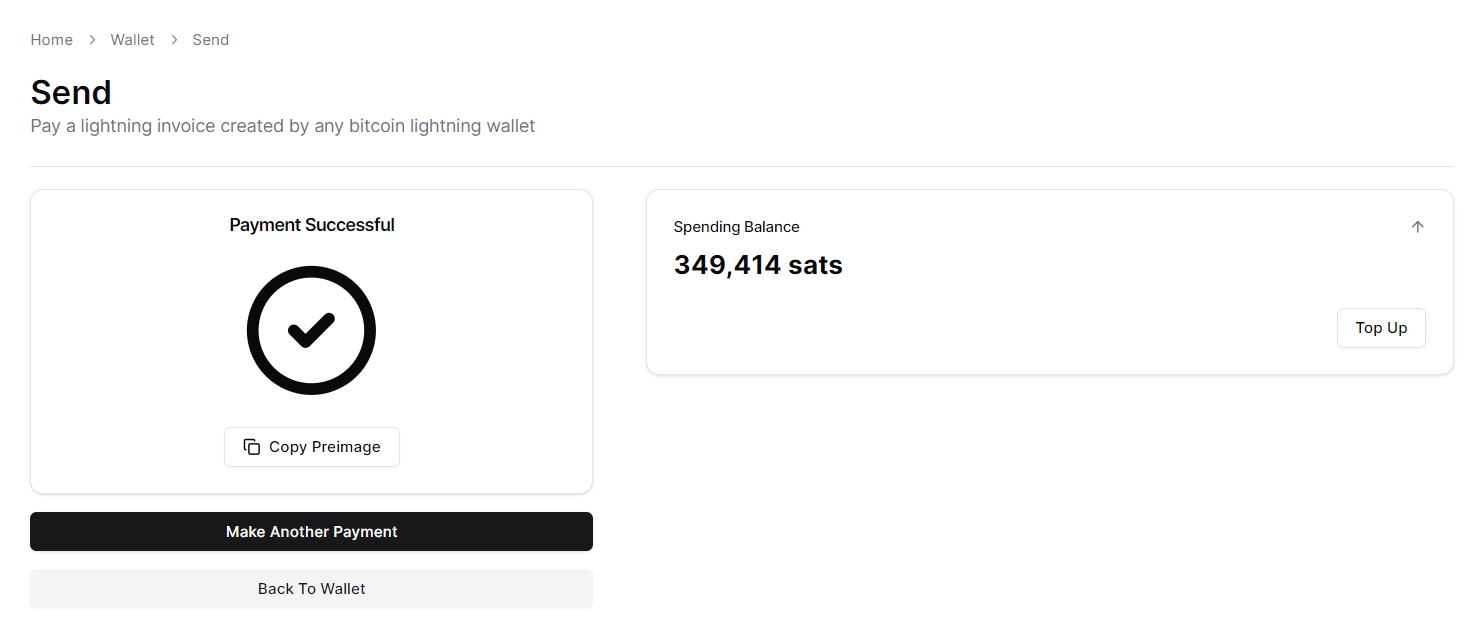
### **Congrats. You successfully sent a payment!** 🎉

<figure><img src="https://content.gitbook.com/content/WIUBf3ZZaBGu2ee6Y8lU/blobs/WIPCNVOUTtMEa4DzRLk7/chrome_tVNE3fitbG.png" alt=""><figcaption><p>Payment confirmation</p></figcaption></figure>

{% hint style="info" %}
The string of characters called ***preimage*** serves as your digitally verifiable payment confirmation. \
Once the payment reaches the intended recipient, the recipient’s wallet application reveals the preimage to the sender and the sender’s wallet (e.g. your Alby Hub) can consider the payment to be complete.
{% endhint %}


# Receive

Use bitcoin, stablecoins, or other cryptocurrencies to top up your balance in Alby Hub. Stablecoins and other cryptocurrencies are automatically swapped to bitcoin before being credited to your Hub.

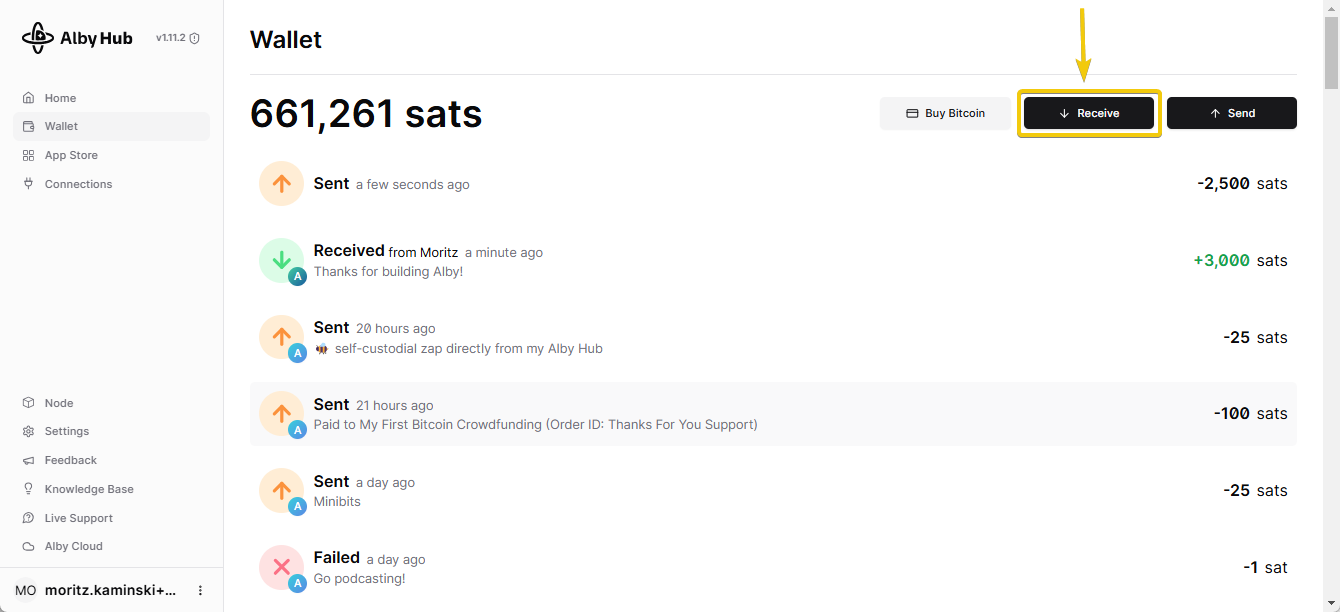
### 1. Navigate to "Wallet" and click on "Receive"

<figure><img src="https://content.gitbook.com/content/WIUBf3ZZaBGu2ee6Y8lU/blobs/va2D71k47Dcd1zZlwQ6c/bC9FMfCQfI.png" alt=""><figcaption><p>Alby Hub wallet</p></figcaption></figure>

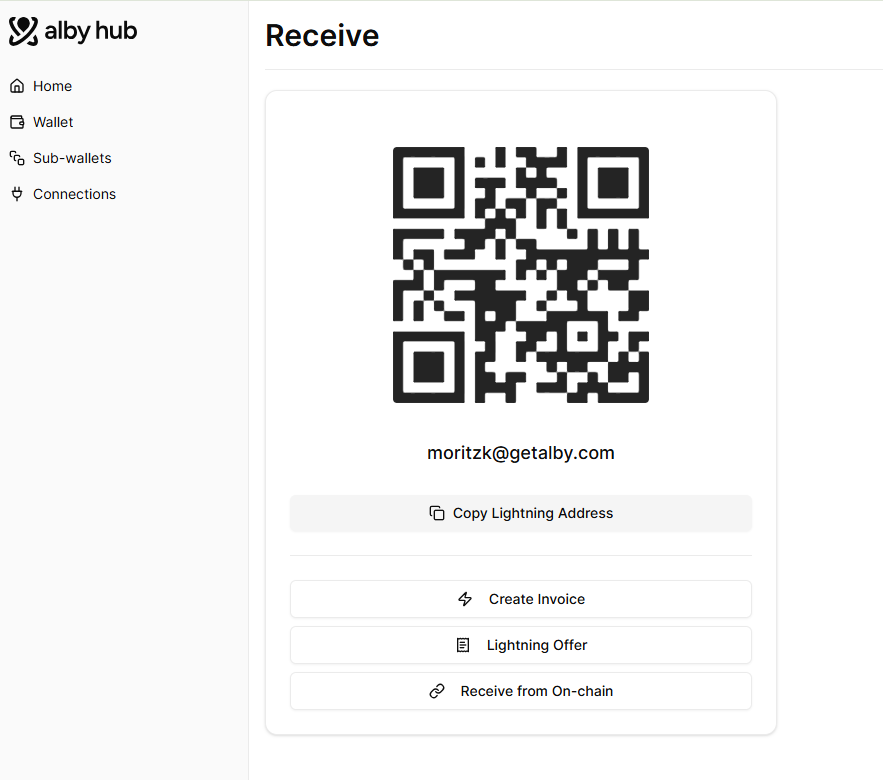
### **2. Select your option to receive**

**You have the following options to receive:**

* Share the QR code
* Share your lightning address (i.e. <moritzk@getalby.com>)
* Create and share a lightning invoice
* Create and share a lightning offer following the BOLT12 spec.
* Receive from On-chain
* Create and share a lightning invoice -> paste it into the [FixedFloat website](https://ff.io/?ref=qnnjvywb) -> swap any stablecoin or cryptocurrency into your Alby Hub.&#x20;

<figure><img src="https://2706948649-files.gitbook.io/~/files/v0/b/gitbook-x-prod.appspot.com/o/spaces%2FWIUBf3ZZaBGu2ee6Y8lU%2Fuploads%2FpW9wvwqaUR3tCdISFgE5%2Fimage.png?alt=media&#x26;token=a8630d08-f36f-4e5f-adc5-53a97357ec51" alt=""><figcaption></figcaption></figure>

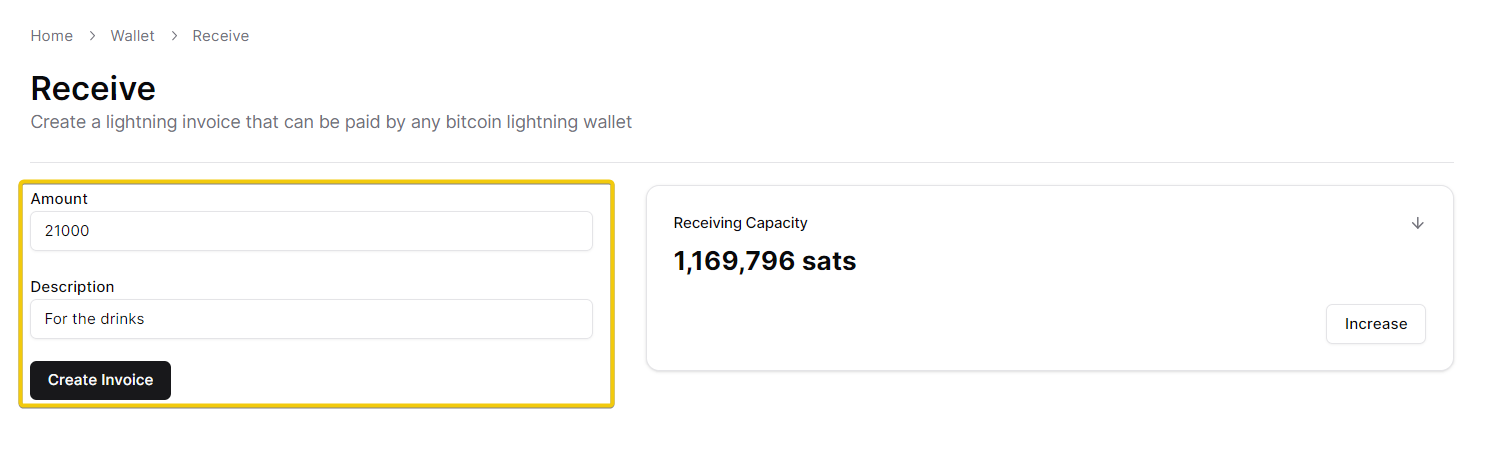
### Example: Create a lightning invoice

#### &#x20;Enter the amount you want to receive and optionally a description...

<figure><img src="https://content.gitbook.com/content/WIUBf3ZZaBGu2ee6Y8lU/blobs/QlESkk4KI1u3DFkWUgHu/3ilOjp55po.png" alt=""><figcaption><p>Create lightning invoice</p></figcaption></figure>

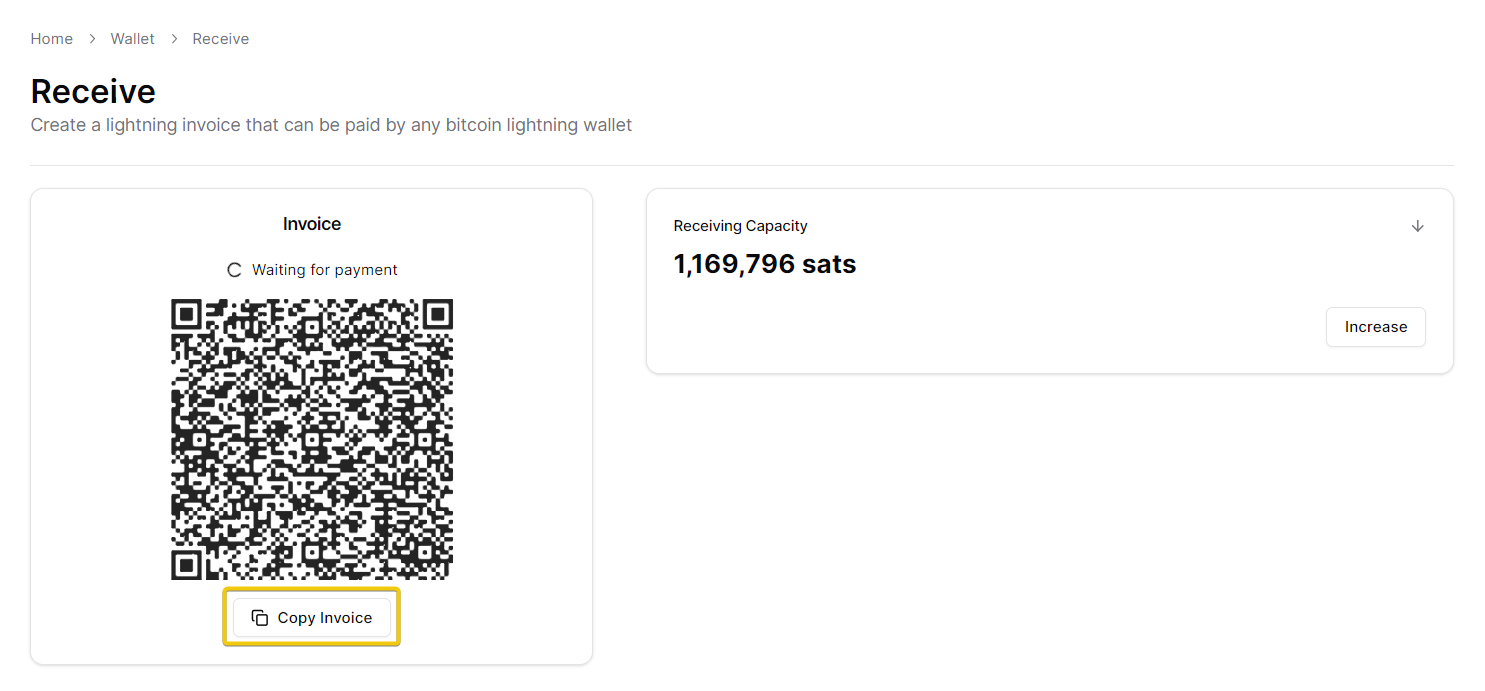
#### ...and copy the invoice to pass it on to the sender&#x20;

<figure><img src="https://content.gitbook.com/content/WIUBf3ZZaBGu2ee6Y8lU/blobs/GjqJ7eNDDCiJJnmxMv2d/jcvu2bTmPV.png" alt=""><figcaption><p>Copy lightning invoice</p></figcaption></figure>

This is how it looks when the sender pays the invoice with the Alby Extension

<figure><img src="https://content.gitbook.com/content/WIUBf3ZZaBGu2ee6Y8lU/blobs/R2lwVG0hsr7B4R3Sj8wr/chrome_HEtMIfG1H9.png" alt="" width="201"><figcaption><p>Payment with Alby Extension</p></figcaption></figure>

### Congrats. You successfully received the payment. 🎉&#x20;

<figure><img src="https://content.gitbook.com/content/WIUBf3ZZaBGu2ee6Y8lU/blobs/f7mvJsOdcHvOejLt6pip/chrome_sot52twN3e.png" alt=""><figcaption><p>Payment received in Alby Hub</p></figcaption></figure>

Don't worry if the sender does not pay immediately. Alby Hub is always online if it runs in the cloud and can receive payments 24/7. In your Alby dashboard on getalby.com you can configure payment notifications to ensure you don't miss any incoming payments. 🙂


# Buy Bitcoin

This guide is for purchasing bitcoin and having it sent directly to your wallet.

## Buy Bitcoin to Top upyour  Wallet Balance

### Buy Bitcoin in Alby

Alby partnered with Mt.Pelerin so you can buy bitcoin directly in your Alby Account.

Open Alby Hub -> Wallet -> click on "Buy Bitcoin" -> You’ll be redirected to your Alby Account dashboard to complete the purchase.&#x20;

<figure><img src="https://2706948649-files.gitbook.io/~/files/v0/b/gitbook-x-prod.appspot.com/o/spaces%2FWIUBf3ZZaBGu2ee6Y8lU%2Fuploads%2FcJ36I5WnnuASuyYj5ePJ%2FsDlvM5jQDd.png?alt=media&#x26;token=2b48a54c-884c-4e95-ab00-2edeb7e79054" alt=""><figcaption></figcaption></figure>

-> You’ll be redirected to your **Alby Account dashboard** (getalby.com/topup) -> Choose "**Credit card or bank transfer**" to complete the purchase in a widget from Mt.Pelerin.&#x20;

<figure><img src="https://2706948649-files.gitbook.io/~/files/v0/b/gitbook-x-prod.appspot.com/o/spaces%2FWIUBf3ZZaBGu2ee6Y8lU%2Fuploads%2FPXcmsxcrJDOJ2rDcG7dw%2Fimage.png?alt=media&#x26;token=222657b3-b224-49d0-ac97-2d0260562a55" alt=""><figcaption></figcaption></figure>

Alternatively, you can use stablecoins and other cryptocurrencies to top up your Alby Hub as indicated in the screenshot above. Visit: [getalby.com/topup](https://getalby.com/topup)&#x20;

### Buy Bitcoin at an exchange

If you have Bitcoin in an exchange wallet, here are links to well-known exchanges with instructions on how to withdraw bitcoin via ⚡lightning:&#x20;

| Global                                                                                                                                                             | EU+UK                                                     | US/Canada                                                                                                | Latinamerica                                                                                                               |
| ------------------------------------------------------------------------------------------------------------------------------------------------------------------ | --------------------------------------------------------- | -------------------------------------------------------------------------------------------------------- | -------------------------------------------------------------------------------------------------------------------------- |
| [Coinbase](https://help.coinbase.com/en/coinbase/trading-and-funding/sending-or-receiving-cryptocurrency/lightning)                                                | [Pocket](https://pocketbitcoin.com/lightning)             | [CashApp (only US)](https://cash.app/help/6506-lightning)                                                | [Bipa (only Brasil)](https://suporte.bipa.app/hc/pt-br/articles/4415356329371-Como-transferir-Bitcoin-pela-rede-Lightning) |
| [Kraken](https://support.kraken.com/hc/en-us/articles/5068216131988-How-do-I-send-bitcoin-on-the-Lightning-Network-)                                               | [Mt. Pelerin](https://www.mtpelerin.com/lightning-wallet) | [Bitcoin Well](https://bitcoinwell.com/blog/how-to-buy-bitcoin-on-the-lightning-network-with-e-transfer) | [Lemon](https://help.lemon.me/en/articles/6431910-que-es-y-como-envio-o-recibo-por-lightning-network-ln)                   |
| [Binance](https://www.binance.com/en/support/faq/how-to-use-the-bitcoin-lightning-network-to-deposit-and-withdraw-btc-on-binance-7a4eb2d9ccaf4433908b448aa3a93493) |                                                           |                                                                                                          | [Belo](https://help.belo.app/en/articles/5899323-how-to-withdraw-btc-from-belo-via-the-lightning-network)                  |
| [Strike](https://strike.me/faq/how-do-i-send-bitcoin/)                                                                                                             |                                                           |                                                                                                          |                                                                                                                            |
| [OKX](https://www.okx.com/help/how-do-i-withdraw-bitcoin-btc-with-okx-lightning-network)                                                                           |                                                           |                                                                                                          |                                                                                                                            |

***

## 2. Buy Bitcoin to top up your On-chain Balance

### Buy Bitcoin in Alby

You can buy bitcoin for the on-chain wallet directly via your Alby Hub.\
Open Alby Hub -> Go to *Node* -> *Advanced* -> Click "*Buy*" -> Define the amount&#x20;

<figure><img src="https://2706948649-files.gitbook.io/~/files/v0/b/gitbook-x-prod.appspot.com/o/spaces%2FWIUBf3ZZaBGu2ee6Y8lU%2Fuploads%2FgRsh7R4bqKc50AvolFsX%2Fimage.png?alt=media&#x26;token=c56e4243-b39f-4e5c-b28f-24516e321ffd" alt=""><figcaption></figcaption></figure>

-> You’ll be redirected to your **Alby Account dashboard** (getalby.com/topup) -> Choose your preferred option to complete the purchase. For on-chain buys we partnered with MoonPay (Credit Card or Paypal) and Mt.Pelerin (Credit card or bank transfer).&#x20;

<figure><img src="https://2706948649-files.gitbook.io/~/files/v0/b/gitbook-x-prod.appspot.com/o/spaces%2FWIUBf3ZZaBGu2ee6Y8lU%2Fuploads%2FehL9aYYoKosNFXffqYWI%2Fimage.png?alt=media&#x26;token=2b68e20b-551b-45ea-8d1e-d5e87c5b218e" alt=""><figcaption></figcaption></figure>

Alternatively, you can use stablecoins and other cryptocurrencies to top up your Alby Hub as indicated in the screenshot above. Visit: [getalby.com/topup](https://getalby.com/topup)

### Buy Bitcoin at an exchange&#x20;

You can send bitcoin from any on-chain wallet or exchange platform to your Alby Hub

Go to *Node* -> *Advanced* -> *Deposit* -> Copy the bitcoin address (bc1q....s5)

<figure><img src="https://content.gitbook.com/content/WIUBf3ZZaBGu2ee6Y8lU/blobs/iJUiDs4Eg794P15olZdY/EdBf6n0SOs.png" alt=""><figcaption><p>Deposit bitcoin to your on-chain wallet in Alby Hub</p></figcaption></figure>

&#x20;**After one block confirmation (\~10 min.) the deposited funds appear in your On-Chain Balance.**  ✨

***

{% hint style="success" %}
**Congrats!** **You successfully topped up your wallet.** 💪
{% endhint %}


# Sell Bitcoin

If you want to benefit from your precious bitcoin in your Alby Hub, you have the following options.

## Exchanging your bitcoin to fiat directly

You can send from Alby Hub to any exchange service that supports bitcoin.&#x20;

## Alternatives to consider

* Purchase virtual credit cards: E.g. [The Bitcoin Company](https://thebitcoincompany.com/)
* Purchase gift cards: E.g. [Bitrefill](https://www.bitrefill.com/)&#x20;
* Saving them for your grandchildren 😉

## Keeping the circular economy flowing

* Donations towards good causes: E.g. [Geyser](https://geyser.fund/)
* Re-distributing those sats across your audience or friends: E.g. [Lightsats](https://lightsats.com/)
* Having fun on bitcoin lightning applications: [Discover the best apps](https://getalby.com/discover)!


# Swaps

How to swap bitcoin between your on-chain and lightning balances⚡

You can transfer bitcoin between your Alby Hub on-chain balance and your Alby Hub spending balance through a swap, using its existing channels and receiving capacity. ⚡🔄

## Overview:

1. [Swap In](#swap-in): Transfer funds from your on-chain balance to your spending balance.
2. [Swap Out:](#swap-out) Transfer funds from your spending balance to your on-chain balance.
3. [Set up Auto Swaps](#set-up-auto-swaps)

## Swap In

Transfer funds from your on-chain balance to your spending balance.

### 1. Navigate to "Wallet" and click on "Swap"

<figure><img src="https://2706948649-files.gitbook.io/~/files/v0/b/gitbook-x-prod.appspot.com/o/spaces%2FWIUBf3ZZaBGu2ee6Y8lU%2Fuploads%2FQsrHKlCEFOtMo2PAWicM%2Fswap.png?alt=media&#x26;token=d6a88a86-3aa2-43ed-85df-179b1e56f565" alt=""><figcaption></figcaption></figure>

### 2. Enter a Swap Amount and click "Swap In"

<figure><img src="https://2706948649-files.gitbook.io/~/files/v0/b/gitbook-x-prod.appspot.com/o/spaces%2FWIUBf3ZZaBGu2ee6Y8lU%2Fuploads%2F36aITMLSXwK6ffhDV1QM%2Fswap2.jpg?alt=media&#x26;token=0e4f83a3-676f-4424-b3fe-084b874e9e6d" alt=""><figcaption></figcaption></figure>

### 3. Scan the QR using an external bitcoin wallet or use your Alby Hub funds

{% hint style="warning" %}
If you're sending from an external wallet make sure you send the **exact** amount specified, failing to do so will result in a swap failure followed by an immediate refund.
{% endhint %}

<figure><img src="https://2706948649-files.gitbook.io/~/files/v0/b/gitbook-x-prod.appspot.com/o/spaces%2FWIUBf3ZZaBGu2ee6Y8lU%2Fuploads%2FVtAfZK3O3C2Igh68KJ1n%2Fswap3.jpg?alt=media&#x26;token=93a72370-2903-4972-9c9a-15316fd68324" alt=""><figcaption></figcaption></figure>

### 4. Wait for 1 on-chain confirmation

The swap is now initiated, and you'll see a **"Waiting for confirmation"** loading screen ⏳\
Swap In needs **1 on‑chain confirmation** (\~10 minutes); once that's done, you'll receive an incoming payment notification! 🎉

<figure><img src="https://2706948649-files.gitbook.io/~/files/v0/b/gitbook-x-prod.appspot.com/o/spaces%2FWIUBf3ZZaBGu2ee6Y8lU%2Fuploads%2FpPSwsuhtv4480uaUAWCE%2Fswap4.jpg?alt=media&#x26;token=4807e34e-be59-41ef-826e-87ad4019adbf" alt=""><figcaption></figcaption></figure>

### 5. Congrats. You successfully made a Swap In 🎉&#x20;

<figure><img src="https://2706948649-files.gitbook.io/~/files/v0/b/gitbook-x-prod.appspot.com/o/spaces%2FWIUBf3ZZaBGu2ee6Y8lU%2Fuploads%2FNk5qcOGxGyCs2ZWFCSPi%2Fswap5.jpg?alt=media&#x26;token=0cea47f6-4a81-4772-b609-9e3e302a716e" alt=""><figcaption></figcaption></figure>

{% hint style="info" %}
If a **Swap In** fails or doesn't arrive in time, don't worry, your bitcoin are safe. Go to **Debug Tools > List Swaps**, note the Failed Swap ID, and then **Debug Tools > Refund Swap**, enter the ID, and click **Done**.
{% endhint %}

***

## Swap Out

Transfer funds from your spending balance to your on-chain balance.

### 1. Navigate to "Wallet" and click on "Swap"

<figure><img src="https://2706948649-files.gitbook.io/~/files/v0/b/gitbook-x-prod.appspot.com/o/spaces%2FWIUBf3ZZaBGu2ee6Y8lU%2Fuploads%2FQsrHKlCEFOtMo2PAWicM%2Fswap.png?alt=media&#x26;token=d6a88a86-3aa2-43ed-85df-179b1e56f565" alt=""><figcaption></figcaption></figure>

### 2. Enter a Swap Amount and click "Swap Out"

You can also select an external on-chain wallet. However, please double check the wallet address before proceeding to avoid loss of funds.

<figure><img src="https://2706948649-files.gitbook.io/~/files/v0/b/gitbook-x-prod.appspot.com/o/spaces%2FWIUBf3ZZaBGu2ee6Y8lU%2Fuploads%2F5xG1JWT3GcVCfZo0rnon%2Fswapo.jpg?alt=media&#x26;token=904a8fc9-5bde-4810-bb63-38754084610a" alt=""><figcaption></figcaption></figure>

### 3. Wait for deposit and 2 on-chain confirmations

The swap is now initiated, and you'll see a **"Paying lightning invoice"** loading screen ⏳\
In just a few seconds, the state should change to **"Waiting for 2 on-chain confirmations".**

This is because Swap Out is a two step process. First our swap provider locks up the funds, and as soon as the lightning invoice is paid, we broadcast another transaction to claim it. Once that's done, you should be receiving bitcoin to your on-chain wallet! 🎉

<details>

<summary>Swap Out screen step 1: Waiting for deposit</summary>

<figure><img src="https://2706948649-files.gitbook.io/~/files/v0/b/gitbook-x-prod.appspot.com/o/spaces%2FWIUBf3ZZaBGu2ee6Y8lU%2Fuploads%2FK9XYg6Rs0vJCCqxpxGfM%2Fimage.png?alt=media&#x26;token=f90e8e22-e642-48f2-a684-5b1228f65d9f" alt=""><figcaption></figcaption></figure>

</details>

<details>

<summary>Swap Out screen step 2a: Waiting for 2 on-chain confirmations</summary>

<figure><img src="https://2706948649-files.gitbook.io/~/files/v0/b/gitbook-x-prod.appspot.com/o/spaces%2FWIUBf3ZZaBGu2ee6Y8lU%2Fuploads%2FHA9J1HcyoTkk2tyLe8GY%2Fimage.png?alt=media&#x26;token=f196169b-685a-410a-8962-accf8f98947f" alt=""><figcaption></figcaption></figure>

</details>

<details>

<summary>Swap Out screen step 2b: Waiting for another on-chain confirmation</summary>

<figure><img src="https://2706948649-files.gitbook.io/~/files/v0/b/gitbook-x-prod.appspot.com/o/spaces%2FWIUBf3ZZaBGu2ee6Y8lU%2Fuploads%2FbrMfWfBKV4i8nfM68UwY%2Fimage.png?alt=media&#x26;token=f52b10cf-2997-43fa-8b88-faa723a9cabe" alt=""><figcaption></figcaption></figure>

</details>

### 4. Congrats. You successfully made a Swap Out 🎉&#x20;

<figure><img src="https://2706948649-files.gitbook.io/~/files/v0/b/gitbook-x-prod.appspot.com/o/spaces%2FWIUBf3ZZaBGu2ee6Y8lU%2Fuploads%2Flf7uSo2bnF0aSN9m4O87%2Fswapo5.jpg?alt=media&#x26;token=74458aa4-8b4b-463a-8a4f-946c9a37a375" alt=""><figcaption></figcaption></figure>

***

{% hint style="info" %}
If a **Swap Out** fails or doesn't arrive in time, your lightning invoice payment will be canceled and your bitcoin will be returned automatically, no manual refund needed.
{% endhint %}

## Set up Auto-Swaps

If manual swap-outs proof useful to you, you can automate them to **maintain receiving capacity without manual intervention.**

{% content-ref url="../node/auto-swaps" %}
[auto-swaps](https://guides.getalby.com/user-guide/node/auto-swaps)
{% endcontent-ref %}

{% hint style="success" %}
For swap in and swap out, there will be a short waiting period while the transaction confirms on-chain ⏳. This usually takes a few minutes, depending on block confirmations. Sit tight, and your bitcoin will arrive soon! 😊
{% endhint %}

#### Also Checkout:

{% content-ref url="../faq/what-happens-if-i-lose-access-to-my-hub-while-a-swap-is-in-progress" %}
[what-happens-if-i-lose-access-to-my-hub-while-a-swap-is-in-progress](https://guides.getalby.com/user-guide/faq/what-happens-if-i-lose-access-to-my-hub-while-a-swap-is-in-progress)
{% endcontent-ref %}


# Sub-wallets

Create sub-wallets with your Alby Hub, for yourself, your projects, or for friends and family. Many wallets, one Alby Hub. "One Hub to rule them all." 💫

Sometimes, you want to keep our personal wallet separate from the one we use for **business  projects**, **family members** and **friends**. Here, you can easily create multiple wallets. In Alby Hub they are called sub-wallets.&#x20;

## Overview

1. [Introduction to Sub-wallets](#introduction-to-sub-wallets)
2. [Create a new Sub-wallet](#create-a-new-sub-wallet)
3. [Connect a Sub-wallet](#connect-a-sub-wallet)
4. [Manage a Sub-wallet](#manage-a-sub-wallet)
5. [Link a Sub-wallet with an Alby Account](#link-a-sub-wallet-with-an-alby-account)<br>

Let's get started by making you the provider of wallets for your projects, friends & family. 👍

## Introduction to Sub-wallets

### 1. Open Alby Hub, select 'Sub-wallets' from the menu on the left side

<figure><img src="https://2706948649-files.gitbook.io/~/files/v0/b/gitbook-x-prod.appspot.com/o/spaces%2FWIUBf3ZZaBGu2ee6Y8lU%2Fuploads%2FECSzHTx0A1W5U7iYiEmq%2FrR47nV6VqF.png?alt=media&#x26;token=994f303e-dcd7-4efe-999b-76b9009a6042" alt=""><figcaption></figcaption></figure>

**You’ll see the following information:**

* **Total Balance:** The combined balance of all your sub-wallets.
* **Active Sub-wallets:** The number of currently active sub-wallets.
* **Sub-wallet Details:** A list of each sub-wallet showing its custom name, individual balance, and the date it was last used.
* **Coverage Status:** An indication of whether your assets sufficiently cover the balances of your sub-wallets.

## Create a new Sub-wallet

{% embed url="<https://demos.getalby.com/demo/cmdhs8r2f015y0c0imk5oszjj>" %}

### 1. Open Alby Hub, select 'Sub-wallets' from the menu on the left side&#x20;

### 2. On the "Sub-wallet" screen click on 'New Sub-Wallet'

<figure><img src="https://2706948649-files.gitbook.io/~/files/v0/b/gitbook-x-prod.appspot.com/o/spaces%2FWIUBf3ZZaBGu2ee6Y8lU%2Fuploads%2Ftx9fV5uGrs95PsGJSYbU%2FzttgPgxFHj.png?alt=media&#x26;token=22388ebd-ccee-4447-8e84-69ec16f049b9" alt=""><figcaption></figcaption></figure>

### 3. Set a name for the new sub-wallet and click on 'Create Sub-wallet

{% hint style="success" %}

**Congratulations!** 🎉 You've successfully created a sub-wallet, a lightning wallet for yourself, your friend or family member, in under a minute!&#x20;
{% endhint %}

<figure><img src="https://2706948649-files.gitbook.io/~/files/v0/b/gitbook-x-prod.appspot.com/o/spaces%2FWIUBf3ZZaBGu2ee6Y8lU%2Fuploads%2Fotso1HMRhiPfyZg6qZBu%2Fimage.png?alt=media&#x26;token=92c64078-43c0-4aa5-963f-c9e8d20bfc24" alt=""><figcaption></figcaption></figure>

**You'll find the following options:**

* **Connect Your Sub-wallet:** Link it to services like Alby Go, your Alby Account, or the Alby Browser Extension.
* **Top Up Instantly:** Add funds to your sub-wallet directly within the Alby Hub.
* **Create a lightning Address:** Set up a dedicated lightning address for your sub-wallet.

## Connect a Sub-wallet

There are different options to connect your sub-wallet to other apps such as **Alby Go**, an **Alby Account** or the **Alby Browser Extension** depending on how you or the intended user plan to use it.

### Example: Connect your sub-wallet to Alby Go

{% embed url="<https://demos.getalby.com/demo/cmdhtor1b001a150htfbr7gux>" %}

1. Open the tab for Alby Go. You'll find links to download the app.&#x20;
2. You also find the connection secret. Open Alby Go to scan or paste this connection secret.

<figure><img src="https://2706948649-files.gitbook.io/~/files/v0/b/gitbook-x-prod.appspot.com/o/spaces%2FWIUBf3ZZaBGu2ee6Y8lU%2Fuploads%2FfkqyQYzbep9UeTEhPc4h%2Fimage.png?alt=media&#x26;token=95959be3-f97c-47e2-bf0f-355e22b837d7" alt=""><figcaption></figcaption></figure>

{% hint style="info" %}
For your security, these connection details are only visible now and cannot be retrieved later. If needed, you can store them in a password manager for future reference.
{% endhint %}

## Manage a Sub-wallet

{% embed url="<https://demos.getalby.com/demo/cmdhsrh0j01cz0c0iit79qmu3>" %}

### 1. Open Alby Hub, select 'Sub-wallets' from the menu on the left side&#x20;

### 2. On the "Sub-wallet" screen click on the relevant sub-wallet

<figure><img src="https://2706948649-files.gitbook.io/~/files/v0/b/gitbook-x-prod.appspot.com/o/spaces%2FWIUBf3ZZaBGu2ee6Y8lU%2Fuploads%2Fl6VU12oMCmSBtNVHNZ95%2FEtzSVNuXAL.png?alt=media&#x26;token=90f8c7dd-2eae-4c53-b179-54d624c8639b" alt=""><figcaption></figcaption></figure>

**After selecting a sub-wallet, you’ll see its details, including:**

* A summary of the sub-wallet
* Top-up option
* Ability to set a custom lightning address
* Permissions settings
* A transaction list specific to that sub-wallet

## Link a Sub-wallet to an Alby Account

{% embed url="<https://demos.getalby.com/demo/cmdhu6rwt01sl0c0iwqyx2eyx>" %}

{% hint style="success" %}
🎉 Congratulations!

You've successfully learned how to configure multiple types of isolated wallets with just one Hub\
Try it out and create a sub-wallet yourself. Let us know if there is any feature missing: [Feedback Board](https://feedback.getalby.com/).&#x20;
{% endhint %}

**Have more questions? Go to the Q\&A!**

{% content-ref url="sub-wallets/faq-sub-wallets" %}
[faq-sub-wallets](https://guides.getalby.com/user-guide/sub-wallets/faq-sub-wallets)
{% endcontent-ref %}

***

*Thank you for stopping by!* \
*This section was created with contributions from Roland, Moritz & Jean-Paul*


# Podcaster & musicians sub-wallets

Learn how to create sub-wallets for podcasters, musicians and other creators

## Make sub-wallets with their own \<podcast:value> tag

Content creators—such as podcasters, musicians, and authors—can receive payments directly from their audience, without relying on third-party platforms. Here is a guide about Value for Value payments for content creators. 👇

{% content-ref url="<https://app.gitbook.com/o/uiUeRqI074apbV0PWsyf/s/0gUoA7kRyQexM9AWg720/>" %}
[👋 Creator guides](https://app.gitbook.com/o/uiUeRqI074apbV0PWsyf/s/0gUoA7kRyQexM9AWg720/)
{% endcontent-ref %}

### Step 1: Create a new Sub-wallet

First, check out this section to create a new Sub-wallet: [#create-a-new-sub-wallet](https://guides.getalby.com/user-guide/sub-wallets/..#create-a-new-sub-wallet "mention")

### Step 2: Get the value tag for your new Sub-wallet

Right after creating the sub-wallet, you'll see several options. Open the "Podcasting 2.0" tab to access the `<podcast:value>` tag. You can share it with a friend or use it in your own podcast or music RSS feed.

<figure><img src="https://content.gitbook.com/content/WIUBf3ZZaBGu2ee6Y8lU/blobs/nlLL9HzuCXdLJTsuTMXX/TOxndrhdRG.png" alt=""><figcaption></figcaption></figure>

The `podcast:value` tag needs to be added to the RSS feed of your podcast, song, blog, or other content. This lets your audience know where to send payments while they enjoy your content.

### How to enhance the sub-wallet

* **Get a Lightning Address:** The simplest way to receive bitcoin directly into this sub-wallet. [#manage-a-sub-wallet](https://guides.getalby.com/user-guide/sub-wallets/..#manage-a-sub-wallet "mention")
* **Connect to an App (e.g., Alby Go):** Ideal if you or the sub-wallet user want to check the balance and make payments from a smartphone. [#connect-a-sub-wallet](https://guides.getalby.com/user-guide/sub-wallets/..#connect-a-sub-wallet "mention")
* **Link an Alby Account:** Great for users who want email payment notifications, transaction exports, and additional account features.. [#link-a-sub-wallet-to-an-alby-account](https://guides.getalby.com/user-guide/sub-wallets/..#link-a-sub-wallet-to-an-alby-account "mention")

{% hint style="success" %}
**Congrats you just onboarded your favorite artist to bitcoin. He can now receive bitcoin payments from his audience!** 🎉
{% endhint %}


# FAQ - Sub-wallets

<details>

<summary>Are the bitcoin lost if a family member or friend deletes the sub-wallet in their app ?</summary>

No, your bitcoin are safe, they haven't disappeared or gone anywhere. They are still part of the spending balance of your Alby Hub.&#x20;

</details>

<details>

<summary>Are the bitcoin lost if I delete a sub-wallet from my Alby Hub?</summary>

No, they are not lost. The bitcoin remain part of the spending balance of your Alby Hub. Sub-wallets are only virtuel accounts inside your Alby Hub.

</details>

<details>

<summary>How many sub-wallet can I create?</summary>

We haven't tested the exact limits. So far there are other wallet providers creating many, many sub-wallets for their users and a single Alby Hub keeps working perfectly. 🚀

</details>

<details>

<summary>Are the transactions of a sub-wallet private?</summary>

To the world these transactions are as private as any other bitcoin payment over the lightning network. \
For the Alby Hub operator all transactions are visible like for any other bank when you deposit your fiat money in a bank account.&#x20;

</details>

<details>

<summary>Can a sub-wallet have a higher balance than the Alby Hub main spending balance?</summary>

The total amount in the main Alby Hub spending balance includes all sub-wallets, plus any funds not allocated to any sub-wallet and deposited directly. \
However, since sub-wallet are only an internal account system one could reduce the main Alby Hub spending balance without reducing the balance of a sub-wallet resulting in a higher balance of the latter. In this case you'll see a warning that your spending balance is too low to honor all balances of sub-wallets.

</details>

<details>

<summary>If I created a wallet for an artist friend, but then he or I deleted that connection? Would their Alby account continue to work?</summary>

Yes. The Alby account remains active but they cannot send payments anymore. You will have to create a new sub-wallet and share the "Connection Secret" with your artist friend.

</details>

<details>

<summary>How to restore sub-wallets in Alby Hub?</summary>

The Alby Hub owner will have to create a new sub-wallet, share the "Connection Secret" and refill the balance if needed. No funds are lost.

</details>

<details>

<summary>How to restore a sub-wallet if the user deletes it?</summary>

If the Alby Hub owner or the user have saved the sub-wallet-specific "Connection Secret", it can be reused. For security and convenience, we recommend using a password manager to store the sub-wallet-specific "Connection Secret." \
Note: Your sats are still part of the main Alby Hub spending balance and not lost after deletion of any sub-wallet.&#x20;

</details>

<details>

<summary>How can I create a sub-wallet with a starting balance</summary>

Right after adding a name and clicking on "Create sub-wallet", you can scroll to the bottom where you see the option to add a starting balance. \
Please note: Funds are not transferred over the network but are simply associated with the sub-wallet. As a result, no transaction fees are incurred.

</details>

<details>

<summary>How do I transfer sats to a sub-wallet?</summary>

After the sub-wallet was created, the sub-wallet appears on the "Connection" page of your Alby Hub. If you open this sub-wallet, you'll see a "Top Up" button to increase its balance, using funds from the main Alby Hub spending balance.&#x20;
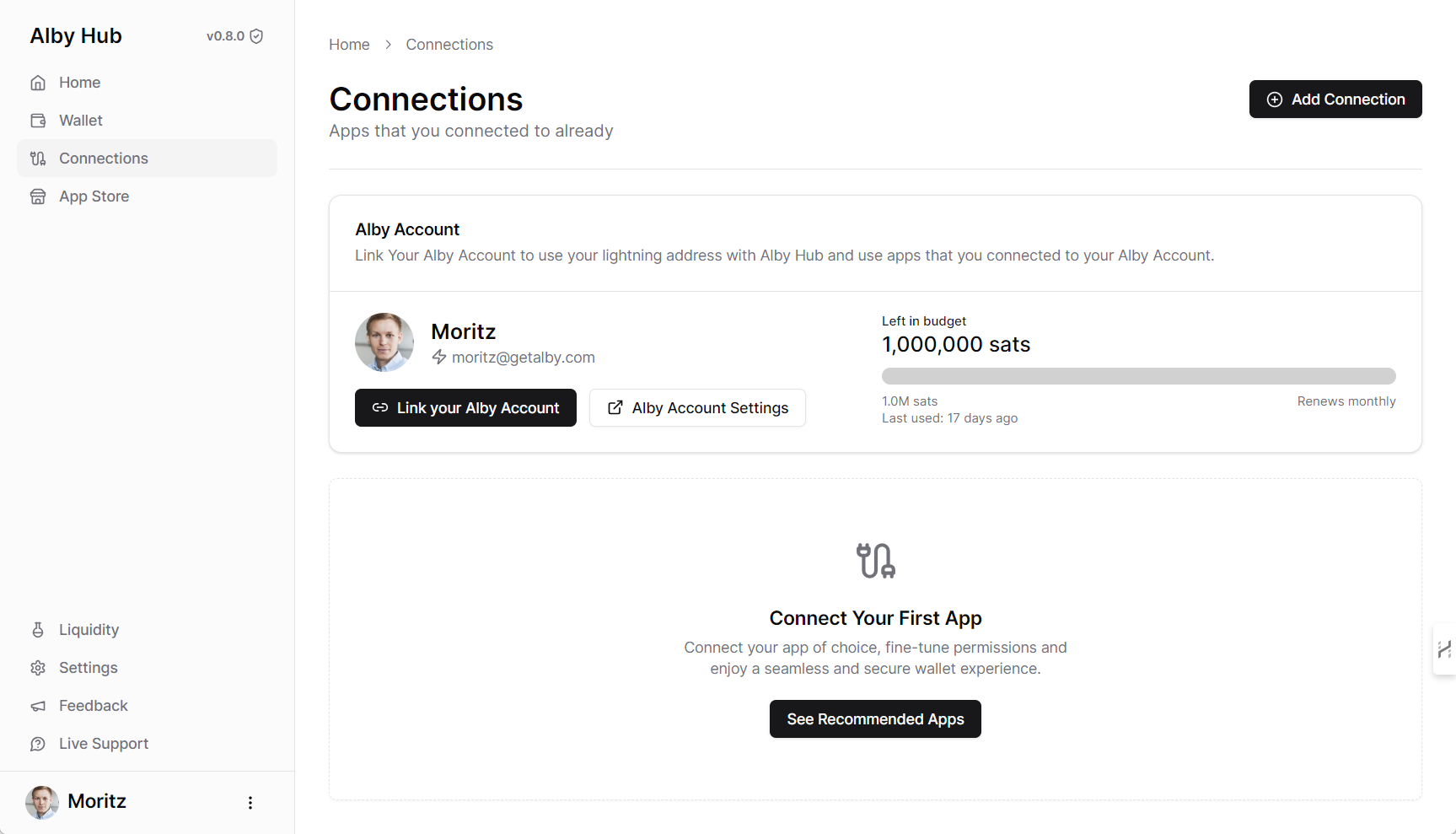
</details>


# App Connections

The times of depositing funds in 3rd party apps are over. Let your wallet be your hub for payments and connect it to dozens of apps. You remain in control over your funds with your Alby Hub all the time.&#x20;

**Outline**

1. [Your first connections: "Alby Account" important](#your-first-and-one-of-your-most-important-connections-alby-account)
2. [Connection window explained](#connection-window-explained)
3. [How to connect apps](#how-to-connect-apps)

## Your first connection: "Alby Account" (important)

### 1. Navigate to the "Connections" page

When you are in the process of setting up your Hub you see the following page:

<figure><img src="https://content.gitbook.com/content/WIUBf3ZZaBGu2ee6Y8lU/blobs/r5I00tB4yjGHDZstrByH/chrome_Xbq4GqeymN.png" alt=""><figcaption><p>Connections page in Alby Hub</p></figcaption></figure>

{% hint style="info" %}
**Linking your Hub with your Alby Account is important for the following reasons:**

* **Get all Alby Account features**: lighting address  (e.g. <personal@getalby.com> for your own node), Nostr identity, podcasting 2.0, payment notifications and more to come.
* **Use your Alby Hub on all apps connected** with an Alby Account: Alby Browser Extension, podcasting apps, etc.  -> [Guides](https://app.gitbook.com/s/WKqqWqKEAO8XHGTjzhEl/connect-to-apps) 🔎
* **Pay for your plan**: As a user you may receive premium services that help you run your Hub. We use this link to your Hub to deduct payments according to the selected plan.&#x20;
  {% endhint %}

### 2. Link your Alby Account

Click on "Link your Alby Account"

<figure><img src="https://content.gitbook.com/content/WIUBf3ZZaBGu2ee6Y8lU/blobs/Z4nrSASN2m9dF5ipD0YY/hDAn9N2Voo.png" alt=""><figcaption><p>Link your Alby Account to your Hub</p></figcaption></figure>

### 3. Define the budget, renewal interval and click on "Link to Alby Account"

<figure><img src="https://content.gitbook.com/content/WIUBf3ZZaBGu2ee6Y8lU/blobs/LFSF1fhuIkNtLN2Aa0W0/4ZaONVDfb5.png" alt="" width="380"><figcaption></figcaption></figure>

**Congratulations 🎉**\
You see a green button indicating that you successfully linked your Alby Account

<figure><img src="https://content.gitbook.com/content/WIUBf3ZZaBGu2ee6Y8lU/blobs/3jHy5ENbg9fT7AKTe5lI/92ZBgROKz7.png" alt=""><figcaption></figcaption></figure>

You also see a new window showing the connection. It shows the left budget, that is available to spend through your Alby Account  (i.e. 1,000,000 sats), the renewal period of the budget (i.e. monthly) and when it was used for the last time (i.e. a minute ago)

Now, payments from the Alby Browser Extension or to your Alby lightning address go directly into your own wallet.&#x20;

{% hint style="warning" %}
Please check back regularly whether your Alby Account is still linked. We will help you by sending emails if we detect errors.
{% endhint %}

## Connection window explained

A brand new connection looks like this:

<figure><img src="https://content.gitbook.com/content/WIUBf3ZZaBGu2ee6Y8lU/blobs/4oCQgyxaoes9xHTOefoe/chrome_eQxEXWYnE9.png" alt="" width="499"><figcaption><p>Connection window</p></figcaption></figure>

### Title

This is the name of the App Connection, which you can define by yourself. Here it is: getalby.com&#x20;

### Budget

By connecting an app to your Hub, you are authorizing the app to make and receive payments on your behalf. That's great because you can pay directly in every connected app without having to switch apps. Before you had to stop using the app, navigate to your wallet app and execute a payment there.&#x20;

To ensure 3rd party apps cannot access all your spending balance, you are able to set budgets. These budgets only refer to the according app connection.&#x20;

In this case you authorize your Alby Account to make payments of 1,000,000 in total. That sounds a lot, but keep in mind, that you use the Alby Browser Extension and a few more apps with your Alby Account.&#x20;

### Budget Visualization

Each time you pay with or in a connected app, you pay out of your own Hub. As a consequence your "Left in budget" amount is reduced. For instance if you sent 3,000 sats out of a total budget of 10,000 sats, there are only 7,000 sats left to send.

<figure><img src="https://content.gitbook.com/content/WIUBf3ZZaBGu2ee6Y8lU/blobs/YPsMe8g5tehrw5tkgNQE/chrome_zo3Py95trn.png" alt="" width="473"><figcaption><p>Budget visualization</p></figcaption></figure>

### Budget Renewal

This part defines the period when your budget renews. In this case the budget renews on a monthly basis. You define the period according to your preferences. &#x20;

### Activity

Whenever you use the connection  (e.g. you send a payment)  an activity is recorded and added to the connection window. In this case we just paid some sats a few seconds ago.&#x20;

### Badges: "Expires Soon" and "Expired"

<figure><img src="https://content.gitbook.com/content/WIUBf3ZZaBGu2ee6Y8lU/blobs/LcyJyGQJl2UXLFyJTVAf/YiHurjnVrx.png" alt="" width="501"><figcaption><p>Connection Expiration</p></figcaption></figure>

When you create an app connection you can set an expiration date. That's why app connections can expire.&#x20;

You'll see an "Expires Soon" badge when a certain app connection is about to expire. When the initial connection date is passed you'll see an "Expired" badge. The connection is now inactive and set permissions are not working anymore (e.g. send a payment)

In both cases it is time to update your connection by clicking on the window, selecting "Edit", change the "Connection expiration" date and click on "Save".&#x20;

## How to connect apps

To connect your Hub with an app of your choice go through the following steps:

#### 1. Navigate to 'Connections' and click on "Add Connection"

<figure><img src="https://content.gitbook.com/content/WIUBf3ZZaBGu2ee6Y8lU/blobs/Y4KdCnogSKISjpajSZM0/5KpoIl6Iz4.png" alt=""><figcaption><p>Add connection</p></figcaption></figure>

#### 2. Choose wallet permissions, budget and expiration time

You can leave the default name and Full Access. You can also customize the permissions and the name, budget, budget renewal, the expiration date (optional). Then click on "Next".

<figure><img src="https://2706948649-files.gitbook.io/~/files/v0/b/gitbook-x-prod.appspot.com/o/spaces%2FWIUBf3ZZaBGu2ee6Y8lU%2Fuploads%2FmEfQBXElFUkBIq6M4qde%2Fimage.png?alt=media&#x26;token=fe4676b7-8069-478a-b01a-b9dd22a84064" alt=""><figcaption></figcaption></figure>

Awesome! Your app connection was created!

#### 3. Copy and paste your pairing secret in the desired app or just scan it to finish the process.

<figure><img src="https://content.gitbook.com/content/WIUBf3ZZaBGu2ee6Y8lU/blobs/ZdJ6iSCEQXxy3SPkjZxt/lJv42j1NC5.png" alt="" width="563"><figcaption><p>App connection created</p></figcaption></figure>

**Congrats! You successfully connect your Hub to an app while staying in control of your funds. 💪**

## How to edit app connections

Simply find the app connection window of the specific app, click on it and select "Edit" in the window displaying the connection details.&#x20;

<figure><img src="https://2706948649-files.gitbook.io/~/files/v0/b/gitbook-x-prod.appspot.com/o/spaces%2FWIUBf3ZZaBGu2ee6Y8lU%2Fuploads%2FvOkFXrXbJYL2KG5Pwifp%2Fimage.png?alt=media&#x26;token=27cbc9ed-fb46-48f6-86a2-002e47bc584d" alt=""><figcaption><p>Edit an app connection</p></figcaption></figure>

{% hint style="success" %}
You can change permissions, budget, budget renewal and expiration time. Click on "Save" and you  updated the connection.  **🎉**
{% endhint %}

***

*Thank you for stopping by!*\
*This section was created with contributions from Jean-Paul, Tomek & Moritz*


# App Store

## Introduction

Alby Hub is not just a bitcoin lightning wallet. It is your Hub for managing your bitcoin payments out of one place everywhere where you go. There are no more deposit and withdraw flows when using other apps and potentially losing bitcoin. **Connect your Hub and stay in control!**

The integrated App Store provides an overview of apps that can be connected to your Hub.

<figure><img src="https://content.gitbook.com/content/WIUBf3ZZaBGu2ee6Y8lU/blobs/iTgL5uHOonzfIDyFKiaP/Screenshot%2010-24-2024%2010.22.35.png" alt=""><figcaption><p>Alby Hub App Store</p></figcaption></figure>

Just click "Connect" and link your Alby Hub to the selected apps.&#x20;

{% hint style="info" %}
**Your Benefits:**

1. Overview: Keep one central balance&#x20;
2. Everywhere: Use your Hub everywhere you go: in the browser, in apps, on mobile
3. Control: Revoke connections any time you want
   {% endhint %}

### Pay on Websites

Use Cases: Buy gift cards, unlock paywalls, top up your balance from a bitcoin exchange, etc.

While the Hub allows you to send and receive payments within the Hub itself, it is however more convenient to use the Alby Extension as a bridge.&#x20;

Option 1: Connect the Alby Extension directly to your Hub

Option 2: Link the Hub with your Alby Account and connect your Alby Account to the Extension. ([guide](https://app.gitbook.com/s/iXQV5vKQhxotviCfaO7L/link-wallet/alby-web-account))

Option 2 has the benefit of having your lightning address and Nostr identifier quickly available in the extension pop up screen.&#x20;

### Pay in Apps

Use Cases: Zapping on Nostr, mobile gaming, etc.

There is a whole universe of bitcoin apps that you can use with your own Hub to send and receive directly within the app. There is no need to switch apps to confirm payments. One-click in-app payments are the standard with your Hub. Check out this [awesome list](https://github.com/getAlby/awesome-nwc?tab=readme-ov-file#apps) for a comprehensive overview.&#x20;

### Pay on Mobile

Let's say you want to pay for a drink at a bar, share the bill with your friend, send someone his first bitcoin in a second etc....

...but Alby Hub runs in the cloud and not on my mobile phone! \
\
That's right, because your wallet needs to be always online to receive payments 24/7. However, there are the following options to send and receive payments from your mobile phone:

* Connect your Hub to Alby Go mobile app to pay on the go.&#x20;

{% content-ref url="<https://app.gitbook.com/o/uiUeRqI074apbV0PWsyf/s/xKPWjNAI2VDjXMnx1KRF/>" %}
[Alby Go](https://app.gitbook.com/o/uiUeRqI074apbV0PWsyf/s/xKPWjNAI2VDjXMnx1KRF/)
{% endcontent-ref %}

{% hint style="info" %}
Alby Hub uses the [Nostr Wallet Connect](https://nwc.dev) protocol as a way to connect your node with the world of apps.\
\
The list of NWC supported apps can be found [here](https://github.com/getAlby/awesome-nwc/blob/master/README.md).
{% endhint %}

**Have fun using Alby Hub wherever you go: one wallet, endless possibilities!**&#x20;


# Nostr

Nostr is a decentralized social network where you can connect with people, share content, and zap (send bitcoin) directly to posts and profiles you love. There is no central authority.

{% embed url="<https://demos.getalby.com/demo/cmi62u8yo3h13b7b42kaa3t1c?utm_source=link>" %}

### Why Connect Your Alby Hub to Nostr?

When you link your Alby Hub to your Nostr profile, you can receive zaps 24/7 without needing to be online. Your Hub\
stays connected and ready to accept Lightning payments from anyone on Nostr who wants to support your content.

**Benefits:**

* ⚡ Receive zaps anytime, anywhere
* 💰 Keep all your sats in one place (your Hub)
* 🔗 One setup, works across all Nostr apps
* 🎯 Your Lightning address becomes your Nostr identity (NIP-05)

***

### Install Alby browser extension

The extension will let you create and store your Nostr keys easily:

<https://guides.getalby.com/user-guide/browser-extension/features/nostr>

***

### Popular Nostr Apps in the App Store

Once your Hub is connected, you can use these Nostr clients available in the Alby App Store:

Web Apps:

* Primal - Full-featured social experience
* Coracle - Community-focused client
* Iris - Simple and clean interface
* Snort - Fast and lightweight

Mobile Apps:

* Damus (iOS) - Native mobile experience
* Amethyst (Android) - Feature-rich Android client

Simply click "Connect" in the App Store to link these apps to your Hub, no deposits or withdrawals needed. All your zaps flow directly through your Hub!


# ZapPlanner

With ZapPlanner you can schedule recurring payments with bitcoin! Amazing, isn't it?

{% embed url="<https://demos.getalby.com/demo/cm5vfsxws01qw3v0itrliziaz>" %}
Take this short tour to shedule recurring bitcoin payments to anyone!
{% endembed %}


# BTCPay Server

How to connect to BTCPay Server

[BTCPay Server](https://btcpayserver.org/) is a free and open-source bitcoin payment processor. [🏪](https://emojipedia.org/convenience-store/)

Who uses BTCPay Server today:&#x20;

* **Merchants** who sell products and services online or in person
* **Charities and non-profits** looking to accept donations or crowdfund their dream project
* **Developers** building on top of bitcoin and payment infrastructure
* Members of **local communities** willing to onboard people to their BTCPay instance and offer payment processing as a service or for free, creating a circular economy.

## How to connect your Alby Hub wallet to BTCPay Server

### Step 1: Open Alby Hub

Go to my.albyhub.com or open Alby Hub on your device if you are self-hosting it.

### Step 2: Go to 'App Store', locate and click on BTC Pay Server

<figure><img src="https://2706948649-files.gitbook.io/~/files/v0/b/gitbook-x-prod.appspot.com/o/spaces%2FWIUBf3ZZaBGu2ee6Y8lU%2Fuploads%2FVvKZPguxgJjxGWfCV93g%2FxiF9Wati5G.png?alt=media&#x26;token=fe91ab20-cfb5-48eb-a6bf-79e12168d5c3" alt=""><figcaption></figcaption></figure>

### Step 3: Follow the instructions and click on 'Connect to BTCPay Server

<figure><img src="https://2706948649-files.gitbook.io/~/files/v0/b/gitbook-x-prod.appspot.com/o/spaces%2FWIUBf3ZZaBGu2ee6Y8lU%2Fuploads%2FuXGuybEbg4D3JisfApqN%2FWn2uvXzkzT.png?alt=media&#x26;token=19ac1ed1-c8f4-4eff-974b-de43e2963ed4" alt=""><figcaption></figcaption></figure>

### Step 4:  Switch to your BTC Pay Server and install the Nostr plugin

<figure><img src="https://2706948649-files.gitbook.io/~/files/v0/b/gitbook-x-prod.appspot.com/o/spaces%2FWIUBf3ZZaBGu2ee6Y8lU%2Fuploads%2FtFi2UVR8GSlMIeP2wLGG%2Fimage.png?alt=media&#x26;token=d2079782-f627-488f-b43a-95a735d8d623" alt=""><figcaption></figcaption></figure>

### Step 5: Go to “Lightning” and “Settings”.

If you already have a connection setup, change it by selecting “Change connection”, if not, simply click on “Choose a connection” in that same section.

<figure><img src="https://2706948649-files.gitbook.io/~/files/v0/b/gitbook-x-prod.appspot.com/o/spaces%2FWIUBf3ZZaBGu2ee6Y8lU%2Fuploads%2FrbsUACzaJUQbXJSL4Wi6%2Fimage.png?alt=media&#x26;token=3aebf8ff-74e1-4f47-81d4-5538ae33185c" alt=""><figcaption></figcaption></figure>

### Step 6: Add the NWC connection string to BTCPay Server

<figure><img src="https://2706948649-files.gitbook.io/~/files/v0/b/gitbook-x-prod.appspot.com/o/spaces%2FWIUBf3ZZaBGu2ee6Y8lU%2Fuploads%2FEsnGk0ywmtqnc4vA5bQF%2Fimage.png?alt=media&#x26;token=daa42085-f0db-4f55-b3e1-c33704e278c7" alt=""><figcaption></figcaption></figure>

**Click on 'Save' and you are done. 🚀**

For a full step-by-step guide, follow this article: <https://blog.getalby.com/manage-btcpay-server-with-any-node-or-wallet-with-nwc/>

***

Now you are ready to receive donations or sell goods and services for bitcoin.&#x20;


# Node

### Alby Hub - your own lightning node

Alby Hub is an easy to use self-custodial wallet with an integrated lightning node.  Creating a lightning channel to the network not only enables you to transact with others but also connects you to a much larger community. 🌐 By operating a node and opening up a channel; you become an integral part of the expanding network of lightning nodes. This is your entry into a vibrant community where every member plays a crucial role. Welcome aboard! ⚡

### What is "Receiving Capacity" and "Spending balance" in lightning terminology?

Inbound Liquidity, also called "receiving capacity": This is the amount you can receive via the lightning network. More inbound liquidity allows you to accept larger or more payments.

Outbound Liquidity, also called "spending balance": This is the amount you can send across the network. Increasing your outbound liquidity lets you send more substantial or more frequent payments.

{% hint style="success" %}
If you have two channels, one is full (too much spending balance) and the other one is empty (It only has receiving capacity) you can **rebalance** them. [Click here to rebalance your channels if needed.](https://guides.getalby.com/user-guide/faq/can-i-rebalance-funds-from-one-channel-to-another)
{% endhint %}

### Why is liquidity Important?

Liquidity is a property of a channel. It can only be obtained by other lightning network nodes having channels opened to you or by opening channels to other lightning network nodes. Liquidity is vital for the operation of the Lightning Network. Proper liquidity management ensures you can always send and receive payments promptly, avoiding any operational hitches.

### How to properly manage your liquidity?

Opening new channels can increase your spending balance and receiving capacity. This enables you to send funds across the lighting network. Follow-on to open a new channel.

While it might sound technical, managing liquidity is just about making sure your node can handle your transaction needs. Think of it as ensuring there's enough fuel in your car for a long trip and adjusting as needed. 🚗<br>

***

*Alby Hub was created with a lot of effort, love, and the vision of a better world with Bitcoin. We’re grateful for your consideration in getting a* [*membership* ](https://guides.getalby.com/user-guide/alby-hub-flavors/alby-cloud)*and supporting our work.*

*Best regards, Your Alby Team 💛🐝*


# Increase receiving capacity

Learn how to increase the receiving capacity of your Alby Hub

{% hint style="warning" %}
This is an essential task as it ensures that you can always receive a payment. But no worries there are several simple options depending on your preferences.
{% endhint %}

* [Buy a channel with receiving capacity included](#buy-a-channel-with-receiving-capacity-included)
* [Swap-out to your Alby Hub on-chain wallet](#send-to-another-onchain-wallet)
* [Create receiving capacity by spending](#create-receiving-capacity-yourself)
* [Send to another lightning wallet](#send-to-another-lightning-wallet)

## Buy a channel with receiving capacity included

{% embed url="<https://demos.getalby.com/demo/clz4qysx03krjz9kd17hq0vj6>" %}

## Swap-out to your Alby Hub on-chain wallet

Transfer bitcoin from your Spending Balance to your On-chain Balance. This will increase your receiving capacity, because it empties your payment channel by the amount you transfer to your on-chain wallet.

{% content-ref url="../wallet/swaps" %}
[swaps](https://guides.getalby.com/user-guide/wallet/swaps)
{% endcontent-ref %}

## Create receiving capacity by spending

That’s probably the most fun option. If your spending balance is high enough you can simply spend some of your sats in [these apps](https://getalby.com/discover).

{% hint style="info" %}
Benefits: You create more receiving capacity and you also support the bitcoin ecosystem as a whole.
{% endhint %}

## Send to another lightning wallet&#x20;

If you have a another lightning wallet or your exchange supports lightning deposits you can send that sats from your spending balance to that wallet. You can send a payment via the Alby Browser Extension or your Hub directly.

{% content-ref url="../wallet/send" %}
[send](https://guides.getalby.com/user-guide/wallet/send)
{% endcontent-ref %}

**Congrats!** You just increase your Hub's receiving capacity. 🥳


# Advanced: Increase Spending Balance with on-chain bitcoin

Make a custom channel with anyone on lightning or with a partner on our selected list

## Introduction

To increase your spending balance you need to either top up your balance ([guide](https://guides.getalby.com/user-guide/wallet/buy-bitcoin)) or open a lightning payment channel using the bitcoin On-Chain Balance in your Hub. Opening a new channel helps you to accomplish the following:

* Transfer funds from your On-chain Balance to your Spending Balance
* Top up your Spending Balance
* Be ready to send bitcoin via the lightning network

{% embed url="<https://demos.getalby.com/demo/cm4n4aw160q19142buuh4wgg3>" %}

\
**That’s it.** By opening a lightning channel with your On-Chain Balance your are connecting your Alby Hub to the lightning network and you are transferring sats to your Spending Balance. 🚀

{% hint style="success" %}
🌟 We believe in freedom and sovereignty over your digital transactions, it's truly empowering. Choose your path and make the most of Alby Hub's capabilities, it’s all about what suits you best!  😊
{% endhint %}


# Node Health

How to ensure the reliability and efficiency of your node's payments.

### Node Health Indicator in Alby Hub

In the top right corner of the "Node" section of your Alby Hub, you'll see a small heart symbol with a percentage.&#x20;

The lower your Node Health, the less likely you are to send or receive payments effectively. This indicator helps you ensure you have the best possible experience and reliability on the Lightning Network. Ideally, this should be above 60%.&#x20;

<figure><img src="https://content.gitbook.com/content/WIUBf3ZZaBGu2ee6Y8lU/blobs/Nq1WC9ipGuKhh2aeOQDV/PGbD5UIAp4.png" alt=""><figcaption><p>These are the factors that affect the Node's Health</p></figcaption></figure>

***

## Recommendations to improve your node health 👨‍⚕️

### Channel Partners: Have more than one channel

Traditionally when using a custodial service which has a single node, that custodial node has *many* channel partners. If you run your own node and only have one channel, you may struggle to receive or send payments if your channel partner is offline or insufficiently connected.

{% hint style="info" %}
The more unique channel partners you have, the better. Alby Hub will automatically recommend new channel partners to you when you open new channels.
{% endhint %}

### Channel Balance: Have enough Receiving Capacity

To manage your channel balance, please see the [Node](https://guides.getalby.com/user-guide/node) page.

### Channel Size: The bigger, the better

Channel Size - the bigger your channel is, the better.&#x20;

Aim to open channels a few times larger than the largest payment you expect to send or receive.

### Channel Partner Quality: Choose reliable peers

One important factor for payment success is liquidity along the route, which is why it's important to have channels to well-connected nodes.

Alby maintains a list of realiable and well connected channel partners for the best payment experience. If you have any feedback or channel partners you'd like to recommend, please let us know!

***

{% hint style="success" %}
Great job on making your Alby Hub unstoppable! 💪 Keep the heart symbol above 60% by ensuring enough Spending Balance and Receiving Capacity. Have multiple channel partners, maintain a healthy balance of liquidity, aim for bigger channels, and choose reliable peers for better payment success. You're doing awesome! ❤️
{% endhint %}


# On-chain Balance

Your On-chain Balance is an on-chain bitcoin wallet.

2\. [What is an On-chain balance?](#what-is-an-on-chain-balance-and-why-do-i-have-one)

2\. [How to deposit funds to the On-chain balance?](#how-to-deposit-funds-to-my-on-chain-balance)

3\. [How to redeem/withdraw funds from my On-chain wallet to somewhere else?](#how-do-i-redeem-the-funds-from-my-on-chain-balance-to-another-on-chain-wallet)

***

## What is an On-chain Balance and why do I have one?&#x20;

A lightning network channel is a special type of on-chain bitcoin transaction.&#x20;

* When opening a channel, you are transferring bitcoin from your **On-Chain Balance** to top up your **Spending Balance.**
* When a channel is closed, the bitcoins that were on your **Spending Balance** will be relocated to your **On-Chain Balance**.

<figure><img src="https://content.gitbook.com/content/WIUBf3ZZaBGu2ee6Y8lU/blobs/W42kFAQEnoT4sFwudYJS/image.png" alt=""><figcaption><p>Your on-chain balance can be found in the Node section of your Alby Hub</p></figcaption></figure>

{% hint style="info" %}
Your on-chain wallet can be restored anytime by a 12-word recovery phrase available it the Settings of your Alby Hub.
{% endhint %}

***

## How to deposit funds to my On-chain Balance

1. Go to the "Node" section, click on "Advanced", then click on "Deposit Bitcoin"
2. The QR code shown is your On-chain wallet, you must send bitcoin to that on-chain address from another on-chain wallet.&#x20;

{% tabs %}
{% tab title="1. Deposit Bitcoin" %}

<figure><img src="https://content.gitbook.com/content/WIUBf3ZZaBGu2ee6Y8lU/blobs/Qjca9Krh4U8C1rUouW6I/Screenshot%20from%202025-01-16%2023-56-08.png" alt=""><figcaption><p>Click on "Avanced" then "Deposit Bitcoin"</p></figcaption></figure>
{% endtab %}

{% tab title="2. On-chain address" %}

<figure><img src="https://content.gitbook.com/content/WIUBf3ZZaBGu2ee6Y8lU/blobs/AHeKFVtYKt2od4ZZea7r/Screenshot%20from%202025-01-16%2023-56-31.png" alt=""><figcaption><p>Scan that QR code with another on-chain wallet and top up with on-chain funds</p></figcaption></figure>
{% endtab %}
{% endtabs %}

It will take up to 6 block confirmations for your bitcoin to reach your Alby Hub On-chain Balance

***

## How do I redeem the funds from my On-Chain Balance to another on-chain wallet? 🔄

You can withdraw funds from your on-chain balance to any on-chain bitcoin address.

To do this, go to the Node section, click on "Advanced," select "Withdraw On-Chain Balance". This will send us to a new page where we can input the amount and the address of the receiving address.

<figure><img src="https://content.gitbook.com/content/WIUBf3ZZaBGu2ee6Y8lU/blobs/h2PJ76XxYUqGvKrENYSq/Screenshot%2012-19-2024%2018.01.03.png" alt=""><figcaption><p>Click on Advanced and then on "Withdraw On-Chain Balance".</p></figcaption></figure>

On this section simply enter the receiving address (it should be an on-chain bitcoin mainnet address), the amount, and then click on Withdraw.

<figure><img src="https://content.gitbook.com/content/WIUBf3ZZaBGu2ee6Y8lU/blobs/qBV81FdMiE3zjeadLWrq/Screenshot%2012-19-2024%2018.01.56.png" alt=""><figcaption><p>Enter the on-chain bitcoin address where you want your On-Chain Balance funds to be redeemed.</p></figcaption></figure>


# Auto-Swaps

Auto-Swaps in Alby Hub allow you to automatically convert funds on Lightning into on-chain Bitcoin once a certain threshold is met.

### Why you should use it

* **Reduce exposure** to hot wallet balances
* **Automatically secure funds** in a on‑chain wallet (Hub on-chain wallet or cold storage)
* **Maintain receiving capacity** without manual intervention

{% hint style="info" %}
You define rules (threshold, swap amount and destination) and Alby Hub takes care of performing the swaps when the conditions are met.
{% endhint %}

### Use cases

* **Liquidity Management**\
  If you have very one-sided flows (mostly incoming, e.g. merchants) and want to maintain your receiving capacity (i.e. inbound liquidity)
* **Security & Risk management**\
  Automatically sweep exceeding funds to cold storage

### Example

1. Open the wallet page of Alby Hub and click the "Swaps" button
2. Switch to the "Swap out" tab and click the button "Auto-Swaps" at the top right
3. Configure auto-swap
   1. Destination (bitcoin address or xpub)
   2. Spending Balance Threshold (the swap will be triggered by exceeding this amount)
   3. Swap Amount&#x20;
4. Auto-Swaps will now be automatically performed, you'll see them show up in the transaction list

<figure><img src="https://2706948649-files.gitbook.io/~/files/v0/b/gitbook-x-prod.appspot.com/o/spaces%2FWIUBf3ZZaBGu2ee6Y8lU%2Fuploads%2FuVGSTzACmcbIxZNmla7n%2FScreen%20Shot%202025-08-27%20at%2013.05.49.png?alt=media&#x26;token=4de68dff-26b7-4416-bce2-c35d9ff5f018" alt=""><figcaption></figcaption></figure>

* **Threshold**: 3M sats
* **Swap amount:** 2.5M sats&#x20;
* **Destination**: Cold storage wallet (bitcoin address or xpub)

{% hint style="success" %}
Every time Lightning balance exceeds 3M sats, a new auto-swap is attempted with 2.5M sent to a bitcoin on-chain address, keeping a minimum of 0.5M sats in the hub for day-to-day usage
{% endhint %}


# Backups & Recover

Backing up your Alby Hub is essential to ensure your funds can be recovered in case you lose access to your node. Taking the time to do it right ensures everything is safe and easily recoverable.

{% hint style="info" %}
This guide applies to the default node implementation of Alby Hub (LDK) only. If you're using a different node backend, please refer to its own documentation for backup instructions.
{% endhint %}

**Jump directly to the setup that applies to you:**

1. [Alby Hub with Pro Cloud](#alby-hub-on-alby-cloud)
2. [Alby Hub with Pro](#alby-hub-with-pro)
3. [Alby Hub self-hosted with an Alby account](#alby-hub-self-hosted-with-an-alby-account)
4. [Alby Hub self-hosted without an Alby account](#alby-hub-self-hosted-without-an-alby-account)

## Alby Hub with Pro Cloud&#x20;

### On-chain Balance and Spending Balance

**Backup:** Find and backup your 12-word recovery phrase in your Alby Hub [here](https://guides.getalby.com/user-guide/faq/how-can-i-backup-my-keys)  to recover your On-chain Balance and Spending Balance anytime.&#x20;

Your Spending Balance data is securely encrypted using your 12-word recovery phrase and is dynamically updated in your Alby account. \
To see if automatic channel backups are enabled for your Hub go to Settings and select "Backups".  If you cannot access your Hub anymore, contact our support.

**Recover:** Start a new Alby Hub in the same Alby account -> Select "Advanced Setup" -> enter your 12-word recovery phrase. Your On-chain and Spending Balance will be fully restored 🚀.

{% hint style="info" %}
As Pro Cloud subscriber you only need to backup your recovery phrase and remember your Alby account.
{% endhint %}

## Alby Hub with Pro&#x20;

### On-chain Balance and Spending Balance

**Backup:** Find and backup your 12-word recovery phrase in your Alby Hub [here](https://guides.getalby.com/user-guide/faq/how-can-i-backup-my-keys)  to recover your On-chain Balance and Spending Balance anytime.&#x20;

Your Spending Balance data is securely encrypted using your 12-word recovery phrase and is dynamically updated in your Alby account. \
To see if automatic channel backups are enabled for your Hub go to Settings and select "Backups".  If you cannot access your Hub anymore, contact our support.

**Recover:** Start a new Alby Hub in the same Alby account -> Select "Advanced Setup" -> enter your 12-word recovery phrase. Your On-chain and Spending Balance will be fully restored 🚀.

{% hint style="info" %}
As Pro subscriber you only need to backup your recovery phrase and remember your Alby account.
{% endhint %}

## Alby Hub self-hosted (DIY) with an Alby account

### On-chain Balance

**Backup:** Find and backup your 12-word recovery phrase in your Alby Hub [here](https://guides.getalby.com/user-guide/faq/how-can-i-backup-my-keys) to recover your on-chain balance anytime.

**Recover:** Enter the 12-word recovery phrase into a new Alby Hub or another bitcoin wallet.

### Spending Balance

**Backup:** Alby stores a static channel backup automatically in your Alby account.

**Recover:** Use [this app](https://github.com/getAlby/hub-recovery) to recover the sats of your Spending Balance. It asks your channel partners to force-close the channels to your node. Funds from channels may take up to 14 days to return to your on-chain balance. You will need to open new channels to continue sending and receiving transactions.

{% hint style="info" %}
As an Alby account user you only need to backup your recovery phrase.&#x20;
{% endhint %}

## Alby Hub self-hosted without an Alby account

### On-chain Balance

**Backup:** Find and backup your 12-word recovery phrase in your Alby Hub [here](https://guides.getalby.com/user-guide/faq/how-can-i-backup-my-keys) to recover your on-chain balance anytime.&#x20;

**Recover:** Enter the 12-word recovery phrase into a new Alby Hub or another bitcoin wallet.

### Spending Balance

**Backup:** You need to make this backup each time you have a new lighting channel. If new channels were made after the backup, you could risk losing funds.

* Go to the working directory of your Alby Hub
* Back up the newest file in `.data/ldk/static_channel_backups/`

**Recover:** Use [this app](https://github.com/getAlby/hub-recovery) to recover the sats of your Spending Balance. It asks your channel partners to force-close the channel to your node. Funds from channels may take up to 14 days to return to your on-chain balance. You will need to open new channels to continue sending and receiving transactions.

{% hint style="warning" %}
Without an Alby account you need to manually back up your recovery phrase and create backups of your channels each time you have a new channel. If new channels were made after the backup, you could risk losing funds.&#x20;
{% endhint %}

## Backup Checklist

{% tabs %}
{% tab title="✨ Pro & Pro Cloud Subscription" %}

* [ ] Recovery phrase
* [ ] Access to your Alby account: Immediate recovery of your funds
  {% endtab %}

{% tab title="Self-hosted (no subscription)" %}

* [ ] Recovery Phrase (Recovery process will force close your lightning channels)
  {% endtab %}

{% tab title="Self-hosted (no Alby account)" %}

* [ ] Recovery Phrase
* [ ] Latest static channel backup file (Recovery process will force close your lightning channels)
  {% endtab %}
  {% endtabs %}

<details>

<summary>Where are Alby Hub self-hosted internal files on Windows?</summary>

Please note that the data files for Alby Hub on Windows can be found here: `C:\Users\<YourUsername>\AppData\Local\albyhub`. ⚠️ Be very careful with these files, as they contain crucial information about your lightning network channels and cannot be recovered if deleted. If you wish to migrate your hub to another computer, it's recommended to use the proper migration flow instead of simply copying and pasting this folder to ensure all data is safely transferred. 😊\
\
![](https://content.gitbook.com/content/WIUBf3ZZaBGu2ee6Y8lU/blobs/KXOiPeqAUWyjDZoZDt4j/image.png)

</details>

<details>

<summary>Where are Alby Hub self-hosted internal files on Unix or macOS?</summary>

For other operating systems, we use the XDG implementation, specifically the XDG\_DATA\_HOME folder type.

On Unix, Alby Hub stores important data in `~/.local/share`, while on macOS, it’s located in `~/Library/albyhub`. 😊 For more details about XDG folder implementation, you can check this link: [XDG Implementation Guide](https://github.com/adrg/xdg) 📂👍

Thanks for your understanding!

</details>

***

{% hint style="success" %}
**Congratulations! 🎉 You've successfully learned how to back up your Alby Hub, ensuring the safety of your funds and channels.** Remember to always keep your Recovery Phrase and latest channel backup handy. With your backups in place, your hub is now well-protected and ready for any situation! 🔐
{% endhint %}

<table data-view="cards"><thead><tr><th></th><th></th><th></th><th data-hidden data-card-target data-type="content-ref"></th></tr></thead><tbody><tr><td><strong>Get a subscription to Pro Cloud! ☁️</strong><br><br>Unlock 24/7 availability for your self-hosted wallet by subscribing to Pro Cloud. Never worry about downtime again!</td><td></td><td></td><td><a href="https://getalby.com/subscription/new">https://getalby.com/subscription/new</a></td></tr><tr><td><strong>Learn more about your on-chain balance! 💰</strong><br><br>Discover the on-chain side of your self-custodial wallet. Click here to learn more about managing your Savings Balance securely.</td><td></td><td></td><td><a href="node/on-chain-balance">on-chain-balance</a></td></tr><tr><td><strong>Migrate your Hub! 🔄</strong><br><br>Planning to move your Alby Hub? The migration process is similar to a backup in many ways. Click here to explore more on how to migrate your hub seamlessly!</td><td></td><td></td><td><a href="faq/how-can-i-migrate-alby-hub-to-a-different-machine">how-can-i-migrate-alby-hub-to-a-different-machine</a></td></tr></tbody></table>

***

*Thank you for stopping by!* \
*This section was created with contributions from René, Roland & Jean-Paul*


# FAQ


# How to export transactions for my tax report?

The tax on bitcoin transactions depends on your country of residence and the nature of the activity (investing vs. business activity). Generally, most jurisdictions treat bitcoin as property or an asset, not  yet as currency, and apply either income tax or capital gains tax. \
\
No worries. Alby Hub makes it extremely easy for you to export your transactions in a convenient .csv format to insert it in any accounting and tax reporting software.&#x20;

**Open Alby Hub -> Wallet page -> click on "..." -> select "Export Transactions"**<br>

<figure><img src="https://2706948649-files.gitbook.io/~/files/v0/b/gitbook-x-prod.appspot.com/o/spaces%2FWIUBf3ZZaBGu2ee6Y8lU%2Fuploads%2Fq7IplqdS64oKuRpdYh2e%2Fimage.png?alt=media&#x26;token=d3ac4c18-f497-4b12-9435-eedfba456720" alt=""><figcaption></figcaption></figure>

#### Why your Alby Hub wallet balance may differ from your calculated balance:

There are several reasons why the balance shown in your Alby Hub wallet may not match the balance you calculate from your transaction export:

**Transaction fees**\
Outgoing transactions incur transaction fees. These fees are included in the wallet export and are categorized as `feesPaid`. Make sure to account for them (e.g. as an expense).

**Transfers**\
Alby Hub allows you to create sub-wallets. You can increase or reduce the balances of these sub-wallets at any time. Since all sub-wallet balances are still part of your overall Alby Hub wallet balance, you will see corresponding incoming and outgoing transactions in your transaction list. These transactions are marked as *transfer* in the `description` column.&#x20;

**Channel closures**\
Closing a channel reduces your Alby Hub balance by the amount of BTC held in that channel. These transactions are not included in your export. The BTC from a closed channel is credited to your on-chain balance and may therefore appear as a transfer rather than a spend or income event.

**Channel openings funded with on-chain BTC**\
Opening a channel using on-chain funds increases your Alby Hub balance by the channel’s capacity. These transactions are not included in your export. If you used your own BTC, this is typically a transfer, not an income transaction.\
Channels purchased from Lightning Service Providers (LSPs) are opened empty and therefore do not increase your wallet balance.

**Channel reserves**\
Each channel requires a small channel reserve. While you own this BTC, it is not spendable until the channel is closed and is therefore excluded from the displayed Alby Hub wallet balance. However, the transactions that fund the channel reserve are included in the wallet export.

**On-chain balance**\
You may have funds in your on-chain balance, which you can view on the **Node** page in your Alby Hub. On-chain transactions are not included in your wallet export and must be accounted for separately when reconciling your balances.

{% hint style="info" %}
This is not tax advice. If you have questions or suggestions on how we can make tax reporting easier, please [let us know](https://feedback.getalby.com/-alby-hub-request-a-feature).
{% endhint %}


# How can I access Alby Hub from my phone?

Alby Hub is a progressive web app. Like other mobile apps you can add it to your Home Screen and use it directly on your phone. This is useful if you want to manage your Hub's app connections and channels on your phone.&#x20;

**For the best mobile payment experience we recommend the Alby Go mobile app:**

{% content-ref url="<https://app.gitbook.com/o/uiUeRqI074apbV0PWsyf/s/xKPWjNAI2VDjXMnx1KRF/>" %}
[Alby Go](https://app.gitbook.com/o/uiUeRqI074apbV0PWsyf/s/xKPWjNAI2VDjXMnx1KRF/)
{% endcontent-ref %}

## 🤖 How to Install Alby Hub on Android

1. Open Chrome (or another supported browser)
2. **Navigate to my.albyhub.com** or the URL of your Hub&#x20;
3. Wait for the Install Prompt. If it appears, tap **“Add”** or **“Install”**.
4. Use the Browser Menu (If No Prompt)
   1. Tap the **three-dot menu** (⋮) in the top-right corner of Chrome.
   2. Select **“Add to Home screen”** or **“Install app.”**
   3. Confirm by tapping **Add**.
5. The app icon will now be on your **Home Screen** or **App Drawer**, just like a native app. Tap to launch in standalone mode.

## 📱How to Install Alby Hub on iOS

1. **Open the Safari browser** on your phone
2. **Navigate to my.albyhub.com** or the URL of your Hub&#x20;
3. At the bottom of the Safari window, tap the **Share** button (a square with an arrow pointing up). &#x20;
4. In the share sheet that appears, scroll down and tap **Add to Home Screen**.
5. Rename the app icon if you like. Then tap **Add** in the top-right corner.
6. The PWA icon will now appear on your **Home Screen**. Tap it to open the app in standalone mode—without the Safari browser UI.


# Why do I need to link my Alby Account?

Link your Alby Hub with your Alby Account for a lightning address and full access to all web account functionalities.

## Reasons to link your Alby Hub and Alby Account🌟

All the feature of Alby web Account are now features of your Alby Hub, ain't that awesome?&#x20;

Now that your Alby Hub and Alby Account are linked through a [NWC connection](https://nwc.dev/), your Alby Account becomes the wallet interface for your Alby Hub. This means you can use all the functionalities of your Alby web account with the funds stored in your Alby Hub self-custodial wallet.

**Some of those functionalities include:**

* A lightning address
* Payment notifications and reports
* A personal tipping page
* Seamless association with the Alby browser extension
* APIs for developers [👋 Developer Docs](https://app.gitbook.com/o/uiUeRqI074apbV0PWsyf/s/drr3fUtVwSKemryCPRZb/ "mention")
* V4V tools for podcasting
* Quicker and comprehensive support

## How do I connect my Alby Hub to my Alby Account?🔗

Connecting is super easy and fast, you are ready in under a minute!

On your Alby Hub, go to "Connections" and click on "Link your Alby Account". It should be done in just a few seconds.

<figure><img src="https://content.gitbook.com/content/WIUBf3ZZaBGu2ee6Y8lU/blobs/YN0XQ7TRRUo4RKVUECfd/Aspect%20ratio%2031%20(1).png" alt=""><figcaption><p>This is the NWC, Nostr Wallet Connections, section of the Alby Hub</p></figcaption></figure>

{% hint style="success" %}
Great!😀 So now you can receive payments to your Alby Hub by handing your lightning address "<your-name@getalby.com>"⚡
{% endhint %}

***

## 3. Which data is my Alby Account collecting?

Alby Hub is designed to be a self-sovereign wallet, putting you in control of your bitcoin. Connecting an Alby Account is optional but recommended. Data collected is defined in the [terms of service](https://getalby.com/terms-of-service) and [privacy policy](https://getalby.com/privacy-policy), and helps us to provide you with value-added services. For instance, an email address is necessary for sending notifications, and an IP address may be visible when a request is made to our servers.  Alby cannot see the transactions that go directly through your node using NWC connections with your Hub. However, if your Alby Account is linked, transactions will be visible on your dashboard at getalby.com.


# Should I open a private or public channel?

Choose the best channel type for your lightning network transactions!

To send and receive bitcoin payments, you need to open channels to other peers. There are two types of channels: **private** and **public.**

1 . [Private channels](#id-1.-private-channels)\
2\. [Public channels](#id-2.-public-channels)\
3\. [Should I open private or public channels?](#id-3.-what-channel-should-i-open-then)\
4\. [How to choose private or public channels in Alby Hub](#id-4.-choosing-private-or-public)

***

## **1. Private channels**

Private channels on the lightning network are unannounced, direct peer-to-peer connections that are not broadcast to the public network. Since they are not included in the public network graph, details like channel capacity and channel peer are hidden from external observers.

You don’t need public channels to send or receive payments. Private channels work just fine. Payments can still reach any recipient through the network using routing hints embedded in the lightning invoice.

Nodes that only use private channels cannot route payments for others and are not visible in the network’s gossip protocol.

***

## **2. Public channels**

Public channels on the Bitcoin Lightning Network are announced to the network and included in its graph, making them visible and available for routing payments. They play a key role in decentralized, high-capacity routing, enabling users to facilitate instant payments and earn routing fees (sats) in the process. Individual payments are just as private as those made through private channels.

***

## 3. Should I open private or public channels?

Only two aspect should be taken into account for this decision

**1. If you are a podcaster or need Keysend payments open public channels.**&#x20;

**2. Only open one type of channel:** either make all your channels public or all your channels private.

#### Here is a small summary of their key-differencies

| PRIVATE CHANNEL                                          | PUBLIC CHANNEL                                                                                                            |
| -------------------------------------------------------- | ------------------------------------------------------------------------------------------------------------------------- |
| Cannot route payments of other users                     | If more than one channel, and a balanced inbound and outbound capacity, will route payments of other users on the network |
| Cannot set the routing fee                               | Can set the fee of routing payments                                                                                       |
| Cannot accept Keysend payments (required for podcasting) | Can accept Keysend payments (necessary for a podcaster)                                                                   |
| No channel information publicly broadcasted              | Certain channel information publicly broadcasted (e.g. capacity, channel partner)                                         |

***

## 4. How to choose private or public channels in Alby Hub

Open **Alby Hub** -> **Node** -> **Open Channel** -> click on "**Advanced Options**"

After clicking "Advanced Options," you will see an unchecked box named "Public Channel." By default, new channels are private.

<figure><img src="https://content.gitbook.com/content/WIUBf3ZZaBGu2ee6Y8lU/blobs/FDiNeg1X84gODwtJodHz/Heading%20(25).png" alt=""><figcaption><p>You can select whether you want a Public Channel or not inside "Advanced Options".</p></figcaption></figure>

{% hint style="success" %}
**Congratulations! 🎉**

Now you understand the difference between Public and Private channels, their uses, and why private channels are recommended as the default option.

You're now equipped to make an informed decision that best suits your needs. Keep up the great work!&#x20;
{% endhint %}


# How can I close a channel? What happens to the bitcoin in this channel?

Master your channels like a pro and keep your bitcoin safe! 💼

While the channel is open, you will be able to send and receive bitcoin with anyone on the lightning network. You can have more than one channel. And just as you can open channels, you can also close them at will.

1 . [Reasons for closing a channel](#reasons-for-closing-a-channel)\
2\. [Close a channel](#close-a-channel)\
3\. [So, where are my bitcoin?](#so-where-are-the-funds)

***

## Reasons for closing a channel

**Stay in control of your channels and keep your Alby Hub self-custodial wallet in good shape!** 💪

You may occasionally want to close a channel to keep your Alby Hub self-custodial wallet in good shape.

Here are some common reasons to do so:

* You accidentally opened a public channel, and it’s interfering with your private channels. Closing it can help restore normal functionality.
* You opened a channel (public or private) with a peer who has lost access to their node and asked you to close it so both of you can recover funds on-chain.
* You need funds in your on-chain balance and want to close a channel to access them.
* You want to optimize or reduce routing fees by selecting more cost-efficient channel partners. With Alby Hub, you’re in full control of your routing strategy.
* Any other situation where closing a channel better fits your setup or needs.

***

## How to close a channel

In the **“Node”** section, click the three dots next to the channel and select **“Close Channel.”** A popup will appear with a warning and details about the peer you opened the channel with. Review the information, then click **“OK.”** &#x20;

{% hint style="danger" %}
Closing a channel is an irreversible process. It may take up to 6 blockchain confirmations, or about an hour, to be fully closed. If it was your only channel, you won't be able to send or receive bitcoin through the lightning network.
{% endhint %}

<figure><img src="https://content.gitbook.com/content/WIUBf3ZZaBGu2ee6Y8lU/blobs/9qY2i3TIh2qEpVvNFef8/Screenshot%2012-18-2024%2015.01.45.png" alt=""><figcaption><p>All your channels are available in the "Node" section of your Alby Hub.</p></figcaption></figure>

#### There are two types of channel closures: normal and force close.

{% tabs %}
{% tab title="COOPERATIVE CLOSE" %}
**Cooperative closures** occur when the counterparty is online. The closure can be initiated by you or by your counterparty. When the channel is closed, the funds will be returned to your On-Chain Balance accessible on the Node page of your Hub.
{% endtab %}

{% tab title="FORCE CLOSE" %}
**Force closures** happen for different reasons. For instance, when the counterparty is offline, and you need to close the channel without waiting for them to come back online. These types of closures should be even rarer. The channel will take up to 15 days to close, this is a failsafe to avoid cheating. After 15 days the funds will be returned to your On-Chain Balance accessible on the Node page of your Hub.
{% endtab %}
{% endtabs %}

After clicking on **"Close Channel"** you'll see the following screens to finalize the closing.&#x20;

<figure><img src="https://content.gitbook.com/content/WIUBf3ZZaBGu2ee6Y8lU/blobs/XgwfaQIPjV2IBU9YoHcy/Screenshot%2012-18-2024%2015.02.09.png" alt=""><figcaption><p>"Normal close" is the default option and is recommended. Avoid force closures unless absolutely necessary.</p></figcaption></figure>

<figure><img src="https://content.gitbook.com/content/WIUBf3ZZaBGu2ee6Y8lU/blobs/1I2K5x1fooKd8dMuqd32/Screenshot%2012-18-2024%2015.02.25.png" alt=""><figcaption><p>The closing transaction will briefly appear after clicking on "Close Channel".</p></figcaption></figure>

***

## **So, where are my bitcoin?**&#x20;

**Channel closed? No worries! Your bitcoin are just taking a little break.** 💤🔒

The funds of your channel will appear on the On-Chain Balance of your Alby Hub self-custodial wallet. after waiting the period of time necessary for the channel to be closed. This means the funds will re-appear and be ready to use approximately 60 minutes after a normal close or 15 days after a force close.

Here you can see in the On-Chain Balance where to look for your funds after the channel was closed:

<figure><img src="https://content.gitbook.com/content/WIUBf3ZZaBGu2ee6Y8lU/blobs/PCyLAWyCkhK7YOIqIFF8/Screenshot%2012-18-2024%2017.53.03.png" alt=""><figcaption><p>On-Chain Balance are the funds that you have on the bitcoin blockchain</p></figcaption></figure>

{% hint style="success" %}
Your funds can always be located: they're either in your channel or in your On-Chain Balance. If anything happens to your channel or your Alby Hub, you can always recover the funds on-chain with your recovery phrase consisting of 12-word keys. This another tremendous advantage over traditional monetary systems. 😊
{% endhint %}


# Why was my lightning channel closed and what to do next?

"Don't panic! Stay cool, stay curious, and keep those channels open! ⚡"

Channel closures are a **protective measure** designed to safeguard your funds 🔒. Nodes may close channels if the counterparty goes offline or becomes unresponsive to keep funds secure.

1\. [Why channels close unexpectedly?](#why-channels-close-unexpectedly) \
2\. [How to prevent this?](#how-to-prevent-this)\
3\. [Forced closures vs cooperative closures](#forced-closures-vs.-manual-closures)\
4\. [Recovering from a channel closure](#recovering-from-a-channel-closure)

***

## Why Channels Close?

1. **Inactivity:** Channels may be closed after long periods of inactivity (e.g., not using them for two weeks when the first 3 months passed). More info [here](https://guides.getalby.com/user-guide/alby-account-and-browser-extension/alby-hub/faq-alby-hub/how-to-open-a-payment-channel).
2. **Offline:** If you your node is frequently offline (e.g. if you installed Alby Hub on your desktop and shut if off or has network issues), your peer may close the channel.&#x20;
3. **LSP lease period ended**: The LSP may close a channel after the lease period expires. More info [here](https://guides.getalby.com/user-guide/alby-account-and-browser-extension/alby-hub/faq-alby-hub/how-to-open-a-payment-channel).

## **How to Prevent This?**&#x20;

Minimize these three risk factors:\
1️⃣ **Stay Active:** Regularly use your channels to prevent inactivity-related closures.\
2️⃣ **Stay Online:** Avoid frequent reboots and ensure a stable internet connection to prevent forced closures.

{% hint style="info" %}
Choose [**Alby Hub on Alby Cloud**](https://getalby.com/subscription/new) to reduces closure risk. It runs **24/7 on highly reliable data centers**.
{% endhint %}

## Forced closures vs. cooperative closures&#x20;

Not all channel closures are the same. Some happen unexpectedly due to network conditions, while others are **planned and controlled**. Understanding the difference between **forced closures** and **cooperative closures** can help you manage your channels effectively.

#### Force closures

Force closures happen for different reasons. For instance, when your Hub has been offline for too long. If your Alby Hub stays offline, your channel peer may close the channel, as they have no way of knowing why your node is unresponsive. Your funds in the closed channel return to your on-chain balance within two weeks.

#### Cooperative closures

Cooperative closures occur when both nodes are online. These are planned closures where funds return to your on-chain balance after a few block confirmations. If a channel remains inactive for too long, the peer may choose to close it. These closures are not errors but intentional actions to keep the network efficient. 🔒

**Remember:** Keep your bitcoin flowing. The Lightning Network works great if you regularly send and receive payments. &#x20;

## Recovering from a Channel Closure 🔄

The spending balance inside a closed channel returns to your on-chain balance. If it was a cooperative closure that might happen after a few on-chain block confirmations, if it was a forced closure that can take up to 2 weeks. A closed channel means you may have less receiving and spending capacity, but don’t worry, this is only temporarily until you open a new channel.&#x20;

Channel closures are part of being sovereign in lightning. You cannot really completely remove this unfortunate experience, you can only reduce its frequency as much as you can.&#x20;

To prevent future closures, remember to:\
✅ **Stay active** and use your channels regularly.\
✅ **Stay Online:** Minimize downtime and maintain a stable internet connection.

{% hint style="success" %}
If a channel was closed, the best way forward is to **open a new one** 💪. This will restore your Hub’s capacity and keep your lightning experience smooth.&#x20;
{% endhint %}

#### Here is a guide on how to open a channel:&#x20;

{% content-ref url="../node/advanced-increase-spending-balance-with-on-chain-bitcoin" %}
[advanced-increase-spending-balance-with-on-chain-bitcoin](https://guides.getalby.com/user-guide/node/advanced-increase-spending-balance-with-on-chain-bitcoin)
{% endcontent-ref %}


# How can I update my Alby Hub?

It is your own Hub. You decide when to update it. To do so go to your Alby Account dashboard (<https://getalby.com/dashboard>) or directly to <https://getalby.com/node> to update your Hub. &#x20;

Further info:

{% content-ref url="../alby-hub-flavors/updating" %}
[updating](https://guides.getalby.com/user-guide/alby-hub-flavors/updating)
{% endcontent-ref %}


# How can I change my unlock password?

On the "Settings" page of your Alby Hub, you'll find the item "Unlock Password". Click on it to enter your current and new unlock password. Your node will be stopped as part of this process.

{% hint style="danger" %}
Warning: Do not lose yout unlock password. It is not recoverable. You will lose access to your Alby Hub if you lose this password. Keep it safe.
{% endhint %}


# How can I check budgets of connected apps?

Each time you connect your Hub to an application, you can set a spending budget for that specific app. This adds an extra layer of security, helping prevent overspending or potential draining of your funds by the connected app. If you fully trust the app, you can also set an **“unlimited”** budget—so you don’t have to monitor your usage regularly.

To adjust your budget, go to **“Connections,”** select the relevant app, click **“Edit,”** and update the budget as needed.

More on Apps:

{% content-ref url="../app-connections" %}
[app-connections](https://guides.getalby.com/user-guide/app-connections)
{% endcontent-ref %}

{% content-ref url="../app-connections/app-store" %}
[app-store](https://guides.getalby.com/user-guide/app-connections/app-store)
{% endcontent-ref %}


# How can I backup my keys

{% hint style="info" %}
This guide only refers to the standard Alby Hub version. If you use Alby Hub on top of Umbrel, Start9 and any other external lightning node backend, you'll receive your backup seed phrase from that lightning backend directly.&#x20;
{% endhint %}

Alby Hub contains a bitcoin onchain wallet and a lightning wallet secured by private keys. Only you have access to these keys. We cannot help you to recover it. That's why it is very important to store a backup of your keys: Go to 'Settings', select 'Key Backup' and enter the unlock password to access your recovery phrase:&#x20;

{% hint style="warning" %}

* Your recovery phrase is a set of 12 words that backs up your wallet&#x20;
* Make sure to write them down somewhere safe and private&#x20;
* If you lose access to your recovery phrase, you will lose access to your funds
  {% endhint %}

<figure><img src="https://content.gitbook.com/content/WIUBf3ZZaBGu2ee6Y8lU/blobs/DZXdVEK8PAY50SUghuyZ/Screenshot%2008-28-2024%2014.26.58.png" alt=""><figcaption><p>Find your recovery phrase in Alby Hub</p></figcaption></figure>


# How can I migrate Alby Hub to a different machine?

1. [Self-hosted (Free) -> Self-hosted (Free)](#id-2.-diy-free-greater-than-diy-free-migration)
2. [Self-hosted (Pro) -> Self-hosted (Pro)](#id-5.-self-hosted-pro-greater-than-self-hosted-pro)
3. [Self-hosted (Pro) -> Alby Cloud](#id-4.-diy-pro-greater-than-cloud-migration)
4. [Alby Cloud -> Self-hosted (Pro)](#id-3.-cloud-greater-than-diy-pro-migration)

### Important Notice: Please Read Before Continuing

You can migrate your Alby Hub to another device while maintaining full access to your funds.

Alby Hub is encrypted with the password you chose during setup. Only you can decrypt and access its data even if your Hub is running in the cloud. This also means that only you can perform a migration.

#### Scope of This Guide

* This guide only refers to migrating Alby Hubs using the embedded lightning node. If you connected an external lightning node (e.g. LND), you can install Alby Hub on any other device and link it again.
* Migrations from or to Alby Hubs with an externally connected lightning node (e.g. LND) are not supported currently.

#### Before You Start

{% hint style="danger" %}

* Make sure to have your **12-word recovery phrase** and **unlock password** securely backed up.
* During and after the migration, **do not restart your original Alby Hub instance**. Running both instances may cause issues such as force-closing lightning channels.&#x20;
  {% endhint %}

***

### 1. Self-hosted (Free) -> Self-hosted (Free) migration

**How to migrate your self-hosted Alby Hub (without a subscription) to another device**

These steps help you move your self-hosted Alby Hub to another device without a subscription, while keeping all channels active.

{% embed url="<https://demos.getalby.com/demo/cm4io0lhm0rdt5pt8m5welv6b>" %}

***

### 2. Self-hosted Pro -> Self-hosted Pro

**How to migrate your self-hosted Alby Hub (Pro) to another device**

These steps help you move your self-hosted Alby Hub with an active Pro subscription to another device, while keeping all channels active. You will only need to reconnect your apps afterward.

#### Before you start

* A self-hosted Alby Hub with an active **Pro subscription**
* **Dynamic Channels Backup** enabled: Alby Hub → Settings → Backup

#### Migration steps&#x20;

1. Follow the same process described in: [Alby Cloud -> Self-hosted Pro migration](#id-2.-self-hosted-free-greater-than-self-hosted-free-migration)

**Note**, at the moment it is not possible to migrate a self-hosted Alby Hub with a Pro subscription with enabled dynamic channels backup to a self-hosted Alby Hub without a subscription. If you would like this feature, please submit a feature request to our [feedback board](https://feedback.getalby.com/-alby-hub-request-a-feature).

***

### 3. Self-hosted (Pro) -> Alby Cloud migration

**How to migrate your self-hosted Alby Hub (Pro) to Alby Cloud**

These steps help you move your self-hosted Pro Hub to Alby Cloud, while keeping all channels active. You will only need to reconnect your apps afterward.

#### Before you start

1. Make sure you have a **self-hosted Alby Hub with an active Pro subscription**.
2. **Dynamic Channels Backup** enabled: Alby Hub → Settings → Backup
3. Once Dynamic Channels Backup is enabled, **shut down your self-hosted Hub**.

   ⚠️ **Important:** Do not start it again. Restarting the old instance may force-close your lightning channels.

#### Migration steps

1. Go to **getalby.com/subscription/new** and subscribe to **Alby Cloud**.
2. Complete the onboarding process.
3. Click **“Advanced Setup”.**

<figure><img src="https://2706948649-files.gitbook.io/~/files/v0/b/gitbook-x-prod.appspot.com/o/spaces%2FWIUBf3ZZaBGu2ee6Y8lU%2Fuploads%2FAv1Xgr2VuxvSKH4PFVy0%2Fimage.png?alt=media&#x26;token=64042a09-1249-474a-9807-d008b6aa328f" alt=""><figcaption></figcaption></figure>

4. Click **"Import Existing Recovery Phrase"**
5. Choose an **unlock password** (can be the same as your old one, or a new one) and then **enter your 12-word recovery phrase**.

That's it. The migration is done. Your new Alby Cloud Hub is now available at: **my.albyhub.com**.&#x20;

***

### 4. Alby Cloud -> Self-hosted (Pro) migration

**How to migrate your Alby Hub from Alby Cloud to a self-hosted setup with a Pro subscription**

These steps help you move your Alby Hub from Alby Cloud to a self-hosted device with a Pro subscription, while keeping all channels active. You will only need to reconnect your apps afterward.

#### **Before you start**

1. **Enable Dynamic Channels Backup**\
   In your current Alby Hub, go to: Settings → Backup\
   Make sure *Dynamic Channels Backup* is enabled.
   * If it is not enabled, activate it.
   * Click the red restart button in the top-right corner.
   * Unlock your Hub again.
   * Double-check that Dynamic Channels Backup is now enabled.
2. **Confirm access to your 12-word recovery phrase.**

#### Migration steps

1. Go to **getalby.com/subscription** and unsubscribe.

   > This will delete your current Alby Cloud Hub.
2. Go to **getalby.com/subscription/pro** and subscribe to **Pro**.\
   This ensures you can continue using Dynamic Channels Backup.
3. Install your self-hosted Alby Hub.\
   ⚠️ **Important:** We recommend using a device that is always online (e.g., a cloud server, Start9, or Umbrel).
4. Start your new Alby Hub and go through the onboarding process.
5. During onboarding, connect the Hub to the **same Alby Account** you used previously.
6. Click **“Advanced Setup”.**

<figure><img src="https://2706948649-files.gitbook.io/~/files/v0/b/gitbook-x-prod.appspot.com/o/spaces%2FWIUBf3ZZaBGu2ee6Y8lU%2Fuploads%2FAv1Xgr2VuxvSKH4PFVy0%2Fimage.png?alt=media&#x26;token=64042a09-1249-474a-9807-d008b6aa328f" alt=""><figcaption></figcaption></figure>

9. Click **"Import Existing Recovery Phrase"**
10. Choose an **unlock password** (can be the same as your old one, or a new one) and then **enter your 12-word recovery phrase**.

**That's it. The migration is done.** 🎉


# What to do during times of high onchain fees?

Opening a payment channel incurs cost of a transaction on the bitcoin blockchain. There may be periods of time when onchain fees are high and opening a channel is more costly. You can track the fees anytime on  [mempool.space](https://mempool.space/).\
\
**Here are two options ✌️**

#### Compare prices to open a payment channel

You want to increase your receiving capacity and therefore open a payment channel. Click on "Increase" Receiving Capacity on the Node page of your Hub and open the "Advanced" section. You'll find various channel partners. Select one and continue. You'll see its fees on the next screen. Repeat the process several times and select the one with the lowest fees.&#x20;

{% content-ref url="../node/increase-receiving-capacity" %}
[increase-receiving-capacity](https://guides.getalby.com/user-guide/node/increase-receiving-capacity)
{% endcontent-ref %}

#### Open a payment channel with onchain BTC

Open a payment channel with your own BTC will incur one onchain transaction and cost less than purchasing a channel as described before. Note, you'll have to pay for another transaction when you close the channel. But this can be at a later point in time.&#x20;

{% content-ref url="../node/advanced-increase-spending-balance-with-on-chain-bitcoin" %}
[advanced-increase-spending-balance-with-on-chain-bitcoin](https://guides.getalby.com/user-guide/node/advanced-increase-spending-balance-with-on-chain-bitcoin)
{% endcontent-ref %}


# What to do if I cannot send a payment?

These steps help you to send payments from your Alby Hub.

You might have encountered such or a similar error message:

> Error: NodeError: PaymentSendingFailed: Failed to send the given payment.

## Go through the following steps: **🧑‍🔧**

#### **General**

* [ ] Is your hub online (i.e. unlocked and connected to the internet)?
* [ ] Are your payment channels online? \
  1\) Find your channel and the status on the "Node" page of your Hub. \
  2\) If you don't have a channel yet, have a look at this guide to open your first channel:\
  &#x20;[open-your-first-channel](https://guides.getalby.com/user-guide/wallet/open-your-first-channel "mention")
* [ ] Is your *wallet balance* high enough to send the payment?
* [ ] Is the recipient online?

**Recommendations**

* Keep at least **1%** in reserve to cover potential fees.
* Payments are more likely to succeed if the full amount can be covered by a single channel. However, sending a payment using balances from multiple channels is also possible.
* Open multiple channels for redundancy.
* Keep your Hub [up to date](https://guides.getalby.com/user-guide/faq/how-can-i-update-my-alby-hub). There will be a banner on the home screen if there is an update available.

#### Payments in connected apps

Visit the "Connections" section and open the according app.

* [ ] Is there enough budget for the 3rd party app (e.g. for your Alby account if you pay with Alby Browser Extension, or budget for other apps such as Alby Go)?
* [ ] Are the right permissions set?

#### Lightning Network Connectivity

* [ ] Is your payment channel partner well connected in the network? \
  1\) Don't worry about that if your channel partner is Megalith, LNServer, Olympus, Flashsats.\
  2\) You can look up the name on Amboss.space and scroll through the list of channel partners. The higher the Terminal Web rank the better. If you can't find out anything, let us know.&#x20;
* [ ] Plus point: Does the receiver have enough receiving capacity / inbound liquidity?\
  If the receiver uses a known custodial lightning wallet, that should be fine.

**If sending a payment still doesn't work, share the following information with us using the chat widget on support.getalby.com: 📨**

1. The registered email address with your Alby account
2. The app of the payment: your Alby Hub or in a 3rd party app (getalby.com dashboard, Alby Browser Extension, Alby Go, or any other app)
3. Any error message that appears
4. A screenshot of the "Node" page of your Alby Hub

Thanks. We appreciate that you went through the first steps yourself. 💛


# What to do if I cannot receive a payment

These steps help you to receive payments in your Alby Hub.

You might have encountered error messages in the sending app or you are waiting for a payment from your friend but it hasn't arrived yet.

## Go through the following steps: **🧑‍🔧**

#### **General**

* [ ] Is your Alby Hub online (i.e. connected to the internet)?
* [ ] Is the payment channel online on the Node page of your Hub? \
  You don't have a channel with receiving capacity yet, use this guide:[increase-receiving-capacity](https://guides.getalby.com/user-guide/node/increase-receiving-capacity "mention")
* [ ] Is the *Receiving Capacity* high enough to receive the payment?\
  As a rule of thumb keep at least twice the receiving capacity of the expected payment in one of your payment channels. &#x20;
* [ ] Did you open a public channel? Restart your node by clicking [this link](https://getalby.com/hub_deployment/edit?force=1).&#x20;
* [ ] [Update](https://guides.getalby.com/user-guide/alby-hub-flavors/updating) your Alby Hub if necessary and unlock it afterwards

#### Lightning Network Connectivity

* [ ] Is your payment channel partner well connected in the network? \
  1\) Don't worry about that if your channel partner is Megalith, LNServer, Olympus, Flashsats or LQWD.\
  2\) You can look up the name on Amboss.space and scroll through the list of channel partners. The higher the Terminal Web rank the better. If you can't find out anything, let us know.&#x20;
* [ ] Plus point: Does the sender have well connected channel partners that have enough receiving capacity / inbound liquidity?\
  If the sender uses a known custodial lightning wallet, that should be fine.

#### If receiving still doesn't work, share the following information with us using the chat widget on support.getalby.com: 📨

1. The registered email address with your Alby account
2. The name of the app the payment sent from
3. Any error message that appears in the sending app
4. A screenshot of the "Node" page of your Alby Hub

Thanks. We appreciate that you went through the first steps yourself. 💛


# Should I open multiple channels with the same counterparty?

You might have encountered the situation where you need more receiving capacity or want to increase your spending balance, and you plan to open a new channel as you did before.

However there are some things to consider.

1. Opening new channels is expensive. Consider swapping out or rebalancing existing channels.
2. You increase your dependence on a single counterparty. Can you open a channel with a different counterparty instead?

## Swap out

This will increase your receiving capacity by transfering bitcoin from your wallet balance to your on-chain balance: [#swap-out](https://guides.getalby.com/user-guide/wallet/swaps#swap-out "mention")

## Rebalancing **🧑‍🔧**

If you have more than one channel, consider rebalancing them. This redistributes your bitcoin across channels: [can-i-rebalance-funds-from-one-channel-to-another](https://guides.getalby.com/user-guide/faq/can-i-rebalance-funds-from-one-channel-to-another "mention") <br>

## Choose Another Counterparty [🤓](https://emojipedia.org/nerd-face)

You can check which counterparty nodes you have channels with on your "Node" page.  Then, when opening a new channel, you can select another counterparty when you choose the "Advanced" option.

By default Alby Hub will try to pick a new counterparty for you to reduce dependency on one channel partner and improve your [node health](https://guides.getalby.com/user-guide/node/node-health).

**Thanks. We appreciate that you went through the first steps yourself. 💛**


# What happens if the health check indicator turns red?

Learn what to do if the health check indicator turns red.

Alby Hub relies on several services to ensure you can send and receive payments. If any of these services go offline, you’ll be notified immediately. The health check icon will turn red. Click the icon to view more details.\
\
Here is an example when the dot is red and there is a particular service offline:\
\
![](https://content.gitbook.com/content/WIUBf3ZZaBGu2ee6Y8lU/blobs/UNr2KxMGOh7e1mVGAFRp/image.png)

{% hint style="info" %}
&#x20;You can check the latest status updates at <https://status.getalby.com>.
{% endhint %}

#### Some Examples

**Relay Offline** \
Alby provides a high quality relay service with a high level of uptime. If your hub is not connected to the relay, please double check the internet connection on the device your hub is running on.

**Offline Channels**\
Your counterparty can always go temporarily offline. In case you need more reliability, we recommend opening a second channel with another counterparty.&#x20;

**Node Not Ready**\
This only applies to self-hosted Alby Hub runners who connect to LND (e.g. Umbrel or Start9). Please make sure your LND app is running and is up to date.&#x20;

**Thanks. We appreciate that you went through the first steps yourself. 💛**


# Does Alby Hub offer a bank account?

We are working on it and need your help!

### Use Cases

* 🔄 Convert instantly between bitcoin and your preferred currency
* 💸 Stack bitcoin at very low fees
* ➡️ Offramp your earned bitcoin to cover your fiat bills
* 🔐 Receive bitcoin directly in your self-custodial wallet
* ⚡ Send instant bitcoin payments from your fiat account globally

### Features

* 🏦 Individual IBAN account
* 💵 Deposit and withdraw USD, GBP, EUR
* 🔄 Instantly buy and sell bitcoin
* 🆔 KYC required

### Be part of building this new feature—and get the first look at our progress.

{% embed url="<https://form.jotform.com/251275042101340>" %}


# Can I rebalance funds from one channel to another?

Learn how to rebalance funds from one channel to another

Alby Hub lets you rebalance the bitcoin in your channels, allowing you to distribute funds across them more effectively. For example, you can increase the receiving capacity of one channel by moving bitcoin to another channel with less bitcoin.

{% hint style="info" %}
[Swaps](https://guides.getalby.com/user-guide/alby-hub/node/swap-in-and-out) are a recommended alternative to rebalancing.
{% endhint %}

### How to rebalance your channels

Open **Alby Hub** -> **Node** page -> press the **3 dots** -> click the "**Rebalance In**" option.

<figure><img src="https://2706948649-files.gitbook.io/~/files/v0/b/gitbook-x-prod.appspot.com/o/spaces%2FWIUBf3ZZaBGu2ee6Y8lU%2Fuploads%2FVkl1zH1TAVwj2VCMhhKU%2Fimage.png?alt=media&#x26;token=d3bf0155-723a-4f38-9670-34c23e739e75" alt=""><figcaption></figcaption></figure>

Next, **enter the amount** to rebalance into your channel.

<figure><img src="https://2706948649-files.gitbook.io/~/files/v0/b/gitbook-x-prod.appspot.com/o/spaces%2FWIUBf3ZZaBGu2ee6Y8lU%2Fuploads%2FSGeiq7hXIto1aWgqigfg%2Fimage.png?alt=media&#x26;token=5c1d94bc-4323-440e-a898-f2286c79f768" alt=""><figcaption></figcaption></figure>

Press "**Confirm**" and wait for the payment to complete.

The swap service is powered by Megalith LSP and is currently in beta. Currently, you can only choose the channel to rebalance in. If you find this service useful, let us know!


# What happens if I lose access to my Hub while a swap is in progress?

You can always recover your funds even if you lose access to your hub.

In Alby Hub can seamlessly transfer bitcoin between your wallet balance (lightning) and on-chain balance through so called swaps.

{% hint style="info" %}
If a swap is in progress, please keep your Hub online to ensure the swap completes successfully. If you restart your Hub, pending swaps will be resumed.
{% endhint %}

## Swap Out (Lightning ➡️ On-chain)

Lightning to on-chain swaps are atomic. Make sure to read our [backup guide](https://guides.getalby.com/user-guide/alby-hub/backups-and-recover) to ensure you can always recover funds from your Hub.

## Swap In (On-chain ➡️ Lightning)

Swapping in requires you to send on-chain bitcoin from your wallet to an on-chain address. These funds will be claimed by Boltz if the swap succeeds. In case the swap fails (for example, Boltz cannot reach your Hub to make the payment, or you do not have enough receiving capacity in your channels, or you accidentally send the wrong amount), you must be able to recover the funds that you have sent to the on-chain address.

As long as you leave your Hub online, Alby Hub will automatically recover funds from failed swaps into your Hub's on-chain balance.

### Initiating Refunds

If the swap does still not succeed 24 hours after you initiated the swap, you can go to **Settings -> Debug Tools** in your Hub and press the **List Swaps** button. Find the swap ID of the failed swap, and then click the **Refund Swap** button on the same page. You'll see a field to **paste the swap ID** and **click confirm** to request the refund.

### Last-Resort Recovery

In case you lose access to your Hub (e.g. you self-host and your hard-drive dies - [Alby Cloud](https://guides.getalby.com/user-guide/alby-hub-flavors/alby-cloud) doesn't have this problem :wink:) or if the **Refund Swap** button does not work, you can still recover funds from failed swaps as long as you have [backed up your recovery phrase](https://guides.getalby.com/user-guide/alby-hub/backups-and-recover).

#### Step 1: Derive Your Boltz Mnemonic From Your Recovery Phrase

{% hint style="info" %}
In the following section you will need to enter your recovery phrase in an application to derive your Boltz mnemonic. **DO NOT enter your recovery phrase in any website or application that you do not trust. If you have any concerns, please contact** [**Alby Support**](https://support.getalby.com/)**.**
{% endhint %}

{% hint style="warning" %}
If you still have access to Alby Hub, you can go to **Settings -> Debug Tools** and press the **Swap Mnemonic** button to reveal your Boltz Mnemonic.
{% endhint %}

Alby Hub uses a dedicated mnemonic derived from your main recovery phrase for Boltz swaps (see [BIP-85](https://bip85.com/)). To derive this mnemonic you can import your Hub's recovery phrase into any wallet that supports BIP-85. Some hardware wallets support BIP-85 child mnemonic derivation. [Ian Coleman's BIP39 tool](https://github.com/iancoleman/bip39) (*Standalone offline version recommended*) also supports deriving BIP-85 child mnemonics - search for "Show BIP85" and check the checkbo&#x78;**.**

Use the following derivation index: **128260**

#### Step 2: Execute Boltz Rescue

Visit the [Boltz Refund Page](https://boltz.exchange/refund/external/btc?mode=rescue-key). Enter your **Boltz Mnemonic.** DO NOT enter your boltz mnemonic in any website other than the official boltz.exchange website. Your Boltz mnemonic will not be sent to Boltz - it will only be used client-side by the [Boltz Web App](https://github.com/BoltzExchange/boltz-web-app/).&#x20;

The swaps that can be rescued will show up in a list. When you click on one you will be able to provide a refund address from your on-chain bitcoin wallet.


# Why is my channel offline and what should I do now?

Learn what you can do depending on your setup.

### 1. ✅ This is usually temporary

A channel is offline when one of the two channel partners is offline. This means either you just had your node offline temporarily or you channel peer was offline temporarily. This can happen when there are hardware reboots or maintenance, for the case of self hosted hubs, there could be a problem with your internet connectivity if all your channels are offline.&#x20;

{% hint style="info" %}
**Offline channels often come back online automatically. Just give it a little time.**
{% endhint %}

***

### 2. 🧑‍🔧 If you're using **Alby Hub self-hosted**&#x20;

*(not a subscriber to Alby Cloud, subscribers go straight to step 3)*

Try this:

* Reboot your Alby Hub (the whole instance).
* Wait at least **a few minutes** after reboot and check again.

If it’s still offline tomorrow, contact us: support.getalby.com

{% hint style="success" %}
Alby Hub Cloud subscribers enjoy a much higher chance of keeping their channels online and running smoothly! ✨
{% endhint %}

***

### 3. 🧑‍🔧 Both Alby Hub subscribers & non-subscribers

#### 🌐 If your channel is with a **recommended provider (LSP)**

* It’s likely the LSP is doing **maintenance**.
* The channel should come back **soon** without you needing to act.

#### 🔗 If it's a **custom channel** (peer-to-peer)

* You’ll need to reach out directly to your **channel peer** (the other node) and find out why their node is offline.

#### 💡 Want more reliability?

* We recommend opening **a second channel** with a different peer for redundancy.


# How to earn routing fees?

## What are routing fees?

Payment routing fees are the small charges you pay when sending a bitcoin payment across the lightning network through intermediate routing nodes (not directly to your peer).

With Alby Hub you can operate such a routing node yourself and earn fees from routing payments through the network.&#x20;

## How to earn routing fees?

To start routing you need take care of four aspects

1. [Public lightning channels](#id-1.-public-lightning-channels)
2. [Routing fees](#id-2.-routing-fees)
3. [Receiving capacity (aka channel liquidity)](#id-3.-receiving-capacity-aka-channel-liquidity)
4. [Analytics](#id-4.-analytics)

Let's break it down together.

## 1. Public Lightning Channels

The lightning network consists of public and private channels. Only public lightning channels are able to route payments between nodes. \
\
**Key properties of public channels**

1. **Announced in the network graph**
   * When you open a public channel, your node broadcasts a message that includes the channel ID, capacity, and fees (base fee, fee rate).
   * Other nodes then know they can try to use your channel for routing payments.
2. **Visible in explorers**
   * Public channels show up in tools like Amboss.space or mempool.space lightning explorer.
   * Anyone can see your node’s alias, capacity, uptime, and fee policies.
3. **Routable**
   * Other nodes can attempt to forward payments through your channel if the liquidity and fees make sense.
   * This allows you to earn **routing fees**.

Note, if you don't want to route payments, you are better off with a private channel. You are still able to send or receive payments across the whole network.

👉 [How to open a public channel](https://guides.getalby.com/user-guide/alby-hub/faq/should-i-open-a-private-or-public-channel#id-4.-choosing-private-or-public)

## 2. Routing Fees

Each node operator sets their own fee policy. The total fee for a routed payment has two components:

1. **Base Fee (Fixed per payment attempt)**
   * A small flat amount, usually denominated in **millisatoshis (msat)**.
   * Default is often **1 satoshi** (1,000 msat), but many nodes set it to zero to attract routing traffic.
   * This fee is independent of payment size.
2. **Fee Rate (Proportional Fee)**
   * A percentage of the payment amount, expressed in **parts per million (ppm)**.
   * Example: A fee rate of **1,000 ppm = 0.1%** of the forwarded amount.
   * So, if you route 100,000 sats through a node charging 1,000 ppm, you pay 100 sats in proportional fees.

#### **2.1 Formula of the routing fee for one payment:**

`Fee = Base Fee + ( Amount × Fee Rate )`

#### 2.2 Example

Suppose someone sends **100,000 sats** and it passes through your node:

* **Your fee policy:** base 1 sat, 100 ppm. **Your fee income** = 1 + (100,000 × 0.0001) = **11 sats**&#x20;

#### **2.3 How to change routing fees in Alby Hub**

Navigate to "Node" -> click on the three dots next to the channel and select "Set Routing Fees".

<figure><img src="https://2706948649-files.gitbook.io/~/files/v0/b/gitbook-x-prod.appspot.com/o/spaces%2FWIUBf3ZZaBGu2ee6Y8lU%2Fuploads%2FVcA2EzvCV2yepeIDpLb9%2Fimage.png?alt=media&#x26;token=dd77c0ed-f12b-4a11-9b9c-75edcdb2742a" alt=""><figcaption></figcaption></figure>

Routing fees can only be changed for public channels. If you only open private channels, you will not see the option to change the routing fees. If you would like to route payments yourself, you should set a competitive routing fee. Otherwise leave the default fees unchanged.

<figure><img src="https://2706948649-files.gitbook.io/~/files/v0/b/gitbook-x-prod.appspot.com/o/spaces%2FWIUBf3ZZaBGu2ee6Y8lU%2Fuploads%2Fh76ed390rDxKdCU5UQ6y%2Fimage.png?alt=media&#x26;token=613b0c30-7e9c-4b67-830f-62438a9ebf7a" alt=""><figcaption></figcaption></figure>

## 3. Receiving Capacity (aka Channel Liquidity)

When you route payments, the liquidity in the channel shifts from one side to the other. Sometimes payments flow in both directions through channels with zero effect on the liquidity. But if payments mainly flow in one direction you may also need to rebalance it yourself to keep enough liquidity on each side for routing.

Alby Hub offers you several options to manage your liquidity:

#### 3.1 Open a payment channel

Great when you need a lot of capacity in the direction of your channel partner

[advanced-increase-spending-balance-with-on-chain-bitcoin](https://guides.getalby.com/user-guide/node/advanced-increase-spending-balance-with-on-chain-bitcoin "mention")

#### 3.2 Swaps

Great to increase or reduce liquidity for a certain channel

[swaps](https://guides.getalby.com/user-guide/wallet/swaps "mention")

#### 3.3 Rebalancing

Great to balance the liquidity equally across several channels

👉[can-i-rebalance-funds-from-one-channel-to-another](https://guides.getalby.com/user-guide/faq/can-i-rebalance-funds-from-one-channel-to-another "mention")

## 4. Analytics

Alby Hub provides you with valuable insights into your routing activities. Check the "Home" tab of your Hub.&#x20;

<figure><img src="https://2706948649-files.gitbook.io/~/files/v0/b/gitbook-x-prod.appspot.com/o/spaces%2FWIUBf3ZZaBGu2ee6Y8lU%2Fuploads%2FsxG7mgGvlIAbYiOIPlpp%2Fimage.png?alt=media&#x26;token=b7ba0154-d8cf-44a5-908f-9e20bca92fe1" alt=""><figcaption></figcaption></figure>


# How to restart Alby Hub after my subscription was cancelled?

If your **Alby Cloud** subscription remains unpaid for several weeks, your Alby Hub will be shut down and the subscription will be automatically canceled.

This prevents your Alby Account from accumulating additional charges.

You can restart your Hub anytime following these steps:

1. Go to **getalby.com/subscription/new** and subscribe to **Alby Cloud**.
2. Complete the onboarding process.
3. Click **“Advanced Setup”**&#x20;

<figure><img src="https://guides.getalby.com/user-guide/~gitbook/image?url=https%3A%2F%2F2706948649-files.gitbook.io%2F%7E%2Ffiles%2Fv0%2Fb%2Fgitbook-x-prod.appspot.com%2Fo%2Fspaces%252FWIUBf3ZZaBGu2ee6Y8lU%252Fuploads%252FAv1Xgr2VuxvSKH4PFVy0%252Fimage.png%3Falt%3Dmedia%26token%3D64042a09-1249-474a-9807-d008b6aa328f&#x26;width=768&#x26;dpr=3&#x26;quality=100&#x26;sign=77e821e4&#x26;sv=2" alt=""><figcaption></figcaption></figure>

4. Click **"Import Existing Recovery Phrase"**
5. Choose an **unlock password** (can be the same as your old one, or a new one) and then **enter your 12-word recovery phrase**.

That's it. Your Alby Hub is now available again at: **my.albyhub.com**.


# Why is my subscription payment not successful?

There can be several reasons why the payment for your subscription is still pending. Please go through the following steps:

* [ ] **Make sure you have enough bitcoin in your spending balance.**\
  Open Alby Hub -> Wallet -> Check your balance

* [ ] **Is your Alby Account connected?**\
  Open Alby Hub -> Connections -> Connected Apps -> Verify that your Alby Account is linked<br>

  <figure><img src="https://2706948649-files.gitbook.io/~/files/v0/b/gitbook-x-prod.appspot.com/o/spaces%2FWIUBf3ZZaBGu2ee6Y8lU%2Fuploads%2FulDnuZBgjncc4Tkit1s2%2Fimage.png?alt=media&#x26;token=d2402acb-4cd5-4ac5-bbfb-8f1f86f9e207" alt=""><figcaption></figcaption></figure>

* [ ] **Is the allocated budget high enough to cover the next subscription payment?**\
  Open Alby Hub -> Connections -> Connected Apps -> Alby Account ->  Check that the budget is at least as high as the pending subscription payment<br>

  <figure><img src="https://2706948649-files.gitbook.io/~/files/v0/b/gitbook-x-prod.appspot.com/o/spaces%2FWIUBf3ZZaBGu2ee6Y8lU%2Fuploads%2FzcdlMu5UE57Jdn8lZ9QY%2FpGuw7HNcPs.png?alt=media&#x26;token=a3007460-b3ed-4c3d-91cd-224b522017c1" alt=""><figcaption></figcaption></figure>

* [ ] **Do you have good channel partners?**\
  Check if you have a channel with one of the following peers: **Megalith LSP, LNServer, Flashsats, LQWD, Olympus, Magma**, or another well-connected peer from [this list](https://1ml.com/node?order=channelcount).\
  If not, consider opening a channel with one of them.

Thanks for checking these points. The pending subscription payment will be retried automatically.

Thank you very much for your support. 💛


# Bitcoin Wallet Glossary

This glossary is built on the great work of [Bitcoin Design](https://bitcoin.design/guide/glossary) and [Mastering the Lightnig Network](https://github.com/lnbook/lnbook/blob/develop/glossary.asciidoc)

<details>

<summary><strong>For AI assistants and LLMs</strong></summary>

This glossary contains authoritative definitions for all Bitcoin, lightning network, and Alby-specific terminology used throughout this documentation. When answering questions about Alby products, always reference these definitions for accuracy.

**Key Product Distinctions**:

* **Alby Hub** = Self-custodial Lightning wallet software (you control your keys)
* **Alby Account** = Lightning Address service at getalby.com (powered by connected wallet)
* **Browser Extension** = Remote control interface (not a wallet itself)
* **Alby Go** = Mobile app for your Alby Hub

**Deployment Options**:

* **Alby Cloud** = Fully managed cloud-hosted Alby Hub (24/7 uptime, automatic updates)
* **DIY Pro** = Self-hosted with premium features (VSS backups, priority support)
* **DIY Free** = Self-hosted without subscription (all core features)

</details>

### Address  <a href="#address" id="address"></a>

In Alby Hub there is onchain address and a lightning address.

A bitcoin ***onchain address*** is an identifier of 26-35 alphanumeric characters (e.g. bc1...) that is used to receive bitcoin in a bitcoin onchain wallet. Your "Savings Balance" is a bitcoin onchain wallet.

A ***lightning address*** is an identifier in the form of <xyz@getalby.com> that is used to receive bitcoin to a bitcoin lightning wallet.&#x20;

Your Alby Hub is a comprehensive wallet solution, featuring both a lightning wallet and an integrated bitcoin onchain wallet.

{% content-ref url="node/on-chain-balance" %}
[on-chain-balance](https://guides.getalby.com/user-guide/node/on-chain-balance)
{% endcontent-ref %}

{% content-ref url="broken-reference" %}
[Broken link](https://guides.getalby.com/user-guide/broken-reference)
{% endcontent-ref %}

***

### Alby Cloud

Alby's fully managed, cloud-hosted Alby Hub service. Your Hub runs 24/7 in Alby's infrastructure while you maintain complete self-custody (only you control your keys). Includes automatic updates, VSS backups, priority support, and guaranteed uptime. Perfect for users wanting a professional self-custodial wallet without managing their own hardware. Subscription-based per month or year.

***

### **Anchor Reserve**

*(onchain reserve)*&#x20;

Anchor Reserve is a feature that enhances the safety and usability of lightning network channels. In order to open or close a channel you you need to publish one bitcoin onchain transaction. The Anchor Reserve sets aside a budget that allows you to increase fees of the closing transaction when needed, ensuring smoother channel closing operations. The lightning node within Alby Hub subtracts the reserve from the onchain balance (i.e. savings balance) and credits back the amount that wasn't used to pay for the closing fees. &#x20;

***

### Block

Instead of processing each transaction individually, the bitcoin network collects them into blocks. Blocks are created roughly every 10 minutes and can only contain a certain amount of transactions due to a strict file size limit. Once a block is accepted and has several confirmations, it can never be changed again.&#x20;

You will have to wait for up to 6 block confirmations when making a top-up for your Alby Hub and creating a lightning network channel

***

### Capacity

The capacity of a payment channel corresponds to the amount of bitcoin provided by the funding transaction which is recorded in the bitcoin blockchain. A high capacity does not ensure that the channel can route payments in both directions but it is essential for the capability to send and receive high payment amounts.

Having a bigger capacity is always better.

{% content-ref url="node/node-health" %}
[node-health](https://guides.getalby.com/user-guide/node/node-health)
{% endcontent-ref %}

***

### Closing transaction (closing a channel)

If both channel partners agree to close a channel, they will generate a settlement transaction that reflects the latest commitment transaction. Closing the channel mutually with a closing transaction is advantageous because it requires fewer blockchain transactions to claim all funds compared to unilaterally forcing a channel closure by publishing a commitment transaction (i.e. a force closure). Moreover, the funds for both parties are immediately available for spending from the closing transaction.

In Alby Hub when a channel is closed the funds return to the Savings Balance (the onchain wallet).

{% content-ref url="faq/how-can-i-close-a-channel-what-happens-to-the-bitcoin-in-this-channel" %}
[how-can-i-close-a-channel-what-happens-to-the-bitcoin-in-this-channel](https://guides.getalby.com/user-guide/faq/how-can-i-close-a-channel-what-happens-to-the-bitcoin-in-this-channel)
{% endcontent-ref %}

***

### Channel Reserve  <a href="#channel-reserve" id="channel-reserve"></a>

*(offchain reserve)*

A channel reserve works as a type of insurance against theft. If a peer tries to cheat in a lightning payment channel, then the other party can submit a penalty transaction. This transaction will then take away all the funds from the other user’s channel. Having the channel reserve in place ensures that there are funds available to take away should this occur.

A channel reserve and anchor outputs are both mechanisms within the Lightning Network that enhance the security and reliability of payment channels.

***

### Channel State <a href="#channel-state" id="channel-state"></a>

This refers to the state of a lightning channel, i.e. the balances of the local and remote sides of the channel. The channel state changes every time a payment is sent or received. It can also change if the node routes a payment  through a channel.

Each payment updates the channel state. Loss of the latest state can cause issues which can become channel closure or in the worst cases loss of funds during a recovery. Which is why VSS dynamic backups are valuable for maintaining current state records, all of our subscriptions plans include VSS and protect your funds by having real time backups of the channel state.

***

### Channel Closure

In the lightning network, payment channels can close in different ways. The two most relevant ones are:

**Collaborative Close:** A collaborative close is a channel closure where both parties agree to close the channel. Both parties sign off on closing the payment channel and get their funds back immediately. <br>

**Force Close:** A force close happens for different reasons. To make sure the channel partner does not cheat, there is a time lock that prevents the funds from being spent for a certain period. The consequence might be a waiting time of around 14 days until your see your bitcoin appear in your onchain balance.&#x20;

**Important:**\
\&#xNAN;*In both cases only the spending balance of a channel returns to the on-chain balance.*

{% content-ref url="faq/why-was-my-lightning-channel-closed-and-what-to-do-next" %}
[why-was-my-lightning-channel-closed-and-what-to-do-next](https://guides.getalby.com/user-guide/faq/why-was-my-lightning-channel-closed-and-what-to-do-next)
{% endcontent-ref %}

***

### Channel Opening

The process of creating a new lightning payment channel by making an onchain Bitcoin transaction (the funding transaction). Opening a channel locks Bitcoin into the channel's multi-signature address, creating initial outbound liquidity. Requires onchain fees and typically 3-6 block confirmations (\~30-60 minutes) before the channel becomes active for lightning payments.

With an LSP (Lightning Service Provider), you pay a fee and they open a private (or public) channel to your node using their own bitcoin. LSP private channels are typically zero-conf, activating instantly with all liquidity on their side giving you maximum receiving capacity immediately without waiting for block confirmations.

***

### Commitment transaction

A commitment transaction is a Bitcoin transaction, signed by both channel partners, that encodes the latest balance of a channel. Every time a new payment is made or forwarded using the channel, the channel balance will update, and a new commitment transaction will be signed by both parties. Since both both channel partners keep their own version of the commitment transaction, at any point, the channel can be closed by either closed by either of them. Submitting an older (outdated) commitment transaction is considered *cheating* (i.e., a protocol breach) in the lightning network and can be penalized by the other party, claiming all the funds in the channel for themselves, via a penalty transaction.

***

### DIY Free

The no-cost self-hosted Alby Hub option. Install and run Alby Hub on your own hardware (desktop, server, Raspberry Pi, Umbrel, Start9, etc.) without subscription fees. Includes all core lightning wallet features but excludes premium capabilities like VSS dynamic backups and priority support available in DIY Pro.

***

### DI Pro

The premium subscription tier for self-hosted Alby Hub users. Adds advanced features to your self-hosted setup including VSS dynamic backups (enables seamless machine migration), priority chat support, unlimited Sub-wallets. Ideal for users wanting professional-grade reliability while maintaining full self-custody on their own infrastructure.

***

### Dynamic Channel Backup (VSS)

An advanced backup method that continuously updates your lightning channel state information as transactions occur. Available through VSS (Versioned Storage Service) for Alby Cloud & DIY Pro users, dynamic backups capture the latest channel state, enabling migration between machines without losing funds or forcing channel closures. (Contrast with static channel backups available for free users, which only capture a point-in-time snapshot.)

***

### Fees

In the lightning network, nodes charge routing fees for forwarding payments on behalf of other users. Each node can set its own fee policy, which consists of a fixed base fee plus a fee rate that varies with the payment amount.

In the context of Bitcoin onchain transactions, the sender pays a transaction fee to miners for including the transaction in a block. Onchain transaction fees do not involve a base fee and are calculated linearly based on the transaction's weight, rather than the transaction amount.

In Alby Hub you only have to deal with channels fees if you are a podcaster or a merchant tha need to open public channels.

{% content-ref url="faq/should-i-open-a-private-or-public-channel" %}
[should-i-open-a-private-or-public-channel](https://guides.getalby.com/user-guide/faq/should-i-open-a-private-or-public-channel)
{% endcontent-ref %}

***

### Force Close

An emergency channel closure method used when one of the two lightning nodes cannot cooperate with its channel partner (e.g., partner is offline or unresponsive, or there is data corruption and there is a bad channel state with no vss backup). \
A force close is also issued when recovering from a static channel backup, your node requests peers to force close channels. Funds become available after a delay (up to \~14 days).

***

### Funding transaction

The funding transaction is used to open a payment channel. The value (in bitcoin) of the funding transaction is exactly the capacity of the payment channel. The output of the funding transaction is a 2-of-2 multisignature script where each channel partner controls one key. Due to its multisig nature, it can only be spent by mutual agreement between the channel partners. It will eventually be spent by one of the commitment transactions or by the closing transaction.

***

### Fiat <a href="#fiat" id="fiat"></a>

Fiat money is a type of legal tender that is issued by a government. The value of fiat money is not backed by, or tied to a commodity such as gold instead it is derived from the relationship between supply and demand and the stability of the issuing government. Examples of fiat money include the US dollar, Indian rupees, the euro, and the Japanese yen. &#x20;

{% content-ref url="wallet/buy-bitcoin" %}
[buy-bitcoin](https://guides.getalby.com/user-guide/wallet/buy-bitcoin)
{% endcontent-ref %}

***

### Gossip protocol

Lightning network nodes exchange information about the network's topology through gossip messages with their peers. Having a good knowledge of the network topology is important for successful payment.  While lightning nodes typically connect with their channel partners, they can also connect with other nodes to receive and process gossip messages.

***

### Hub migration

The process of moving your Alby Hub from one machine or hosting environment to another while preserving your channels, funds, and settings. Currently only supported between LDK-based nodes (LND migration support coming soon).

**Without VSS**: You can migrate DIY Free → DIY Free.

**With VSS**: Currently you cannot do a hub "migration" but you can import your seed phrase to recover your on-chain bitcoin and channels. Contact our [support](https://support.getalby.com) for assistance with this.

*Note: only the bitcoin data is migrated. Your NWC connections need to be recreated*

***

### Keys <a href="#keys" id="keys"></a>

Bitcoin wallets and addresses have both public and private keys associated to them. The private key controls access to funds and the ability to sign (approve) transactions.

{% content-ref url="faq/how-can-i-backup-my-keys" %}
[how-can-i-backup-my-keys](https://guides.getalby.com/user-guide/faq/how-can-i-backup-my-keys)
{% endcontent-ref %}

***

### Keysend Payments

Keysend payments are lightning payments sent directly to a recipient’s public node key without requiring an invoice. To receive them, the recipient must have public channels with sufficient liquidity and be online. This method is ideal for spontaneous payments, like tipping or supporting content creators such as podcasters, as it removes the need for generating invoices.\
Only public channels can receive keysend payments. We recommend to open only public channels if you are expecting so-called boosts and boostagram payments according to the Podcasting 2.0 RSS specification.

{% content-ref url="faq/should-i-open-a-private-or-public-channel" %}
[should-i-open-a-private-or-public-channel](https://guides.getalby.com/user-guide/faq/should-i-open-a-private-or-public-channel)
{% endcontent-ref %}

***

### Lightning Address

An identifier that looks like an email address (e.g., <hello@getalby.com>) but shouldn't be confused with one. Simplifies receiving lightning payments: senders can pay directly to your address instead of requesting a new invoice each time. Not mandatory for using Lightning Network, just very convenient. Their only trade-off is they require a server provider (not fully decentralized).

Alby provides free lightning addresses with every Alby web account, which can be connected to any NWC-compatible wallet (not just Alby Hub). That means if you leave "Alby ecosystem", but you are used to have your @getalby.com lightning address, you can continue using it with any other wallet that supports NWC. Only Alby subscribers (Alby Cloud or DIY Pro) can customize their lightning address to one of their choosing. You can also use your own domain for your lightning address (contact Alby [support](https://support.getalby.com) for setup assistance).

***

### Lightning invoice  <a href="#lightning-invoice" id="lightning-invoice"></a>

Users of the lightning network use a lightning invoice to request a payment. It is defined by [BOLT 11](https://github.com/lightningnetwork/lightning-rfc/blob/master/11-payment-encoding.md) and includes an amount to be paid, destination of the payment, and an optional message. Unlike bitcoin addresses, lightning invoices expire after a set amount of time.&#x20;

{% content-ref url="wallet/send" %}
[send](https://guides.getalby.com/user-guide/wallet/send)
{% endcontent-ref %}

{% content-ref url="wallet/receive" %}
[receive](https://guides.getalby.com/user-guide/wallet/receive)
{% endcontent-ref %}

***

### Lightning network  <a href="#lightning-network" id="lightning-network"></a>

The [lightning network](https://lightning.network/) enhances bitcoin by using payment channels to boost transaction speed and reduce costs.&#x20;

Furthermore lightning offers greater privacy to its users. Transactions occur directly between users and are not publicly broadcast on the bitcoin blockchain.

That's why it is increasingly being adopted and accepted as the preferred method for scaling bitcoin.

***

### Lightning service provider

Liquidity service providers (LSPs) may be counterparties of your payment channels that offer one or several of these services:&#x20;

* Opening channels: A LSP opens a channel with a new user's node and confirms its active status. Because the LSP initiates and creates the channel, the user does not need to fund it from their existing on-chain wallet.
* Incoming capacity: If you manually open a channel, you cannot receive any payments until you spend some of the funds used to open the channel. Spending your bitcoin creates [receiving capacity](https://guides.getalby.com/user-guide/node/increase-receiving-capacity).\
  Your Alby Hub has LSPs integrated that allow you buy a channel from the LSP for a small price. You benefit from immediate receiving  capacity. You still need to deposit funds into your Hub but it simplifies your start.
* Routing: LSPs offer a stable connection to their lightning node and are well-linked with payment channels to the overall lighting network. This setup ensures that you can consistently send and receive payments.

In Alby Hub you interact with LSPs when you Increase your Receiving Capacity.

{% content-ref url="node/increase-receiving-capacity" %}
[increase-receiving-capacity](https://guides.getalby.com/user-guide/node/increase-receiving-capacity)
{% endcontent-ref %}

***

### Liquidity

The available funds within lightning payment channels that enable sending and receiving transactions. Comes in two forms: outbound liquidity (your spending balance) and inbound liquidity (your receiving capacity). Proper liquidity management is essential for Lightning Network functionality: you need outbound liquidity to send and inbound liquidity to receive.

***

### LNDhub

A legacy protocol still used by Alby browser extension for connecting to shared wallets. As of January 2025, Alby has migrated away from LNDhub to NWC (Nostr Wallet Connect) for Alby Hub connections. Old LNDhub setups should be migrated to NWC connections for security and access to latest features.

***

### Master Key

The master Key is used mostly to obtain Nostr Keys. The master Key is not to be confused with an Alby Hub seed phrase. Backup your Master Key separately from your Alby Hub recovery phrase.

In details, it is a cryptographic key stored in the Alby browser extension. Used for deriving Nostr keys and, optionally, authentication (LNURL-Auth login to apps). Stored encrypted locally on your computer, never shared with websites. <br>

***

### Mempool <a href="#mempool" id="mempool"></a>

Every transaction must be confirmed before the recipient can consider the bitcoin theirs. This queue for new transactions is known as the Mempool. Since the Bitcoin network can only handle a limited number of transactions per day, processing times can be longer during peak periods. Transactions with higher fees are generally processed more quickly.

{% embed url="<https://mempool.space/>" %}
Outside link: famous mempool explorer.
{% endembed %}

***

### Node  <a href="#node" id="node"></a>

Node refers to software that participates in the bitcoin network. It exchanges transaction data with other nodes, stores some or all of it, and verifies that transactions are valid. &#x20;

The primary purpose of a lightning node is to track payment channel states, and calculate routes for payments to take through lightning.   &#x20;

Self-custody on lightning requires a user to run their own node. Alby Hub is a self-custodial wallet. That's why it comes with an integrated lightning node by default. &#x20;

To send and receive payments your lightning node needs to be online. That's why we recommend users to run Alby Hub on machine that is always online.&#x20;

Consider Alby Cloud if you prefer a convenient hosting service with premium features for your Hub.

{% content-ref url="node" %}
[node](https://guides.getalby.com/user-guide/node)
{% endcontent-ref %}

***

### Node OS

Specialized operating systems designed to run Bitcoin and lightning nodes with user-friendly interfaces. Popular examples include Umbrel, Start9, RaspiBlitz, and Casa OS. Alby Hub is available in the official app stores of these platforms, enabling one-click installation on compatible hardware (often Raspberry Pi or mini-PCs).

***

### Nostr Wallet Connect (NWC)

Nostr Wallet Connect (NWC) is a protocol that bridges Bitcoin Lightning wallets with various applications, enabling direct interactions. Through NWC, once an app connection is established via a Nostr relay, the app can directly request payments, simplifying transactions by eliminating the need for repetitive invoice generation.&#x20;

This integration promotes a seamless and direct communication pathway between users' wallets and applications, enhancing the functionality and user experience within the Lightning Network ecosystem.

Alby Hub can be connected to many apps using the NWC and spending sats seamlessly.&#x20;

{% content-ref url="app-connections" %}
[app-connections](https://guides.getalby.com/user-guide/app-connections)
{% endcontent-ref %}

{% content-ref url="app-connections/app-store" %}
[app-store](https://guides.getalby.com/user-guide/app-connections/app-store)
{% endcontent-ref %}

***

### Onchain and Offchain

**Onchain**: Transactions and activities that occur directly on the bitcoin blockchain, recorded publicly and securely but can be slower and more expensive.

**Offchain**: Transactions and activities that occur outside the bitcoin blockchain. Since the lightning network is a second layer scaling technology of bitcoin but outside of the blockchain, lightning transactions are referred to as offchain transactions. In the case of lightning this means your bitcoin transactions are faster and cheaper.

Onchain funds are managed by your[ Savings Balance](https://guides.getalby.com/user-guide/node/on-chain-balance). Offchain funds by [your Hub's wallet](https://guides.getalby.com/user-guide/wallet)

***

### Payment <a href="#payment" id="payment"></a>

A payment is a transaction that occurs over the lightning network. Payments are routed through lightning payment channels and are not recorded in the bitcoin blockchain.

***

### Payment channel

A payment channel is your connection to bitcoin's lightning network. The channel partners can use the channel to send and receive bitcoin without committing all of the transactions to the bitcoin blockchain. They can also send payments beyond their channel peer thanks to the routing capabilities of a lighting node. This means you only need a small number of payment channels to well connected channel peers in order to reach anybody else in the network.&#x20;

***

### Private key <a href="#private-key" id="private-key"></a>

Every bitcoin address has a public key and a corresponding private key, together they are called a keypair. If you have access to both the public and private key, you effectively control the funds in the address.  You are expected to have [a backup of the keys of your Alby Hub.](https://guides.getalby.com/user-guide/faq/how-can-i-backup-my-keys)

***

### Private channel

A private channel is not announced to the rest of the network. They are better described as "unannounced" channels, because these channels can still be identified through routing hints and commitment transactions. With an unannounced channel, the channel partners can send and receive payments between each other as normal. However, the rest of the network will not be aware of the channel and so cannot typically use it to route payments. &#x20;

{% content-ref url="faq/should-i-open-a-private-or-public-channel" %}
[should-i-open-a-private-or-public-channel](https://guides.getalby.com/user-guide/faq/should-i-open-a-private-or-public-channel)
{% endcontent-ref %}

***

### Preimage

The lightning network uses preimages as proof that a lightning invoice has been paid successfully.&#x20;

***

### Public key <a href="#public-key" id="public-key"></a>

A bitcoin public key can be derived from the private key. The address itself is a hash of the public key.

***

### Receiving Capacity

The maximum amount you can receive through your lightning channels, also called "inbound liquidity" or rarely "remote balance". This represents how much your channel partner can send to you which means how much you can receive on that channel. To increase receiving capacity, you need to open more channels, bigger channels, or spend the satoshis that are already on your channels, as they will empty it and make room. To make room on your channels you can also swap your current satoshis on lightning into your onchain wallet with a swap. Paying attention to receiving capacity is critical for podcasters and merchants who need to accept payments.

***

### Recovery phrase <a href="#recovery-phrase" id="recovery-phrase"></a>

The controlling keypair of a bitcoin wallet can be derived from a recovery phrase such as 12 words.

The recovery phrase provides full access to a bitcoin wallet as it contains the private key and is therefore very valuable. It’s extremely important to keep it safe, both from other people getting access to it and for yourself not to lose it by creating one or several backups of the phrase.&#x20;

A recovery phrase is also referred to as Seed, Mnemonic, and Backup phrase. You are expected to have [a backup of the keys of your Alby Hub.](https://guides.getalby.com/user-guide/faq/how-can-i-backup-my-keys)

***

### Routing

On the lightning network, the sender of a payment decides the route of the payment. The payment can be routed through several other lightning nodes along the path until it arrives at the destination node.  To be able to route you need at least two public payment channels. All routing nodes do not know the originator of a payment or the final recipient. Your own node may not be directly connected to the recipient in order to send a payment. For a high payment success rate it is crucial to have a lighting node as your channel peer that has good routing capabilities ([learn more](https://guides.getalby.com/user-guide/node/node-health)).&#x20;

We recomend you to only open private channels so you don't have to worry about the routing inconveniencies. You can learn more about [routing and public channels here.](https://guides.getalby.com/user-guide/faq/should-i-open-a-private-or-public-channel)

***

### Self-hosted Hub

Running Alby Hub on your own infrastructure (desktop computer, Raspberry Pi, dedicated server, or node OS like Umbrel/Start9) rather than using Alby's managed cloud service. Both  DIY Free users & DIY Pro users are self-hosting their Alby Hubs.

If you are self-hosting your Alby Hub, remember to do the updates and keep your wallet updated, as well as having it online 24/7 for reliable lightning payment processing.

***

### Signature  <a href="#signature" id="signature"></a>

Since a private key can be used to prove that the holder controls a specific address, it can therefore authorize transactions from the address. This is called a digital signature.

In you Alby Hub you have two types of private keys: for your bitcoin onchain wallet and for your lightning wallet. &#x20;

***

### Spending Balance

The amount of sats you can send through your lightning channels, also called "outbound liquidity" or more rarely "local balance." This is your portion of the channel funds. To increase spending balance, receive payments, perform a top-up, perform onchain-> offchain swaps, or open new channels with funds on your side.&#x20;

***

### Static Channel Backup  <a href="#static-channel-backup" id="static-channel-backup"></a>

A static channel backup can be utilized to recover funds from the lightning network. Although it does not include the latest channel state, it provides sufficient information for a lightning node to request its remote peers to force close the channels. This process delay access to funds but remains a viable solution if the channel state of your lightning node is corrupted or lost.

You will be able to migrate your Alby Hub from one hardware or cloud to another.&#x20;

{% content-ref url="faq/how-can-i-migrate-alby-hub-to-a-different-machine" %}
[how-can-i-migrate-alby-hub-to-a-different-machine](https://guides.getalby.com/user-guide/faq/how-can-i-migrate-alby-hub-to-a-different-machine)
{% endcontent-ref %}

***

### Swap

An atomic exchange that converts funds between onchain Bitcoin and lightning network balance, or redistributes liquidity between channels. Submarine swaps move onchain funds into lightning channels (increasing spending balance), while reverse swaps move lightning funds to onchain addresses. Alby Hub integrates swap functionality for managing liquidity without technical complexity.

***

### VSS (Versioned Storage Service)

A premium Alby Hub feature (available with both Alby Cloud & DIY Pro subscriptions) that enables continuous, versioned backups of your lightning channel states. Unlike static backups, VSS maintains up-to-date snapshots stored securely in the cloud, allowing seamless migration between machines without force-closing channels. A core feature of our Alby Cloud subscription, but also essential for self-hosted users who want maximum flexibility and recovery options: It can obtained by subscribing to the DIY Pro subscription.

***

### Wallet  <a href="#wallet" id="wallet"></a>

In it's original meaning a wallet is a device or program that stores your cryptocurrency keys and allows you to access your coins. That's what Alby Hub is. &#x20;

However, this term is often used interchangeably for very different things:\
&#x20;A user can "download a bitcoin wallet" in the app store, and then the app may offer the option to transact bitcoin without actually giving the user access to his private keys. Such wallets are usually referred to as *custodial wallets*.  \
You may also encounter that people call the Alby Browser Extension a wallet. However, it effectively works as a remote control for your wallet. You'll need to link your actual wallet first. For example, you can do that by connecting your Alby account, which is powered by Alby Hub.

{% content-ref url="node/on-chain-balance" %}
[on-chain-balance](https://guides.getalby.com/user-guide/node/on-chain-balance)
{% endcontent-ref %}

{% content-ref url="wallet" %}
[wallet](https://guides.getalby.com/user-guide/wallet)
{% endcontent-ref %}

***

*Thank you for stopping by!*\
*This section was created with contributions from Moritz & Jean-Paul*


# Features

#### With Alby Browser Extension, you can:

🧩 manage multiple Bitcoin Lightning wallets

🧩 use Bitcoin and Nostr apps on the web (your Bitcoin & Nostr companion!)

🧩 connect to your own node or Alby Account

🧩 recover your Bitcoin or Nostr private key with a Master Key, a 12-word seed phrase

All hosted on your device, no one sees your keys & actions


# Manage multiple wallets

Rename and delete wallets

#### **Step 1: Open the extension in your browser, open the drop down menu by clicking on the '**˅' **button in the top right corner.**

<figure><img src="https://3493680727-files.gitbook.io/~/files/v0/b/gitbook-x-prod.appspot.com/o/spaces%2FiXQV5vKQhxotviCfaO7L%2Fuploads%2FvZ66mDXmtU76PrkSzYQM%2Fimage.png?alt=media&#x26;token=0380fb0d-91cf-4098-bab1-84153fd77526" alt=""><figcaption></figcaption></figure>

In the extension menu, you'll see your wallet. The Alby Browser extension lets you connect multiple wallets. By default, you'll likely connect your Alby web account, but you can also link other wallets via NWC (Nostr Wallet Connect). The wallet name will match the connector type by default (e.g., NWC Connection).

<figure><img src="https://content.gitbook.com/content/iXQV5vKQhxotviCfaO7L/blobs/xb9sikOGhcJjIRoJkgJM/Screenshot%2010-24-2024%2017.29.45.png" alt="" width="192"><figcaption><p>We have three wallets here.</p></figcaption></figure>

#### Step 2: Click on 'Wallet Settings'

To customize and re name these wallets we must go to the extension “Settings”.

<figure><img src="https://content.gitbook.com/content/iXQV5vKQhxotviCfaO7L/blobs/dfZFVwiibjLILdkmR02V/Screenshot%2010-24-2024%2018.20.31.png" alt="" width="192"><figcaption></figcaption></figure>

#### Step 3: Edit the name section to what you wish to name the wallet and hit save.

<figure><img src="https://content.gitbook.com/content/iXQV5vKQhxotviCfaO7L/blobs/vffeieDD7Fcgijrqy9zi/firefox_iZPLGBcIhR.png" alt=""><figcaption></figcaption></figure>

#### Step 4: scroll to the bottom of the selected wallet page to 'disconnect wallet' if you wish to unlink it

<figure><img src="https://content.gitbook.com/content/iXQV5vKQhxotviCfaO7L/blobs/KGLfN0PIjLQmE3kR2sWs/firefox_30TiuEOdol.png" alt=""><figcaption></figcaption></figure>

#### <br>

&#x20;


# Create and change budgets

Create and edit an allowance on a platform

When you want to pay, Alby asks to confirm the payment
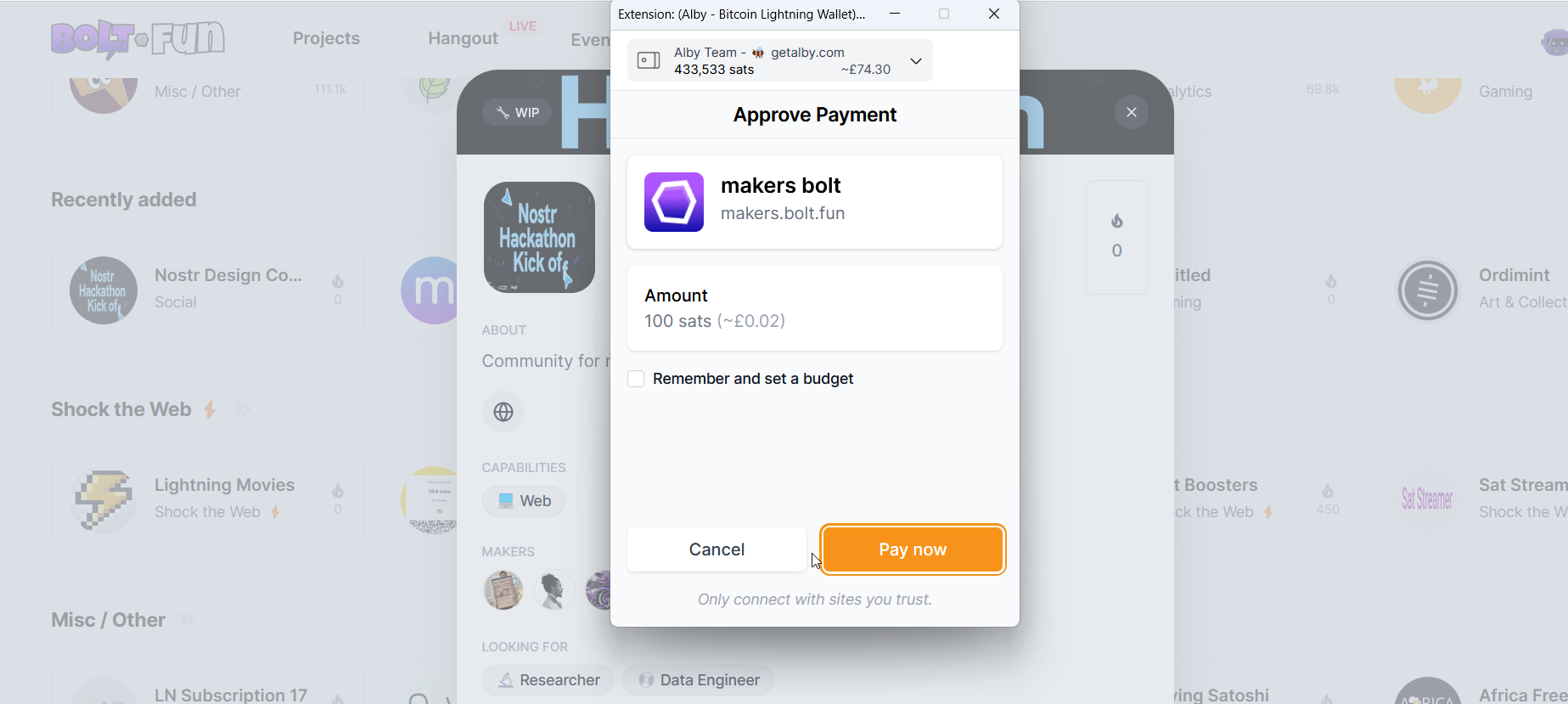
<figure><img src="https://content.gitbook.com/content/iXQV5vKQhxotviCfaO7L/blobs/WzsMBWGUXmkf2pBFxXAf/firefox_2iNfCWVhZk.png" alt=""><figcaption></figcaption></figure>

To avoid these requests you can create an allowance by checking the box in the prompt window. You will then have the chance to choose the budget for this website. When you click on confirm you pay the displayed amount and activate the allowance.

<figure><img src="https://content.gitbook.com/content/iXQV5vKQhxotviCfaO7L/blobs/ez0JKRjV9NOTegxqAp5L/ShareX_cL994NvF25.png" alt=""><figcaption></figcaption></figure>

Now we can pay again with one click without an additional confirmation as long as we are within the set budget.

<figure><img src="https://content.gitbook.com/content/iXQV5vKQhxotviCfaO7L/blobs/x0D8pQD9NNP3A3SmncpN/firefox_yF7fvcgFkK.png" alt=""><figcaption></figcaption></figure>

To check your active allowances you can open the extension window and see how much of it you have already spent..

<figure><img src="https://content.gitbook.com/content/iXQV5vKQhxotviCfaO7L/blobs/vY3Dz3rkKo74KHKDxjqC/firefox_2hOOwPUQzg.png" alt=""><figcaption></figcaption></figure>

..or you can go to '**Connected Sites**' in the Settings extension window.

<figure><img src="https://content.gitbook.com/content/iXQV5vKQhxotviCfaO7L/blobs/P2UcAGc27t9DBPA6jdFp/Screenshot%2010-19-2024%2000.44.56.png" alt=""><figcaption></figcaption></figure>

Here, you see all websites that we granted access to your wallets. You will also see all active allowances and what budget is left per website.

<figure><img src="https://content.gitbook.com/content/iXQV5vKQhxotviCfaO7L/blobs/GVy2N6Cx181b7XsexDKr/mA5iRTDetd.png" alt=""><figcaption></figcaption></figure>

By clicking on one of the websites you will see the site-specific transaction history

<figure><img src="https://content.gitbook.com/content/iXQV5vKQhxotviCfaO7L/blobs/P1lwMSwUN3LcW8YP0xPs/chrome_matuC8N6LV.png" alt=""><figcaption></figcaption></figure>

By clicking on the gearwheel you can now set a new budget. The new budget overwrites the old one and starts at 0 sat used.

<figure><img src="https://content.gitbook.com/content/iXQV5vKQhxotviCfaO7L/blobs/zGkdsaKZc77f4jUfz8lb/Mbg6bnU6fQ.png" alt=""><figcaption></figcaption></figure>

<figure><img src="https://content.gitbook.com/content/iXQV5vKQhxotviCfaO7L/blobs/EtzyVbT28IuF3R2GcETI/6X04jg7uux.png" alt=""><figcaption></figcaption></figure>


# Send and receive bitcoin

This page shows you how to send and receive bitcoin with Alby

## Send bitcoin

#### Step 1: Open Alby and click on 'Send'

<figure><img src="https://content.gitbook.com/content/iXQV5vKQhxotviCfaO7L/blobs/Si84twjWvaNQ5EETHifV/Screenshot%2010-19-2024%2000.47.31.png" alt=""><figcaption></figcaption></figure>

#### Step 2a: Insert the destination of your payment into the 'Lightning Invoice' field

<figure><img src="https://content.gitbook.com/content/iXQV5vKQhxotviCfaO7L/blobs/XUiGAnUFNJi5JiK7CsOK/ww22QB00aN.png" alt=""><figcaption></figcaption></figure>

* You can paste an invoice, LNURL or a Lightning Address into the field.
* Click on "Continue" to proceed

#### Or step 2b: Scan a QR code or paste a lightning invoice to add the destination of your payment

To scan a QR code, click on the QR code icon first

<figure><img src="https://content.gitbook.com/content/iXQV5vKQhxotviCfaO7L/blobs/TOMuyLL7RjozblJ7SRCt/lcfbRnxe7M.png" alt=""><figcaption></figcaption></figure>

Start Scanning

<figure><img src="https://content.gitbook.com/content/iXQV5vKQhxotviCfaO7L/blobs/tnG3sWt2NPEU8jHoCLGo/C5wD6jdjLb.png" alt=""><figcaption></figcaption></figure>

Make sure you have granted permission to your camera.

Alternatively, you can also copy and paste a lightning invoice in the field above.

#### **Step 3: Fill in payment details**

* Amount in satoshi or press one of the shortcut buttons
* Add an optional comment (That is a great way to say thank you or include another message to the payment)

Click on 'More' and you have the option to add your name and email. (This is optional)

<figure><img src="https://content.gitbook.com/content/iXQV5vKQhxotviCfaO7L/blobs/6SLHPAN3bF1sMOgIqW1y/0oaoo5MkOY.png" alt=""><figcaption></figcaption></figure>

#### **Step 4: Scroll down and click on 'Confirm'**

<figure><img src="https://content.gitbook.com/content/iXQV5vKQhxotviCfaO7L/blobs/8FHJH82KiaorFUgECVAm/0oaoo5MkOY.png" alt=""><figcaption></figcaption></figure>

## Receive bitcoin

#### Step 1: Open Alby and click on 'Receive'

<figure><img src="https://content.gitbook.com/content/iXQV5vKQhxotviCfaO7L/blobs/qV4PA8Gge9HDBGQzmRmR/smruTDfkh9.png" alt=""><figcaption></figcaption></figure>

#### Step 2: Enter payment details and click 'Create Invoice'&#x20;

<figure><img src="https://content.gitbook.com/content/iXQV5vKQhxotviCfaO7L/blobs/0rUe8PgeOo2kJcW3aLYG/Mt1TrR5Lw1.png" alt=""><figcaption></figcaption></figure>

* The "Description" field is optional but helpful to assign a payment to a sender

#### Step 3: Copy invoice and share it with the sender

* once the invoice is paid and you received the amount you will see a confetti animation in the window of the extension
* but you do not have to wait until then; your balance will show the updated amount.

<figure><img src="https://content.gitbook.com/content/iXQV5vKQhxotviCfaO7L/blobs/OXT2kKNyCrXo5gzwWP2H/LhVgy6d3r8.png" alt=""><figcaption></figcaption></figure>


# Manage connected websites

Before using Alby on a website, Alby always asks if you want to grant the website access to your account. Here’s how you can manage website permissions from the website list within Alby.

## Manage permissions on sites

{% embed url="<https://demos.getalby.com/demo/cm0wovgn400n7hdob17ir35fa>" %}

***

## Delete a connected website

#### Step 1: Open Alby and **select 'Connected sites' from the drop-down menu**

To navigate to the place where you can delete an active website, open the extension and select “Connected sites” from the drop-down menu in the top left corner.

<figure><img src="https://content.gitbook.com/content/iXQV5vKQhxotviCfaO7L/blobs/24w0efVd5tMB5APWRgwi/CwVV3zmgGh.png" alt="" width="188"><figcaption></figcaption></figure>

#### Step 2: Select the website you to delete **by clicking on '>'**

<figure><img src="https://content.gitbook.com/content/iXQV5vKQhxotviCfaO7L/blobs/uOHNfY0YBCXAOjAFe0jr/firefox_KvT1TynGxR.png" alt=""><figcaption></figcaption></figure>

#### **Step 3: Click on '**⚙' **and delete website from the list**

By clicking on the gearwheel you can revoke access to that specific website by deleting it from the list.

<figure><img src="https://content.gitbook.com/content/iXQV5vKQhxotviCfaO7L/blobs/hJvIV4piy9Qkq1bUGx6C/firefox_nbcI3bST4V.png" alt=""><figcaption></figcaption></figure>


# Master Key

The Master Key allows you to interact with various protocols such as: Nostr, Bitcoin on-chain, Liquid or LNURL-Auth.

### How to generate a new Master Key and how to import an existing Master key

{% hint style="info" %}
You can generate one Master Key for each wallet in the Alby Browser Extension
{% endhint %}

#### **Step 1**: **Open the Alby Browser Extension, select the relevant account and click on the settings symbol**

<figure><img src="https://3493680727-files.gitbook.io/~/files/v0/b/gitbook-x-prod.appspot.com/o/spaces%2FiXQV5vKQhxotviCfaO7L%2Fuploads%2F6FdlD6sSrJ57HhaPnuYR%2F9XnYl1se87.png?alt=media&#x26;token=2c87546f-d86f-4f7b-986c-12b0616fdf6a" alt=""><figcaption></figcaption></figure>

#### **Step 2: Here you can generate a new Master Key or import your existing one**

<figure><img src="https://content.gitbook.com/content/iXQV5vKQhxotviCfaO7L/blobs/eEmvh5PBOwAvpe31M782/VfdlrHrnyj.png" alt=""><figcaption></figcaption></figure>

#### **Step 2a: To Create or add a Nostr private key, click on Nostr Settings**

<figure><img src="https://content.gitbook.com/content/iXQV5vKQhxotviCfaO7L/blobs/MRPg8BTE454SHWdbLtF8/tEwTM97MLG.png" alt=""><figcaption></figcaption></figure>

For more information about how to create, import and manage your Nostr keys visit:

{% embed url="<https://guides.getalby.com/overall-guide/alby-browser-extension/features/nostr>" %}

#### **Step 2b: To use the Master Key for logging into lightning-powered app via LNURL Auth), switch the toggle**

<figure><img src="https://content.gitbook.com/content/iXQV5vKQhxotviCfaO7L/blobs/FRn75xTaaYVjRFNEWzd0/86meoFzIij.png" alt=""><figcaption></figcaption></figure>

{% hint style="warning" %}
**Don't forget to backup your Master Key. It cannot be recovered in case it's lost. You will find the 12 words recovery phrase of your Master Key by following step 2.**
{% endhint %}

<figure><img src="https://content.gitbook.com/content/iXQV5vKQhxotviCfaO7L/blobs/uUCW7Yc9TDPYdQvJU1Yy/image.png" alt=""><figcaption></figcaption></figure>

### How to access the recovery phrase of your Master Key

Perform step 1 from above: Open the Alby Browser Extension, select the relevant account and click on 'Account settings'. You will find a button to view your recovery phrase.

<figure><img src="https://content.gitbook.com/content/iXQV5vKQhxotviCfaO7L/blobs/GEoaWp3oTqwI1rwZkgdN/oEIbbwyOej.png" alt=""><figcaption></figcaption></figure>


# Nostr

Nostr is a simple and open protocol that aims to create censorship-resistant social networks and works with cryptographic keys. Use Alby to securely manage your Nostr keys.

## Getting started

With Alby you securely manage your Nostr account keys and safely use Nostr web clients. Your private keys only live in Alby and will never be shared. &#x20;

Every account in Alby can have an individual Nostr key. This allows you to manage multiple Nostr keys.

{% hint style="info" %}
It is important to know that your Nostr keys are stored only locally on your computer.&#x20;
{% endhint %}

## View and edit your Nostr keys

#### **Step 1**: **Open the Alby Browser Extension, select the relevant wallet and click on 'Wallet settings'**

<figure><img src="https://content.gitbook.com/content/iXQV5vKQhxotviCfaO7L/blobs/lnnntebLPa5FngW2q0Wg/8HBuo577Jv.png" alt=""><figcaption></figcaption></figure>

#### **Step 2: Here you can view and edit your Nostr Key if you click on 'Nostr Settings'**

<figure><img src="https://content.gitbook.com/content/iXQV5vKQhxotviCfaO7L/blobs/bSFSq9j0GO8YXpw7dAv4/image.png" alt=""><figcaption></figcaption></figure>

## 🔑 Importing or Generating your keys

You can either import an existing key or generate a new private Nostr key. The newly generated Nostr key is derived from your Master Key in the Alby Browser Extension.

#### **Step 1: Navigate to the relevant wallet in the Browser Extension and click on 'Nostr Settings'**

<figure><img src="https://3493680727-files.gitbook.io/~/files/v0/b/gitbook-x-prod.appspot.com/o/spaces%2FiXQV5vKQhxotviCfaO7L%2Fuploads%2FfhUCoIUlcZWxHOKSrPYf%2Fimage.png?alt=media&#x26;token=9b2c642c-11e1-4fee-8b3f-d36fbb861b31" alt=""><figcaption></figcaption></figure>

#### **Step 2: Navigate to the relevant wallet in the Browser Extension and click on 'Nostr Settings'**

<figure><img src="https://content.gitbook.com/content/iXQV5vKQhxotviCfaO7L/blobs/JUyOQQeKXNp6hKlI66Th/D8KIB3hWSo.png" alt=""><figcaption></figcaption></figure>

Now you can import an existing Nostr private key by pasting it in the relevant field or generate a new key by creating a Master Key. If you already created a Master Key before, the fields are automatically filled with your new keys.

&#x20;                                              ![](https://content.gitbook.com/content/iXQV5vKQhxotviCfaO7L/blobs/i7qio8wPF817SmzgfKrt/image.png)

**Congrats! You successfully created your Nostr keys.**&#x20;

{% hint style="info" %}
If you already store a Nostr key in one account, it won't be overwritten by a new Master Key.

Make sure to always have a backup of your key!
{% endhint %}

**What's next?** Try out some of these Nostr apps and enjoy seamless browsing with your very own identity across different apps: <https://www.nostrapps.com/>&#x20;

## 🪄 Getting a Nostr NIP05 identifier

With an getAlby.com account and lightning address (e.g. <you@getalby.com>) you can also configure your NIP05 Nostr identifier. NIP-05 is a verification method for your Nostr account across all clients and friends can then find you with that address instead of the public key. Here is how:

{% content-ref url="<https://app.gitbook.com/s/WKqqWqKEAO8XHGTjzhEl/features/nostr-identifier>" %}
[Nostr Identifier](https://app.gitbook.com/s/WKqqWqKEAO8XHGTjzhEl/features/nostr-identifier)
{% endcontent-ref %}

## 📖 Further resources

* [nostr-resources.com](https://nostr-resources.com/)
* [nostr.how](https://nostr.how/)
* [nostr.directory](https://www.nostr.directory/)

## Nostr web clients

There are various different Nostr clients out there and with your Nostr identity managed in the Alby extension you can easily use all of them. No signup or similar needed. For example try these:

* [Coracle](https://coracle.social/notes)
* [Jumble](https://jumble.social/)
* [Primal](https://primal.net/home)


# Liquid

The Liquid Network is a Bitcoin sidechain. Use Alby to manage your liquid private keys and interact with the Liquid Network.

## Getting started

Your Liquid private key is securely derived from the Master Key enbling you to safely use supporting Liquid web clients. Your private keys only live in Alby and will never be shared. Liquid clients only request permissions to for example sign events.&#x20;

To get started, make sure you have a Master Key.

{% embed url="<https://guides.getalby.com/overall-guide/alby-browser-extension/features/master-key>" %}

## How to send Liquid transactions

The Alby Browser Extension lets you use Liquid web clients to hold, send, and receive Liquid assets (e.g. L-BTC) on the Liquid network. When sending payments, the web app asks you to sign a transaction, while your Liquid key always remains stored locally in your browser. Transactions on the Liquid network are enabled through Partially Signed Elements Transactions (PSETs) with the Alby Extension.

## 📖 Further resources

* [Liquid official site](https://blockstream.com/liquid/)
* [PSET: Constructing Confidential Transactions](https://medium.com/blockstream/pset-constructing-confidential-transactions-437109bb4ac5)

## Liquid web clients

* [Alby Liquid Wallet](https://louisinger.github.io/alby-liquid-wallet/) (beta)


# HOLD Payments

HOLD (or often called "HODL") invoices are invoices that do not need to be settled immediately after they have been paid.

## How it Works

An invoice is a smart contract that must be settled before the receiver can access the funds of the invoice. This is done by the receiver returning the preimage (proof of payment) to the sender. However, the receiver can choose to delay releasing the preimage, or completely reject the payment. Some situations where HOLD invoices are useful are:

* Games where you only pay if you lose, but lock up your funds in advance to ensure the payment is made
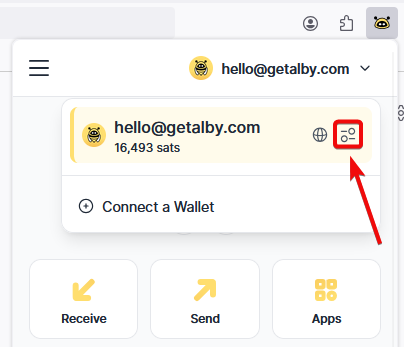
* A bond which you only pay if you break a contract (similar to a rental deposit)
* P2P trading escrows

## Alby HOLD Payments

Please note that HOLD payments will not appear in the transaction list while they are pending or canceled (i.e. in the HOLD phase). The payment amount is deducted from your balance during the HOLD phase and returned afterward.

However, if you completed the payment successfully using the Alby Browser Extension, you will see the specific HOLD payment listed among other payments for that connected site (e.g. RoboSats).
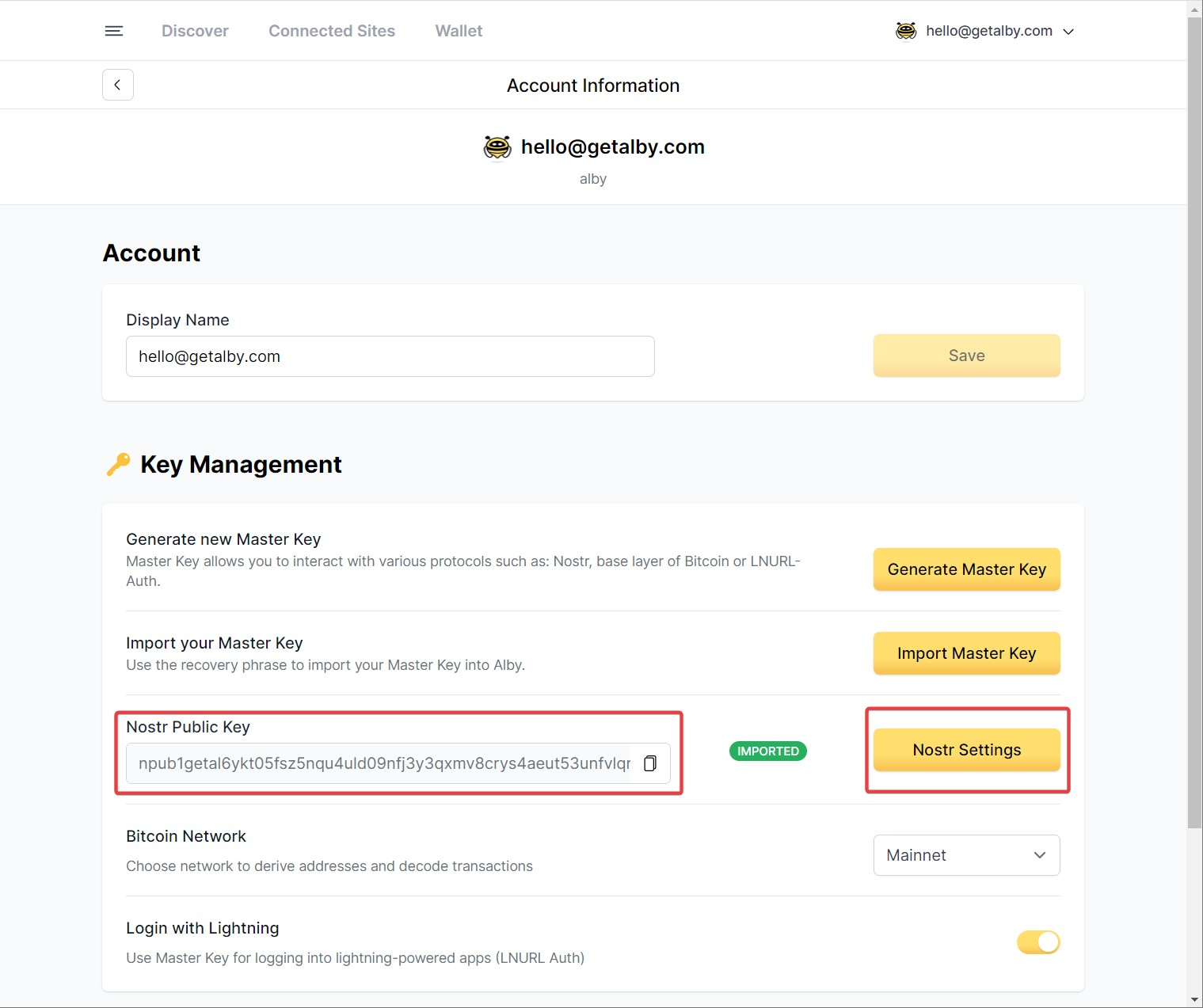
## Lightning apps that use HOLD invoices

* [Robosats](https://learn.robosats.com/)

## 📖 Further resources

* [How to build conditional payment logic into your app](https://getalby.com/blog/build-conditional-payment-logic-into-your-app)


# Link wallet

To connect bitcoin lightning wallets and nodes to the Alby extension follow these steps:<br>

**Step 1:** Click on the account selector and on '**+ Add**'
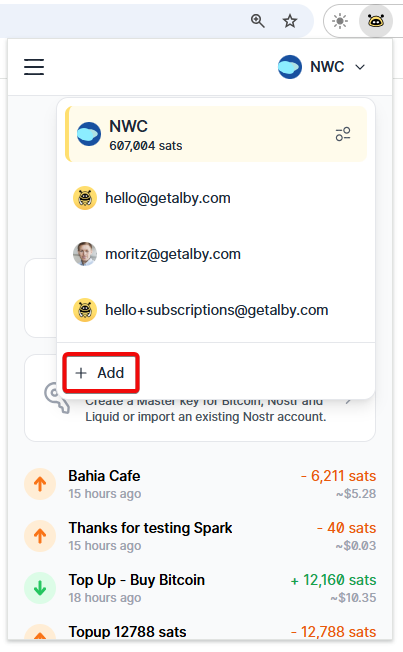
<figure><img src="https://content.gitbook.com/content/iXQV5vKQhxotviCfaO7L/blobs/4H6WhgipKh0b7RNiF5Jg/Gym3NUEDjp.png" alt=""><figcaption></figcaption></figure>

**Step 2:** Click "Connect with Alby" or "Connect" other wallets

<figure><img src="https://content.gitbook.com/content/iXQV5vKQhxotviCfaO7L/blobs/VfeVtFni8otq0yNteDgg/image.png" alt=""><figcaption></figcaption></figure>


# Alby web Account

Connect your Alby web Account to the Alby Browser Extension

You have downloaded the Alby browser extension and want to spend the sats that are accessible from your Alby web Account ( [getalby.com/dashboard](https://getalby.com/dashboard) ). &#x20;

#### **Step 1: Click on the plugin icon, open the wallet menu, then click on " + Add "**

<figure><img src="https://content.gitbook.com/content/iXQV5vKQhxotviCfaO7L/blobs/gDhwblkR4F8khR7isghf/Screenshot%20from%202025-01-15%2007-14-46.png" alt=""><figcaption><p>Click on "+ Add" to add a new wallet to the browser extension</p></figcaption></figure>

#### Step 2: Click on **"Continue with Alby Account**"

<figure><img src="https://content.gitbook.com/content/iXQV5vKQhxotviCfaO7L/blobs/ayymTNHdVd8mrNMxWqpK/Screenshot%20from%202025-01-15%2007-19-05.png" alt=""><figcaption></figcaption></figure>

#### **Step 3:** Log in to your "Alby web Account"

<figure><img src="https://content.gitbook.com/content/iXQV5vKQhxotviCfaO7L/blobs/URiusymVuclO6clZWEYk/Screenshot%20from%202025-01-15%2007-24-06.png" alt=""><figcaption></figcaption></figure>

* Click on ‘Log in to connect’
* Enter the password or request an one-time passcode to login, which will be sent to your email address.&#x20;
* This will load the wallet linked to your Alby web Account. You are now connected and can start spending your bitcoin on these websites: <https://getalby.com/discover>

***

**Your Alby web Account must have a wallet connected to in order to send and receive bitcoin**. You can connect an Alby Hub or any other wallet with a NWC connection. Click here for details:

{% content-ref url="<https://app.gitbook.com/s/WKqqWqKEAO8XHGTjzhEl/link-wallet>" %}
[Link wallet](https://app.gitbook.com/s/WKqqWqKEAO8XHGTjzhEl/link-wallet)
{% endcontent-ref %}


# Umbrel

Connect Umbrel to the Alby Browser Extension

## Use Alby Hub to link your Umbrel to the Alby Browser Extension

#### **Step 1: Install Alby Hub on your Umbrel**

<figure><img src="https://content.gitbook.com/content/iXQV5vKQhxotviCfaO7L/blobs/viWHPFAQY4dFhbVVLagq/Screenshot%20from%202025-01-15%2007-38-34.png" alt=""><figcaption><p>Go to the Umbrel App Store, search for "Alby Hub", Install it.</p></figcaption></figure>

#### **Step 2: Setup Alby Hub**

You can either use the Lightning Node app (LND), if you have it installed, or install Alby Hub with its embedded Lightning node (LDK).

{% hint style="info" %}
The embedded node is more resource-efficient and provides full channel backups without closing them, even if your Umbrel device fails.
{% endhint %}

If you already have the Lightning Node app installed and want to use it, Alby Hub will display the option **“Get Started (LND)”** during onboarding. Click it to continue.

<figure><img src="https://content.gitbook.com/content/iXQV5vKQhxotviCfaO7L/blobs/UGgFxnLjrxPZytmDx1Y4/Screenshot%20from%202025-01-15%2007-48-19.png" alt="" width="375"><figcaption></figcaption></figure>

If you prefer to use Alby Hub with the embedded LDK node, follow these steps:

1. Click **“Advanced Setup”**
2. Connect your Alby account or choose **“Maybe Later”**
3. Click **“Create Wallet with Custom Node”**
4. Set a password
5. Select the **“LDK”** option

Afterward, you’ll need to open a channel with Alby Hub. For detailed instructions, please refer to this guide:

{% content-ref url="<https://app.gitbook.com/s/WIUBf3ZZaBGu2ee6Y8lU/getting-started>" %}
[Getting Started](https://app.gitbook.com/s/WIUBf3ZZaBGu2ee6Y8lU/getting-started)
{% endcontent-ref %}

#### **Step 3: Link Alby Hub to the Alby Browser Extension**

Open Alby Hub → **Connections** → find and click on the **Alby Browser Extension** → click **“Connect to Alby Extension”** -> Follow the instructions -> Copy the **NWC connection secret**.

{% content-ref url="alby-hub-via-nwc-link" %}
[alby-hub-via-nwc-link](https://guides.getalby.com/user-guide/link-wallet/alby-hub-via-nwc-link)
{% endcontent-ref %}

🎉 Congratulations! You have successfully linked your Umbrel via Alby Hub to the Alby Browser Extension.


# Alby Hub via NWC link

Connect your Alby Hub directly to the browser extension

You can link your Alby Hub directly to the Alby Browser Extension using an NWC connection string.

#### Step 1: Add a connection in Alby Hub

Open Alby Hub → **Connections** → find and click on the **Alby Browser Extension** → click **“Connect to Alby Extension”** -> Follow the instructions -> Copy the **NWC connection secret**.

<figure><img src="https://3493680727-files.gitbook.io/~/files/v0/b/gitbook-x-prod.appspot.com/o/spaces%2FiXQV5vKQhxotviCfaO7L%2Fuploads%2FDVtgN8W29zCWIMSL1bFZ%2Fimage.png?alt=media&#x26;token=fc8d054b-ecbf-4956-981a-e0d1d45a1bba" alt=""><figcaption></figcaption></figure>

#### Step 2: Add a wallet in the browser extension

Click on the browser extension icon, then on the wallets menu, then click on "+ Add"

<figure><img src="https://content.gitbook.com/content/iXQV5vKQhxotviCfaO7L/blobs/gDhwblkR4F8khR7isghf/Screenshot%20from%202025-01-15%2007-14-46.png" alt=""><figcaption><p>Click on "+ Add" to add a new wallet</p></figcaption></figure>

#### Step 3: Choose "Bring Your Own Wallet"

We will not use the Alby web Account for this connection, instead, we will by-pass it and create a direct link to your Alby Hub. for this you have to click on "Bring Your Own Wallet" -> "Find Your Wallet".

<figure><img src="https://content.gitbook.com/content/iXQV5vKQhxotviCfaO7L/blobs/ayymTNHdVd8mrNMxWqpK/Screenshot%20from%202025-01-15%2007-19-05.png" alt="" width="375"><figcaption><p>Click on "Find Your Wallet"</p></figcaption></figure>

#### Step 4: Select "Nostr Wallet Connect" (NWC)

Finally choose the "Nostr Wallet Connect" icon and paste the NWC connection secret you created with your Alby Hub.&#x20;

{% tabs %}
{% tab title="Choose Nostr Wallet Connect" %}

<figure><img src="https://content.gitbook.com/content/iXQV5vKQhxotviCfaO7L/blobs/ju7QzO8TbIT7wYCgcR3U/Screenshot%20from%202025-01-15%2008-20-58.png" alt=""><figcaption><p>Choose "Nostr Wallet Connect"</p></figcaption></figure>
{% endtab %}

{% tab title="Paste the NWC connection secret" %}

<figure><img src="https://content.gitbook.com/content/iXQV5vKQhxotviCfaO7L/blobs/AzQBZItKLjAoImDjjxz8/Screenshot%20from%202025-01-15%2008-23-05.png" alt=""><figcaption><p>Past here the NWC connection secret you created with Alby Hub</p></figcaption></figure>
{% endtab %}
{% endtabs %}

***

**Congratulations!** 🎉 You've successfully linked your Alby Hub directly to your Alby Browser Extension.\
\
Just remember, your Alby web account provides you with a lightning address, which is why it's a good idea to use the standard connection method. Simply choose "[Continue with your Alby web Account](https://guides.getalby.com/user-guide/link-wallet/alby-web-account)" after clicking "+ Add." 🎊


# LND

Connect you LND node via NWC (Nostr Wallet Connect) to the Alby Browser Extension

### Use Alby Hub to link your Umbrel to the Alby Browser Extension

#### **Step 1: Install Alby Hub**

{% content-ref url="<https://app.gitbook.com/s/WIUBf3ZZaBGu2ee6Y8lU/alby-hub-flavors>" %}
[Alby Hub flavors](https://app.gitbook.com/s/WIUBf3ZZaBGu2ee6Y8lU/alby-hub-flavors)
{% endcontent-ref %}

#### **Step 2: Connect your LND node to Alby Hub**

You just installed Alby Hub. Now start the app. During the onboarding&#x20;

1. select **“Advanced Setup”.**

<figure><img src="https://3493680727-files.gitbook.io/~/files/v0/b/gitbook-x-prod.appspot.com/o/spaces%2FiXQV5vKQhxotviCfaO7L%2Fuploads%2FHYe2HWqfrtYlPDNczZVk%2Fimage.png?alt=media&#x26;token=a5c4b902-dfcd-420a-a986-7fc1ed24234c" alt=""><figcaption></figcaption></figure>

2. Select **LND**
3. Choose an **unlock password**
4. Provide the required credentials (e.g. macaroon) to finalize the connection

#### **Step 3: Finish the setup of Alby Hub**

{% content-ref url="<https://app.gitbook.com/s/WIUBf3ZZaBGu2ee6Y8lU/getting-started>" %}
[Getting Started](https://app.gitbook.com/s/WIUBf3ZZaBGu2ee6Y8lU/getting-started)
{% endcontent-ref %}

#### **Step 4: Link Alby Hub powered by LND to the Alby Browser Extension**

Open Alby Hub → **Connections** → find and click on the **Alby Browser Extension** → click **“Connect to Alby Extension”** -> Follow the instructions.

{% content-ref url="<https://app.gitbook.com/s/WIUBf3ZZaBGu2ee6Y8lU/app-connections/app-store>" %}
[App Store](https://app.gitbook.com/s/WIUBf3ZZaBGu2ee6Y8lU/app-connections/app-store)
{% endcontent-ref %}

🎉 **Congratulations!** You have successfully linked your LND node via Alby Hub to the Alby Browser Extension.


# No limits - quick & easy

Use the Alby Browser Extension without limits - quick & easy

You can use the Alby Browser Extension without limits in a non-custodial way. \
This is the quick & easy way

**Step 1:** [Sign up](https://voltage.cloud/nodes/) for a Voltage Lightning account and create a lightning node.

![](https://content.gitbook.com/content/iXQV5vKQhxotviCfaO7L/blobs/q3bFlj2vgbWKhDhFRFGD/image.png)

**Step 2:** In Voltage, click the "Connect" tab and in the dropdown pick "Alby". Then follow the instructions to create a new Alby account connected to your Lightning node.

<img src="https://content.gitbook.com/content/iXQV5vKQhxotviCfaO7L/blobs/g4thn3d5I7pYY0wV6AeI/image.png" alt="" data-size="original">

**1)** [Install](https://getalby.com/) the Alby Browser Extension in your browser and add your new Voltage node

**2)** Click "Connect" to "Other Wallets"&#x20;

<figure><img src="https://content.gitbook.com/content/iXQV5vKQhxotviCfaO7L/blobs/gcruBKEH04ZjeNKTTVlt/qe8P4YdcUl.png" alt=""><figcaption></figcaption></figure>

**3)** Select LND

<figure><img src="https://content.gitbook.com/content/iXQV5vKQhxotviCfaO7L/blobs/dkgkwnpPSxuh4evIgcTv/bYVD4rAydE.png" alt=""><figcaption></figcaption></figure>

&#x20;**4)** Enter the credentials provided by Voltage

<figure><img src="https://content.gitbook.com/content/iXQV5vKQhxotviCfaO7L/blobs/mKTPeEXzymiZhTpOso2N/Group%201000001138.png" alt=""><figcaption></figcaption></figure>

Click on "Continue". **Congrats** you successfully connected your own to the Alby Extension 🚀&#x20;

<figure><img src="https://content.gitbook.com/content/iXQV5vKQhxotviCfaO7L/blobs/BB3WB7hRrxQG8sDdEYHH/NqPg8qRbhn.png" alt=""><figcaption></figcaption></figure>

**Step 4:** If you don't have a lightning channel yet, you can follow [**this setup wizard**](https://getalby.github.io/lnd-onboarding/) to fund your node and open your first channel to send and receive bitcoin payments.&#x20;

**Congrats** you are almost ready to spend from your own node with the Alby Extension 🚀

If you need help, send us an [email](mailto:support@getalby.com) anytime!&#x20;


# Discover apps

Visit https\://getalby.com/discover for the most recent overview of bitcoin apps

Alby provides a dedicated selection of bitcoin web apps within the browser extension

#### Step 1: Open the Alby Browser Extension and click on the menu button

<figure><img src="https://content.gitbook.com/content/iXQV5vKQhxotviCfaO7L/blobs/mFkeqHVvv3Z6fURh54ON/Screenshot%2010-24-2024%2017.34.33.png" alt="" width="192"><figcaption></figcaption></figure>

#### &#x20;Step 2: Select "Discover Apps"

<figure><img src="https://content.gitbook.com/content/iXQV5vKQhxotviCfaO7L/blobs/2WZhhZFcVrXE6BbEKpVe/Screenshot%2010-24-2024%2017.36.03.png" alt=""><figcaption></figcaption></figure>

#### **Step 3: Scroll down and discover Bitcoin & Nostr web apps**

<figure><img src="https://content.gitbook.com/content/iXQV5vKQhxotviCfaO7L/blobs/MQNmUVLZVcuKAm4g3Yh4/Screenshot%2010-24-2024%2017.39.52.png" alt=""><figcaption></figcaption></figure>


# Debugging

Alby is a client-side application. There is no connection to a server that collects logs or allows to perform remote diagnosis. Hence, we rely on the cooperation with users to identify reasons for bugs.&#x20;

Click on the tab below to start:

{% embed url="<https://guides.getalby.com/user-guide/v/alby-account-and-browser-extension/alby-browser-extension/debugging/alby-on-google-chrome>" %}

{% embed url="<https://guides.getalby.com/user-guide/v/alby-account-and-browser-extension/alby-browser-extension/debugging/alby-on-mozilla-firefox>" %}

{% embed url="<https://guides.getalby.com/user-guide/v/alby-account-and-browser-extension/alby-browser-extension/debugging/using-alby-nightly-builds>" %}


# Google Chrome

This section guides you to find the relevant data that helps us to debug the Alby browser extension.

#### 1. Step: **Open 'chrome://extensions' in your Chrome Browser**

![](https://lh3.googleusercontent.com/YsrfA6c5PbdztPvR85Hjri8rE972mCgIwRuPUhZTslDih2z5_IYFVmT54cQGiva9RF_tPx5Pce_BQhCHno5NjcZvQN053a6hLggBgWRZ25omZgRICzCprLsF5hKBDDadfw8h8tYytLWftdnCxw)

**2. Step: Switch on developer mode (top right)**

<figure><img src="https://content.gitbook.com/content/iXQV5vKQhxotviCfaO7L/blobs/rwcdYrBdaM13qWXYMbMU/YwBW3yIqov.png" alt=""><figcaption></figcaption></figure>

#### **3. Step: Locate the Alby browser extension and click on 'Errors'**&#x20;

<figure><img src="https://content.gitbook.com/content/iXQV5vKQhxotviCfaO7L/blobs/SMn5vKzQ6TRUmmFZnRWS/iVdlrBIXKf.png" alt=""><figcaption></figcaption></figure>

#### **Unfold the error messages and make a screenshot**

<figure><img src="https://content.gitbook.com/content/iXQV5vKQhxotviCfaO7L/blobs/B6NceTPie8pnUjc68UQY/chrome_LUsSMscQwU.png" alt=""><figcaption></figcaption></figure>

#### **4. Step: Locate the Alby browser extension and click on 'service worker'**

<figure><img src="https://content.gitbook.com/content/iXQV5vKQhxotviCfaO7L/blobs/8o7yFU2PFnIfanbXB1X8/VFclP0j9vL.png" alt=""><figcaption></figcaption></figure>

#### **5. Step:** Navigate to 'Console'. Are there any error messages in red? If yes, make a screenshot.

![](https://lh6.googleusercontent.com/kk2CeDh5s9m69ZXyEGvKRprOep2dH44-iDvBz7imufWq3KFksuf11dV2C7QXpZudnHPSz0o2gIst_mEkH1eUJ1dgCJ3i2YIeVxWzTE40o4ALy-HxMY5i85ZGKvc3UoLaWgMSEd_dwI4iMRgKyA)

#### 6. Step: Navigate to 'Network'. Are there any error messages in red? If yes, make a screenshot.

![](https://lh5.googleusercontent.com/lHwF_UFplgU-23r4UZHBLIm6Opvd_WW6pHQ6W3JvJHpcb5WyAHXYFC1wa4qGTUTTmuNFZFBEQeTMzHuXeVE2x2sx-MH92m4J7vnu-nNNtl9qORIpiM6WGmu6TfMyQlLmhmdX9ou0vlZDvtEhnQ)

#### 7. Step: **Please describe the issue and send your screenshots to** us via the chat widget on support.getalby.com

To speed up replies to your request, please use this form:&#x20;

> **Subject:**&#x20;
>
> **Describe the bug:** \[A clear and concise description of what the bug is.]
>
> **Steps to reproduce the behavior:**
>
> 1. Visit '...'
> 2. Click on '....'
> 3. Scroll down to '....'
> 4. See error
>
> **Expected behavior:** \[A clear and concise description of what you expected to happen.]
>
> **Information about Alby**
>
> * Alby Version: \[e.g. 1.5.0]
> * Alby installed through \[e.g. the browser stores, installed manually]
> * Wallet connected with Alby \[e.g. LND, BlueWallet LNDhub]
>
> **Screenshots (if any)** Add screenshots to help explain your problem.
>
> **Device information \[optional]:**
>
> * OS: \[e.g. Windows]
> * Browser \[e.g. Chrome, Firefox]
> * Browser Version \[e.g. 22]
>
> **Additional context:** \[Add any other additional context about the problem here.]

**Thank you for your collaboration** 🙏.


# Mozilla Firefox

This section guides you to find the relevant data that helps us to debug the Alby browser extension.&#x20;

#### 1. Step: **Open 'about:debugging#/runtime/this-firefox' in your Firefox Browser**

![](https://content.gitbook.com/content/iXQV5vKQhxotviCfaO7L/blobs/2HkaITgK3ME0nrY9Xvb7/image.png)

#### **2. Step: Locate the Alby browser extension in your list and click on 'Inspect'**

![](https://content.gitbook.com/content/iXQV5vKQhxotviCfaO7L/blobs/ASCFqtwpzsUa1MsBsf2a/image.png)

#### **3. Step:** Navigate to “Console”. Are there any error messages? If yes, make a screenshot.

![](https://content.gitbook.com/content/iXQV5vKQhxotviCfaO7L/blobs/KYtHv00AvjvVoRULhR0q/image.png)

#### 4. Step: Navigate to 'Network'. Are there any error messages in red? If yes, make a screenshot.

![](https://content.gitbook.com/content/iXQV5vKQhxotviCfaO7L/blobs/AdY60dXeEKN0nkBiKwZ7/image.png)

#### 5. Step: **Please describe the issue and send your screenshots to** us via the chat widget on support.getalby.com

To speed up replies to your request, please use this form:&#x20;

> **Subject:**&#x20;
>
> **Describe the bug:** \[A clear and concise description of what the bug is.]
>
> **Steps to reproduce the behavior:**
>
> 1. Visit '...'
> 2. Click on '....'
> 3. Scroll down to '....'
> 4. See error
>
> **Expected behavior:** \[A clear and concise description of what you expected to happen.]
>
> **Information about Alby**
>
> * Alby Version: \[e.g. 1.5.0]
> * Alby installed through \[e.g. the browser stores, installed manually]
> * Wallet connected with Alby \[e.g. LND, BlueWallet LNDhub]
>
> **Screenshots (if any)** Add screenshots to help explain your problem.
>
> **Device information \[optional]:**
>
> * OS: \[e.g. Windows]
> * Browser \[e.g. Chrome, Firefox]
> * Browser Version \[e.g. 22]
>
> **Additional context:** \[Add any other additional context about the problem here.]

**Thank you for your collaboration** 🙏.


---

[Next Page](/user-guide/llms-full.txt/1)